Create invoices, quotations, proforma invoices, advance sales, credit notes, and record payments โ the complete sales workflow.
CloudPOS.vu supports two main sales flows:
Create a quotation, then convert directly to a tax invoice. Or create the tax invoice directly.
Create a Proforma Invoice for the layby. Collect payments via Advance Sales. When fully paid, use Complete Sale โ all advances are refunded via SDC and one final Tax Invoice is created.
Each document type has its own number prefix: Q- for quotations, PI- for proforma invoices, AS- for advance sales, INV- for tax invoices, and CCN- for credit notes.
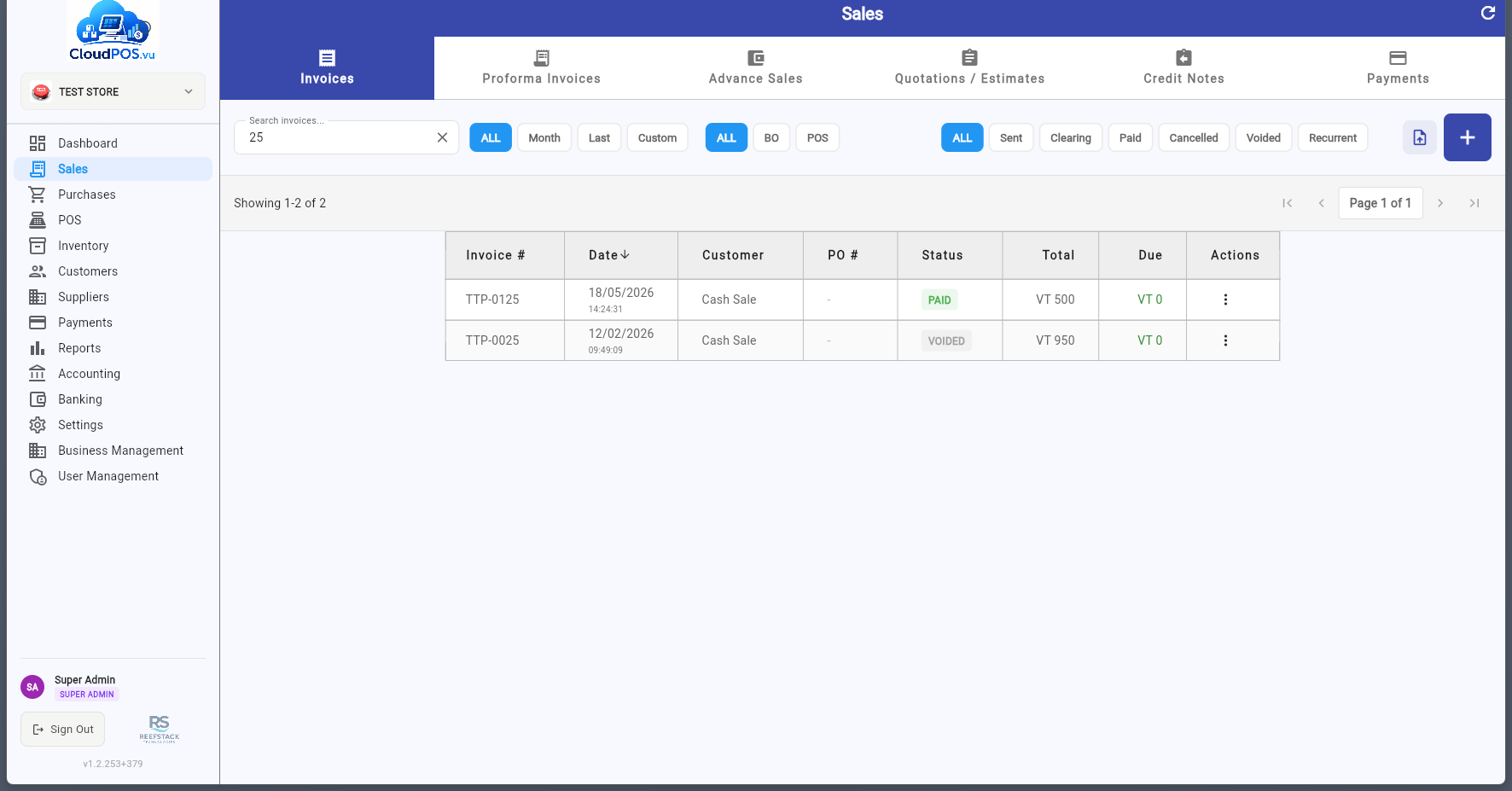
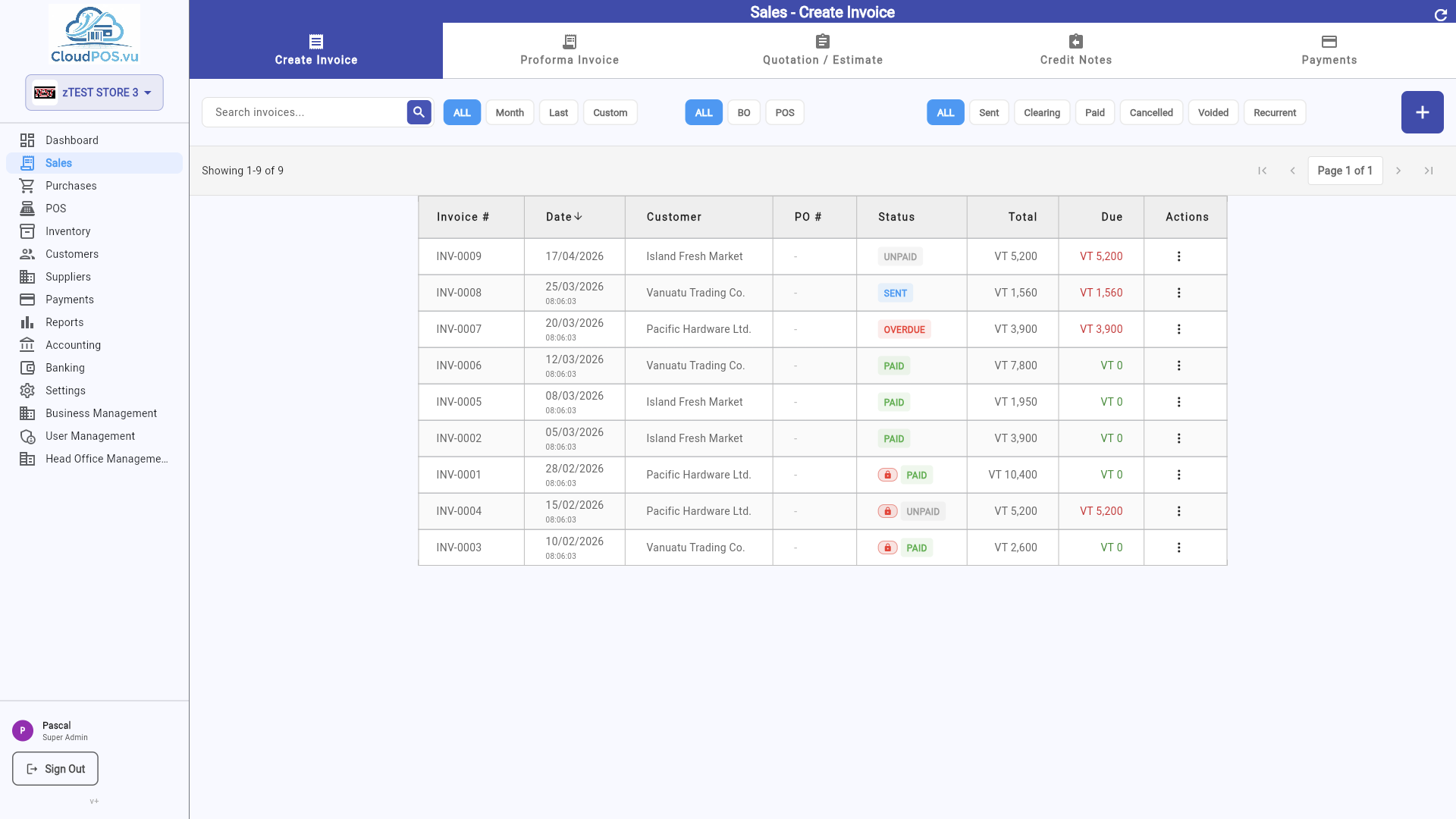
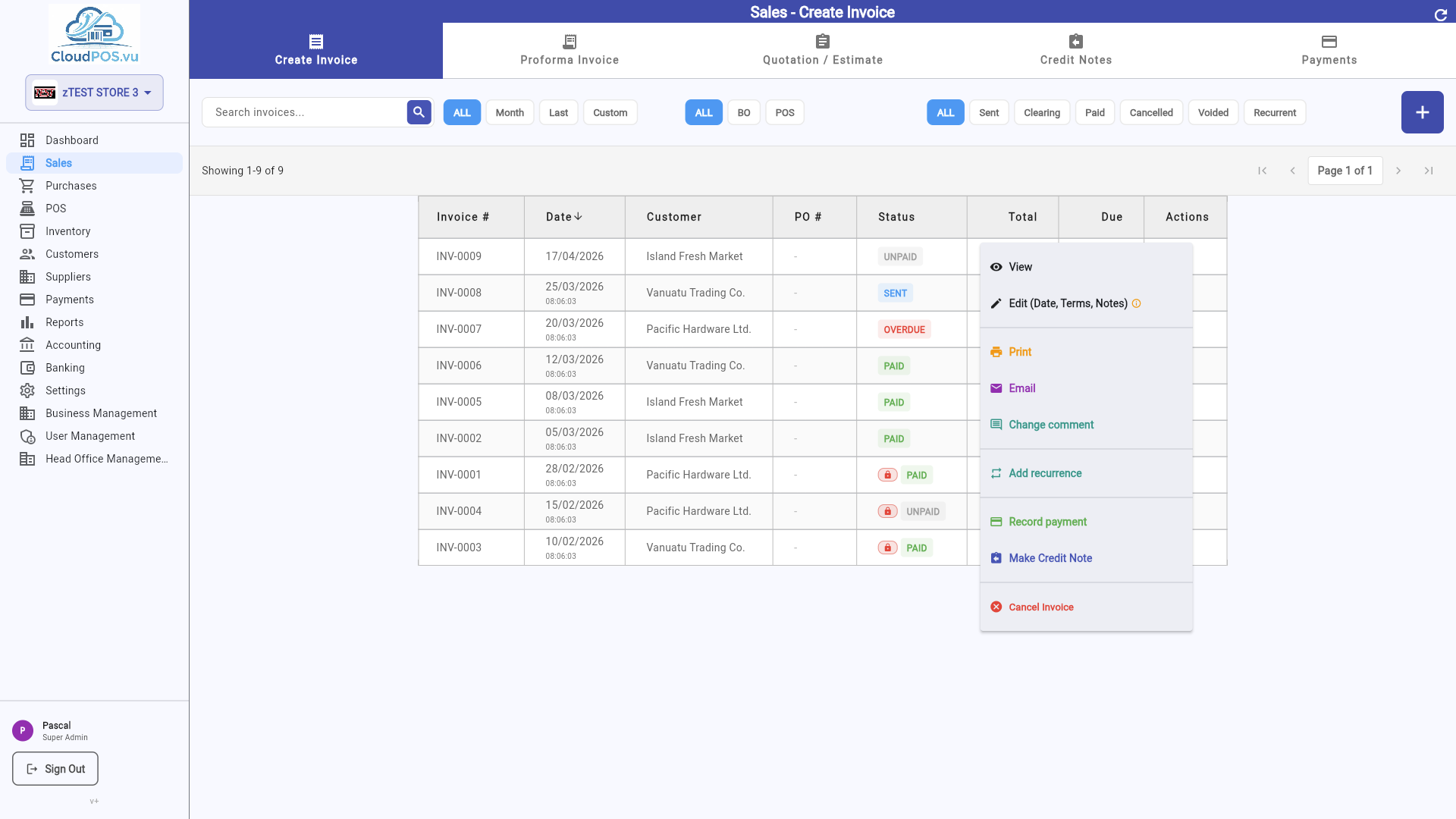
The Invoices tab shows all your tax invoices with their current status. This serves as the electronic journal โ you can search and filter invoices on demand.
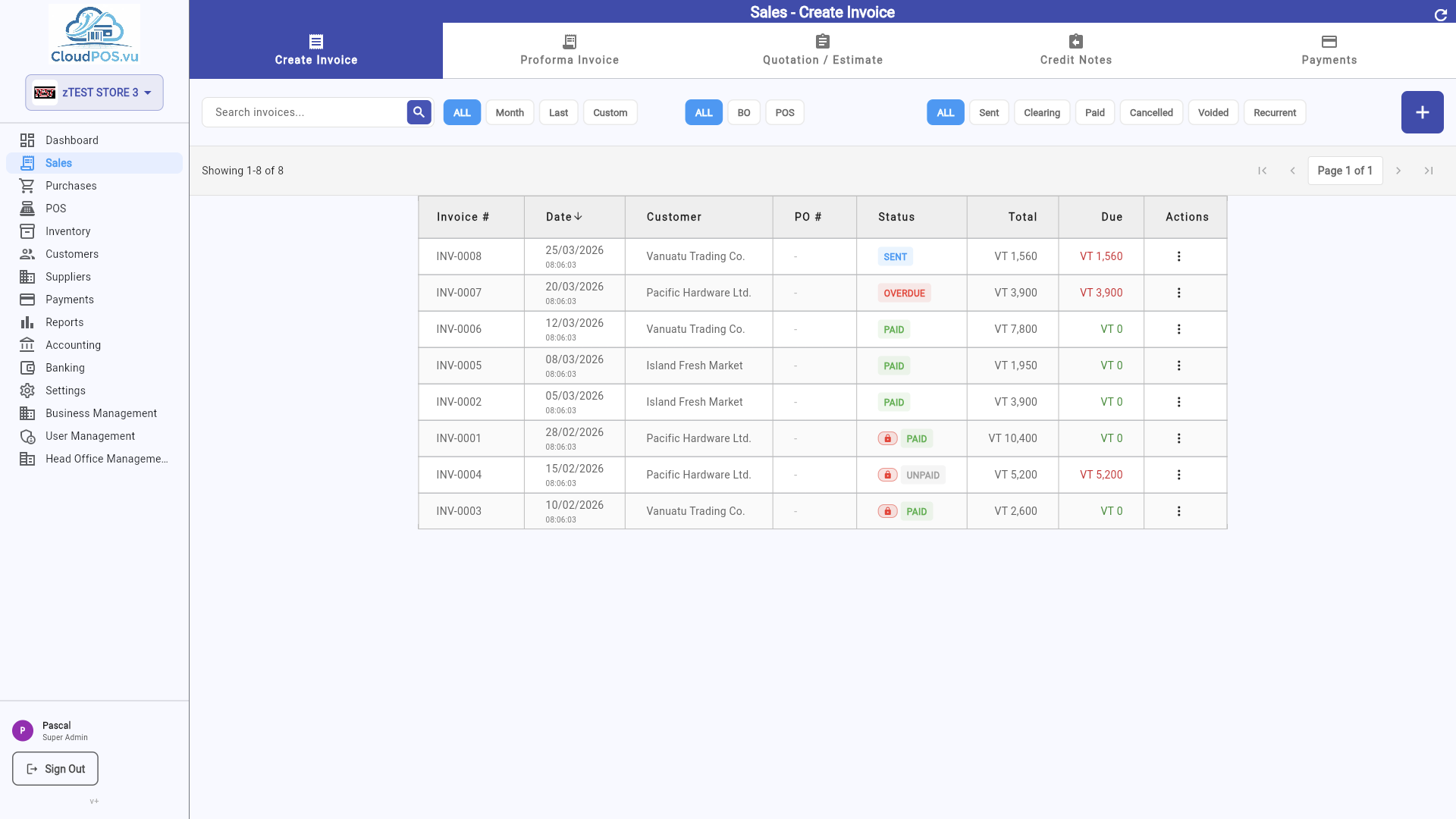
Each row displays the invoice number, customer name, date, total amount, amount paid, balance due, and status. Click any invoice to view its full details. Use the search bar to find specific invoices, or filter by status, date range, or document type.
Invoice issued but not yet paid โ balance due equals total. Actions: Record Payment, Make Credit Note, Send, Print, Email, Cancel.
Invoice has been emailed to the customer โ awaiting payment. Actions: Record Payment, Make Credit Note, Send, Print, Email, Cancel.
Payment received by cheque โ clearing in progress. Automatically changes to Paid once cleared. Actions: Make Credit Note, Print, Email.
Invoice fully paid โ balance is zero. Actions: Payment Information, Cancel Payment (admin only), Make Credit Note, Print, Email.
Computed automatically โ a Sent invoice becomes Overdue after 30 days. Shown with a red badge in the list. Actions: Same as Sent.
Only for unpaid invoices (no payment received). Issues a Normal Refund via SDC, reverses accounting entries, and stores the refund receipt on the same invoice. Cancel is greyed out for paid invoices โ create a Credit Note instead. Blocked when VAT period is locked.
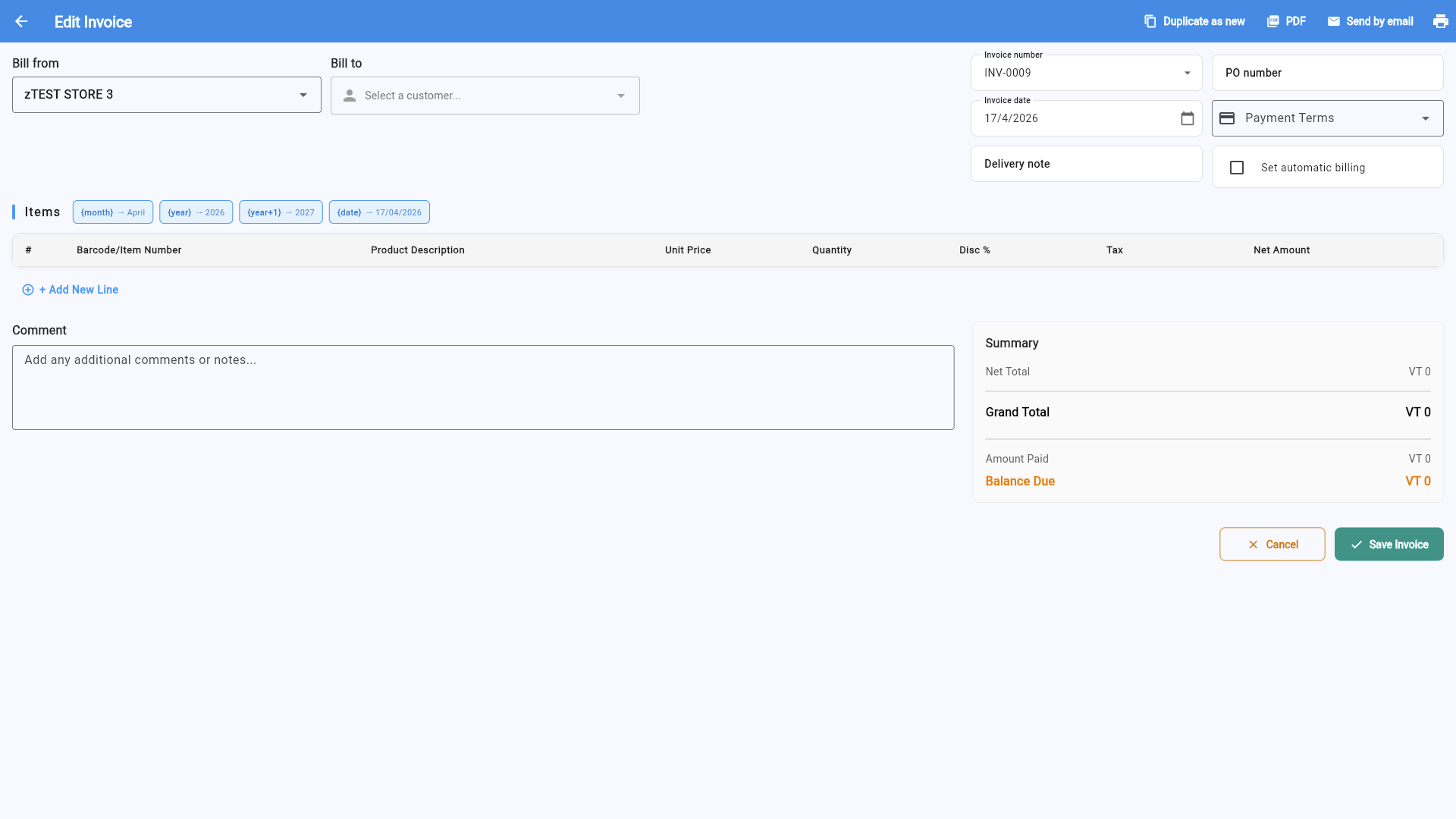
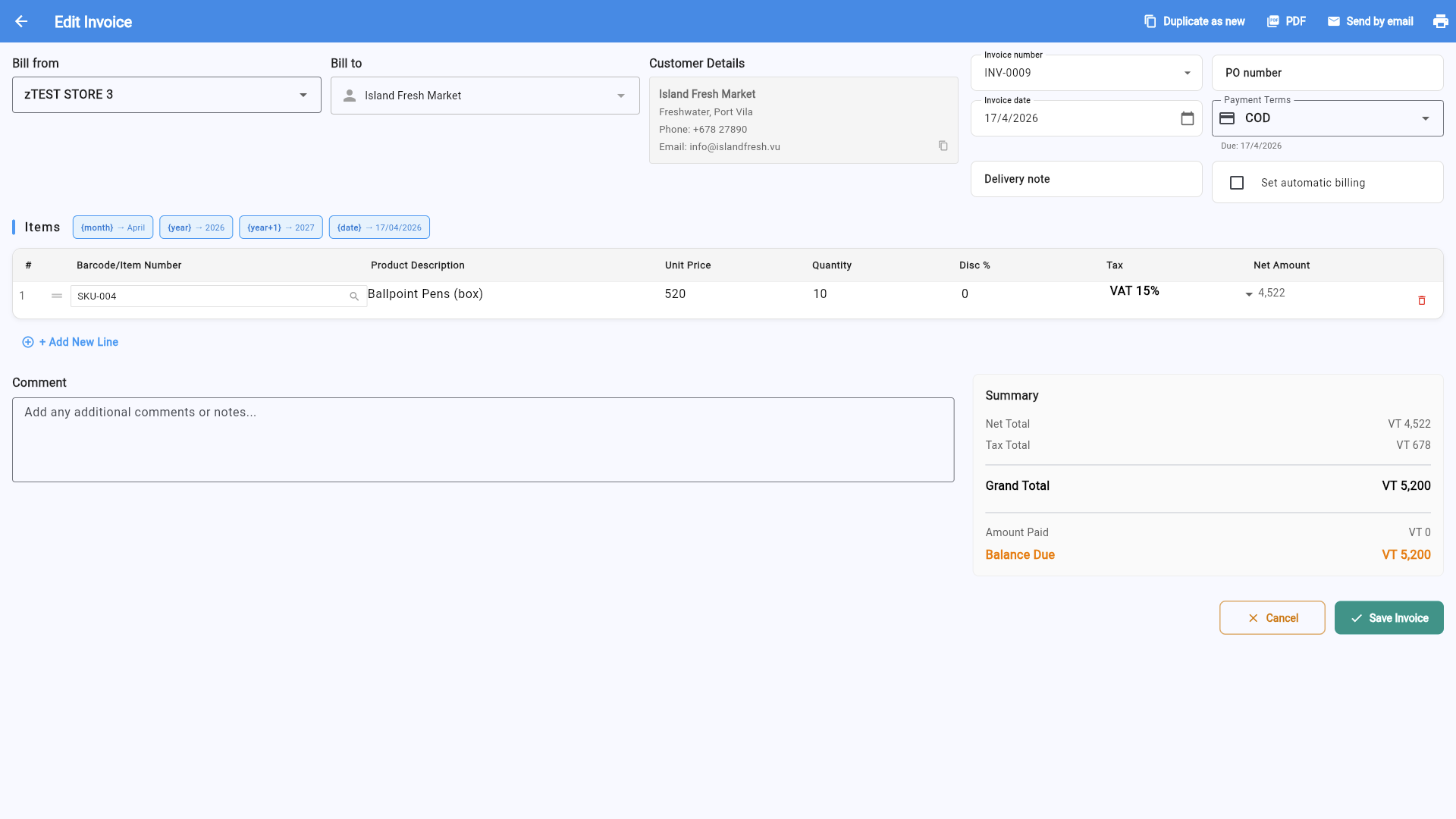
Click the + button on the Invoices tab to open a new blank invoice form:
Fill in the invoice by selecting a customer, adding line items, and reviewing totals:
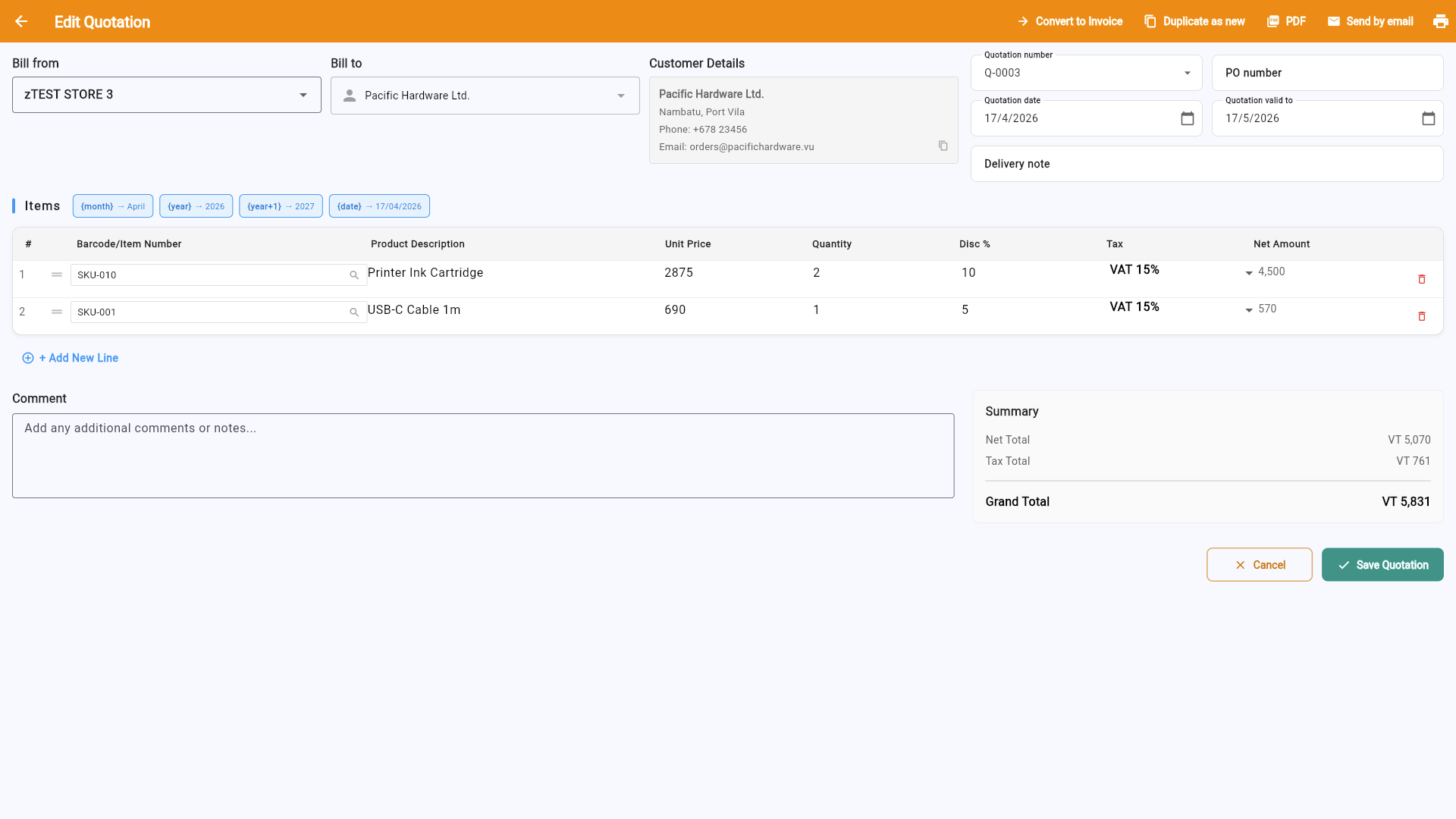
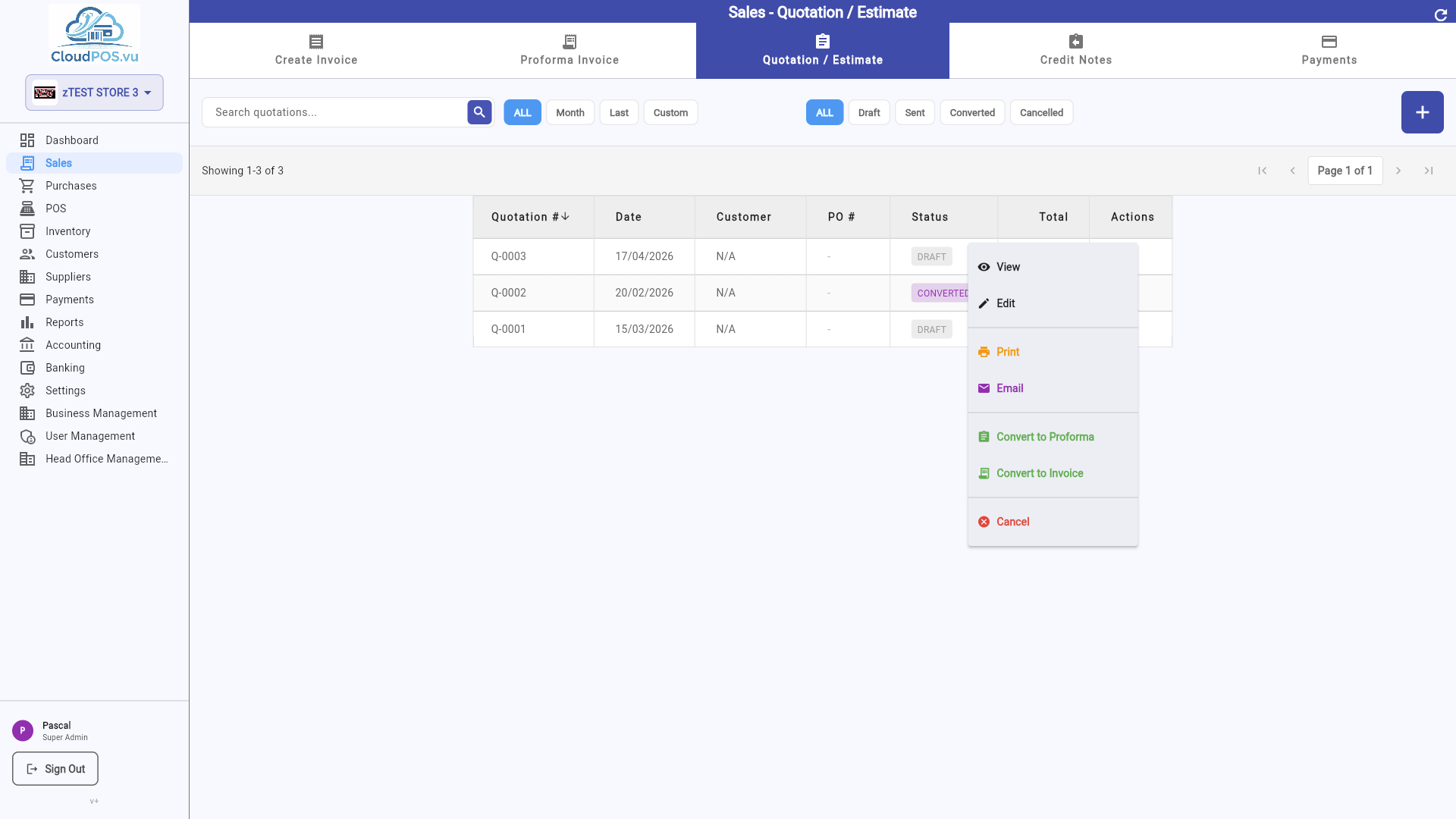
Quotations let you provide a price estimate to a customer before confirming a sale. They have no accounting or inventory impact until converted.
Click + to create a new quotation. The form is identical to an invoice but uses the Q- prefix:
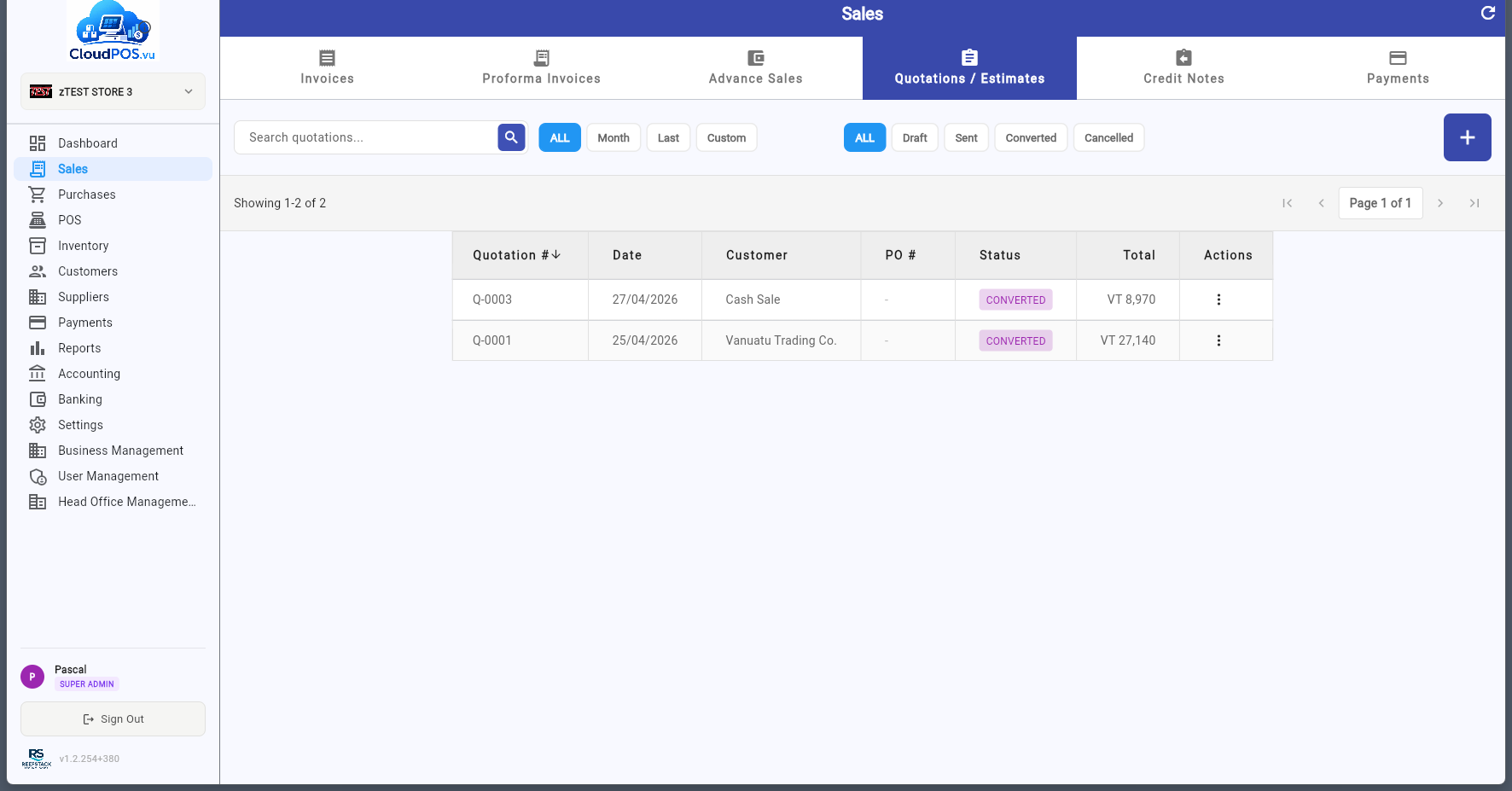
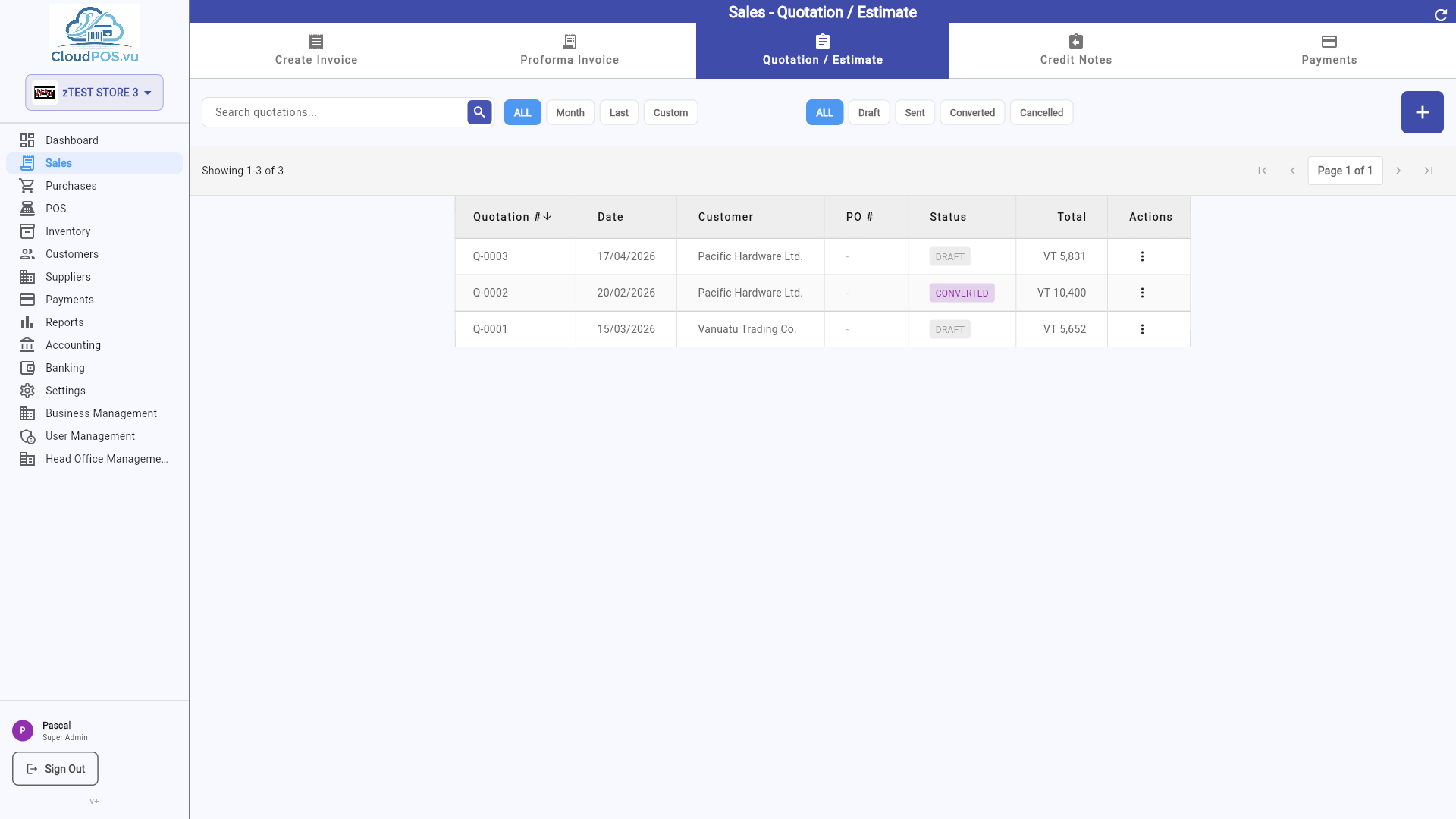
After saving, the quotation appears in the list:
Quotation created but not yet sent. Actions: Edit, Mark as Sent, Convert to PI, Convert to Invoice, Print, Email, Void.
Quotation has been sent to the customer โ awaiting response. Actions: Edit, Convert to PI, Convert to Invoice, Print, Email, Void.
Quotation has been converted to a Proforma Invoice or Tax Invoice โ the original quotation is no longer editable.
Quotation has been voided โ no longer valid. No accounting impact since quotations are not fiscal documents.
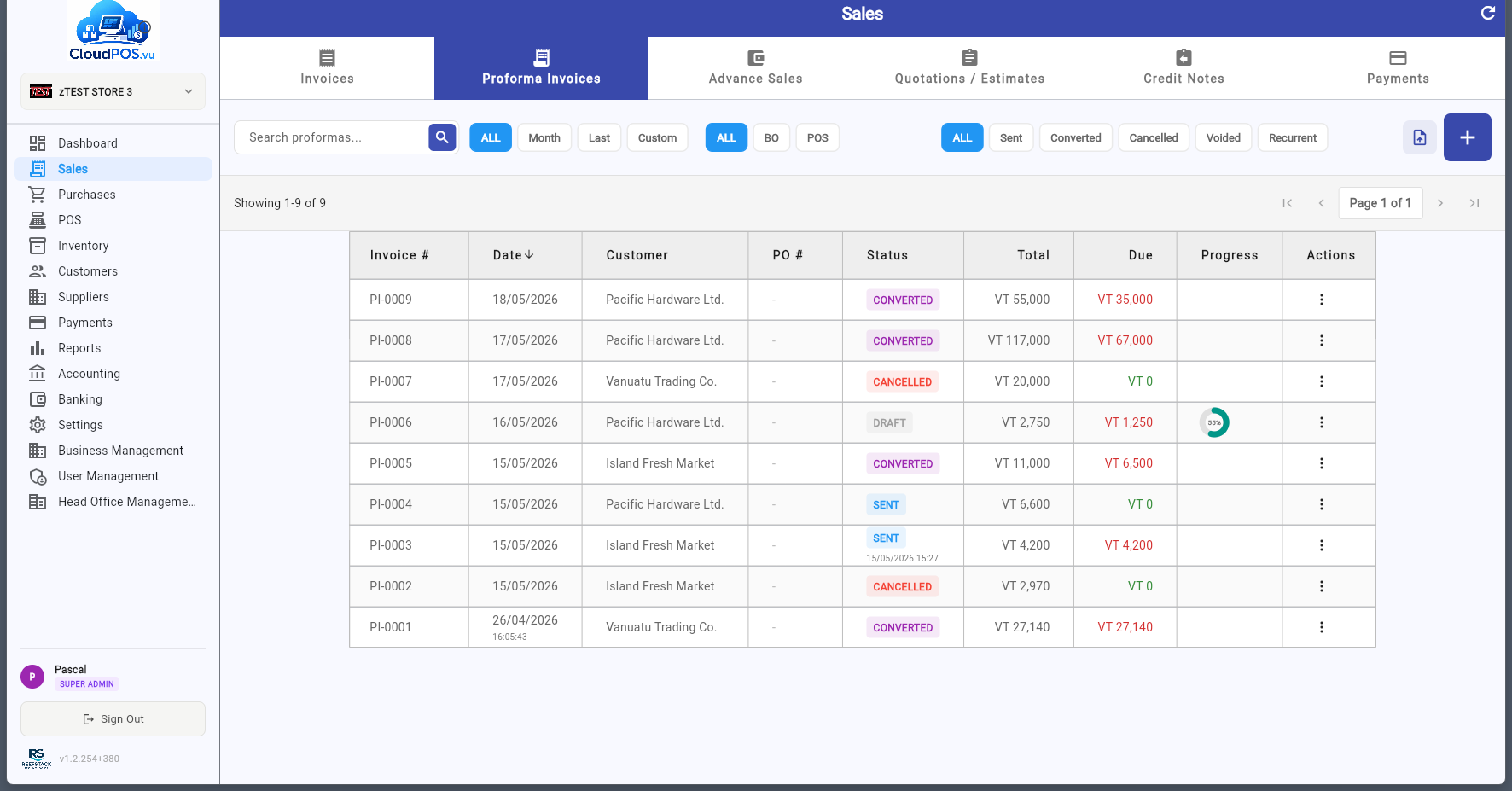
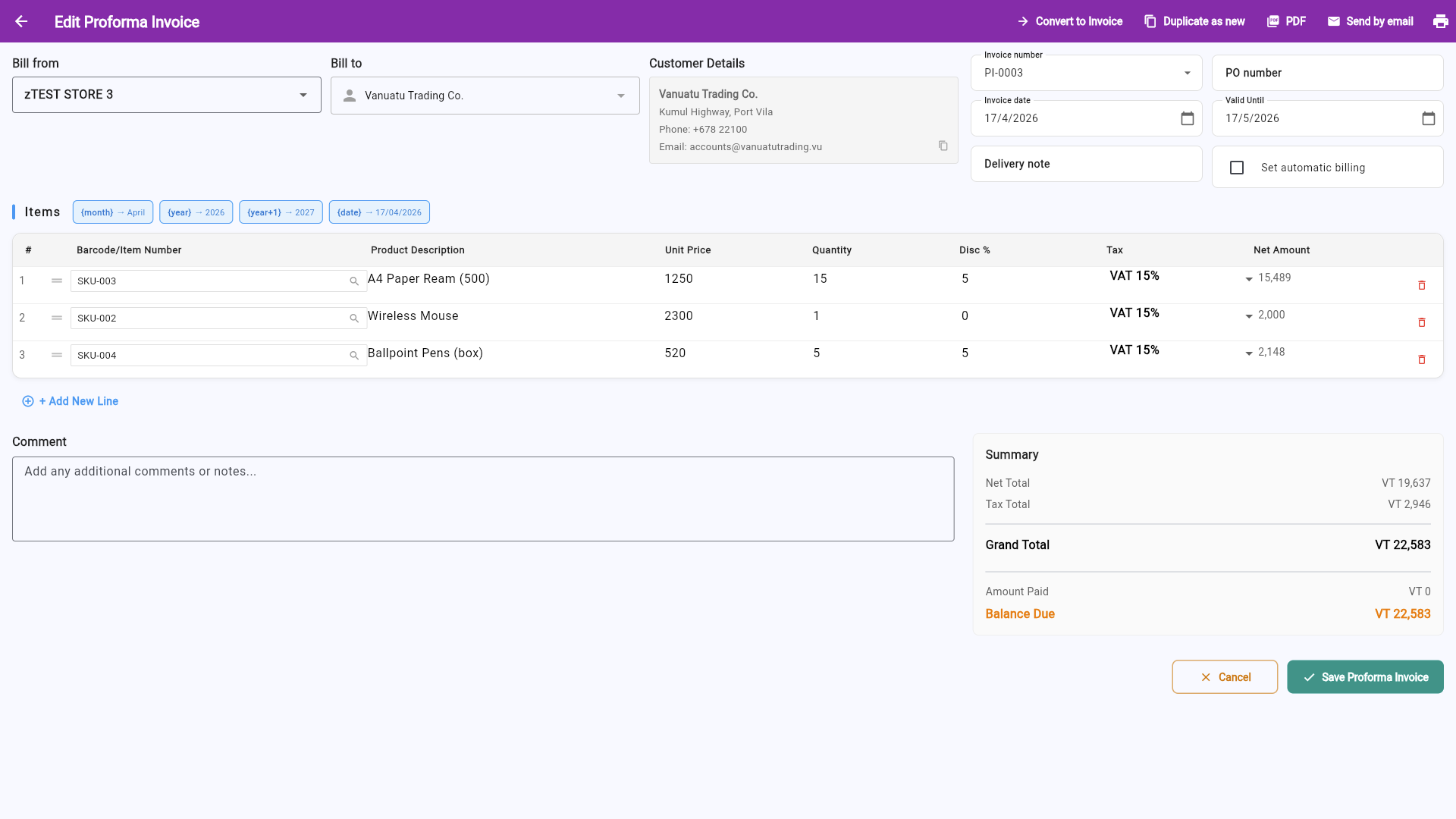
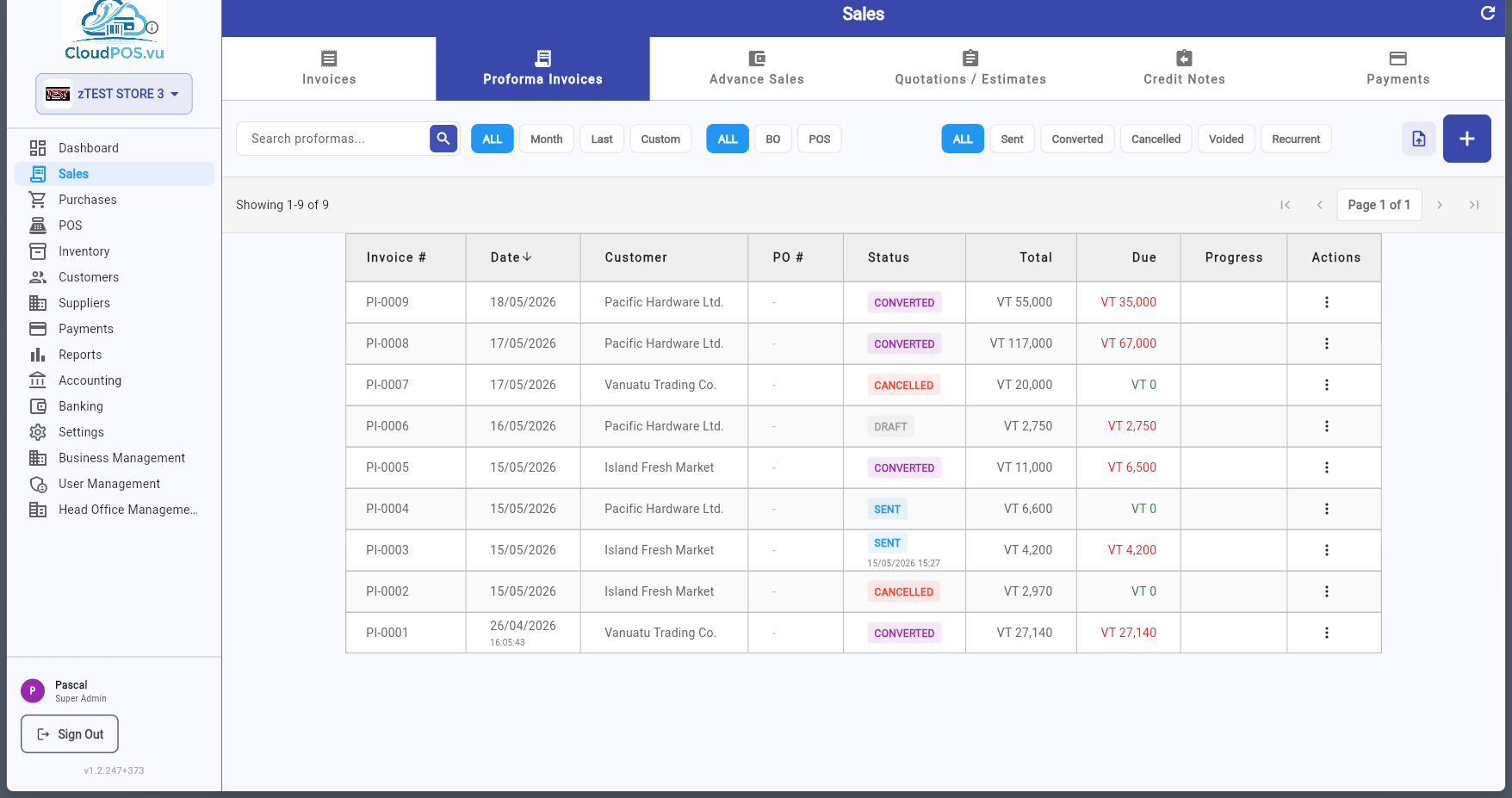
Proforma Invoices are formal price quotes often required for import/export or customs purposes. Like quotations, they have no accounting impact until converted. They are also the starting point for layby/installment sales (Advance Sales).
Create a new PI directly by clicking +:
PI created but not yet fiscalized or sent. Actions: Edit, Mark as Sent, Convert to Invoice, Print, Email, Void.
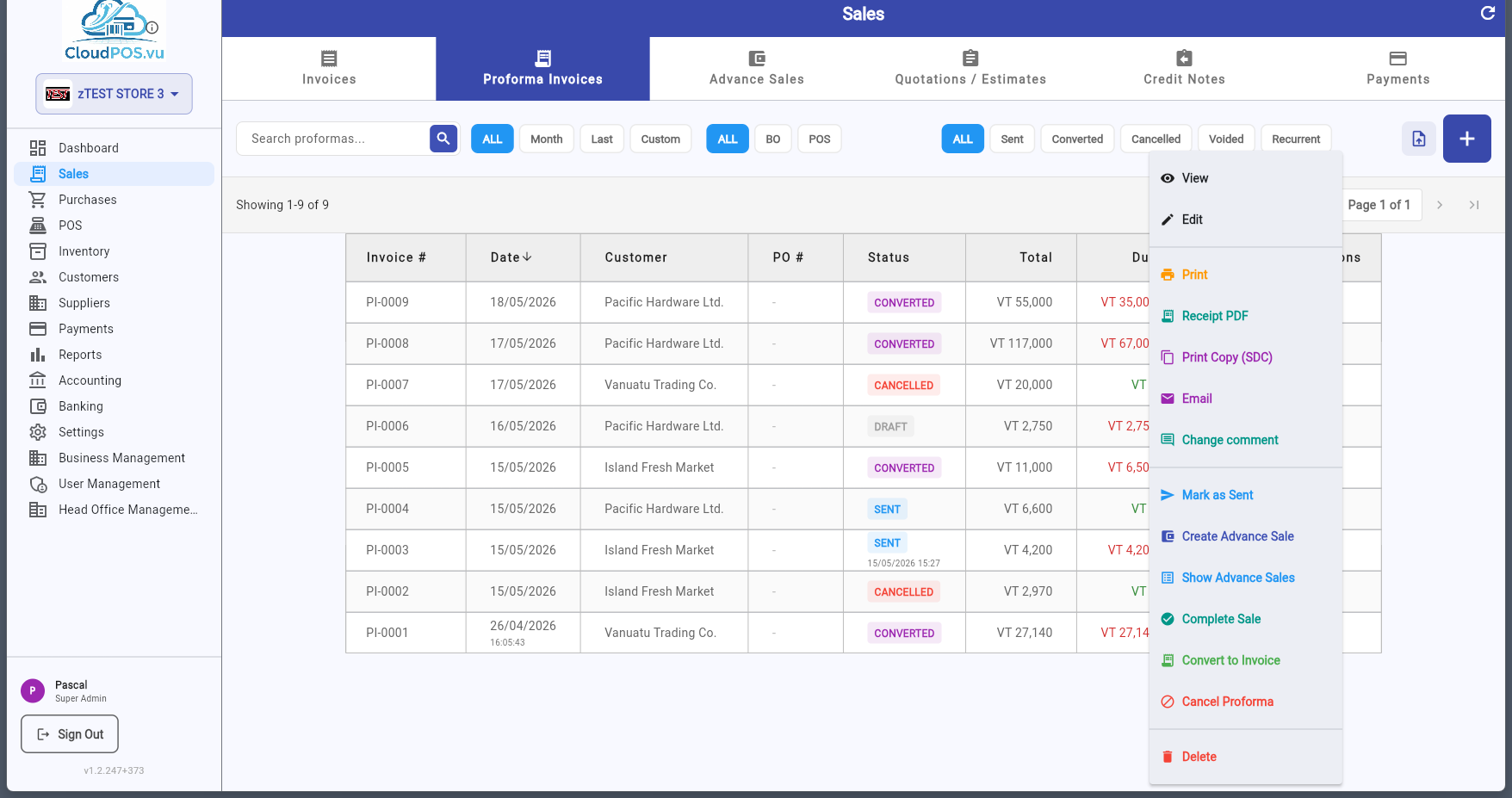
PI has been sent to the customer. If fiscalized, additional actions become available. Actions: Edit, Convert to Invoice, Create Advance Sale, Show Advance Sales, Complete Sale, Print, Email, Cancel Proforma.
PI has been converted to a Tax Invoice โ either directly or via Complete Sale (all advances settled into final invoice).
PI has been cancelled via SDC. For fiscalized PIs, a Proforma Refund is issued. No accounting reversal needed.
PI has been voided โ not a fiscal document, no SDC action required.
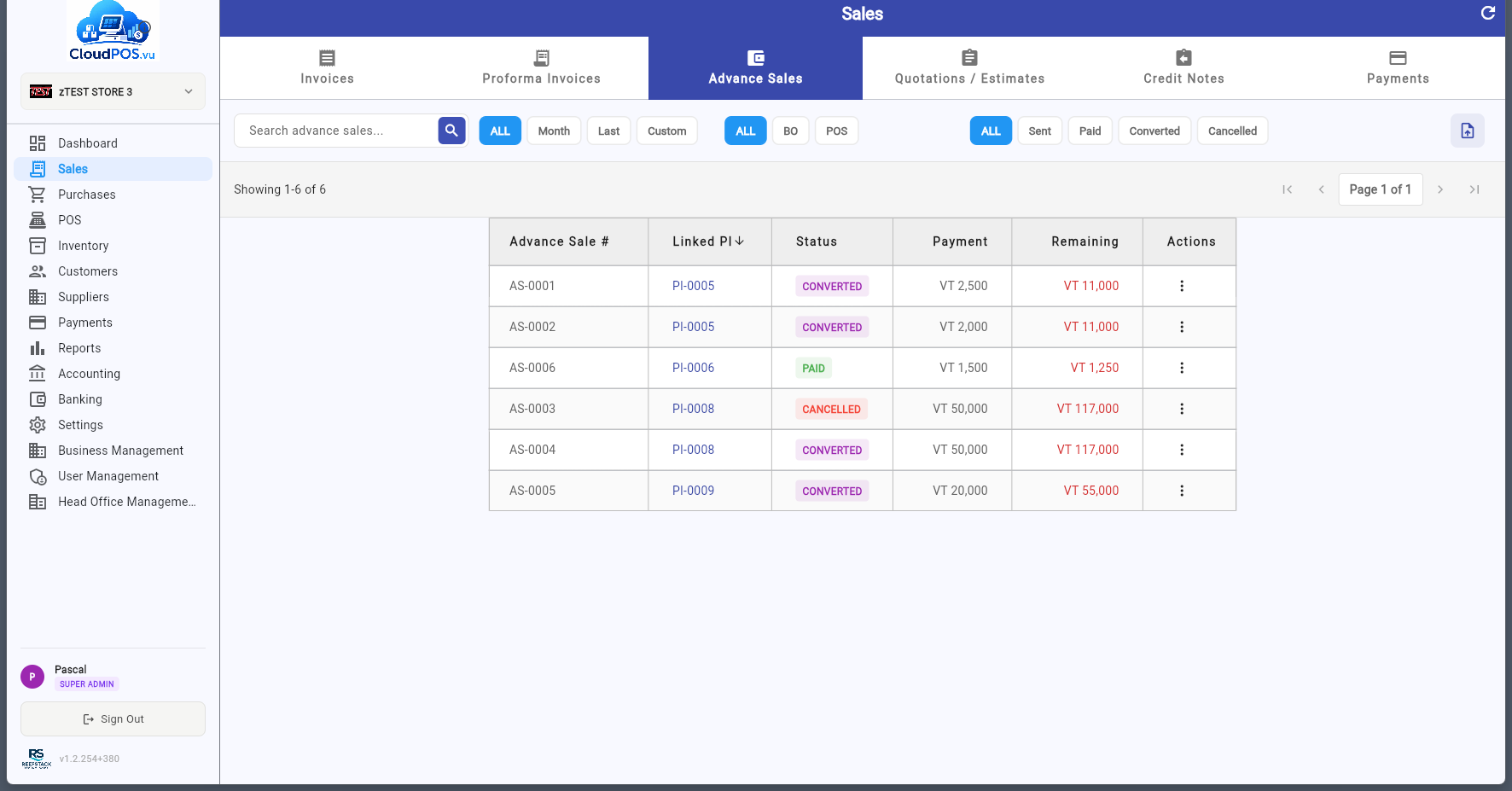
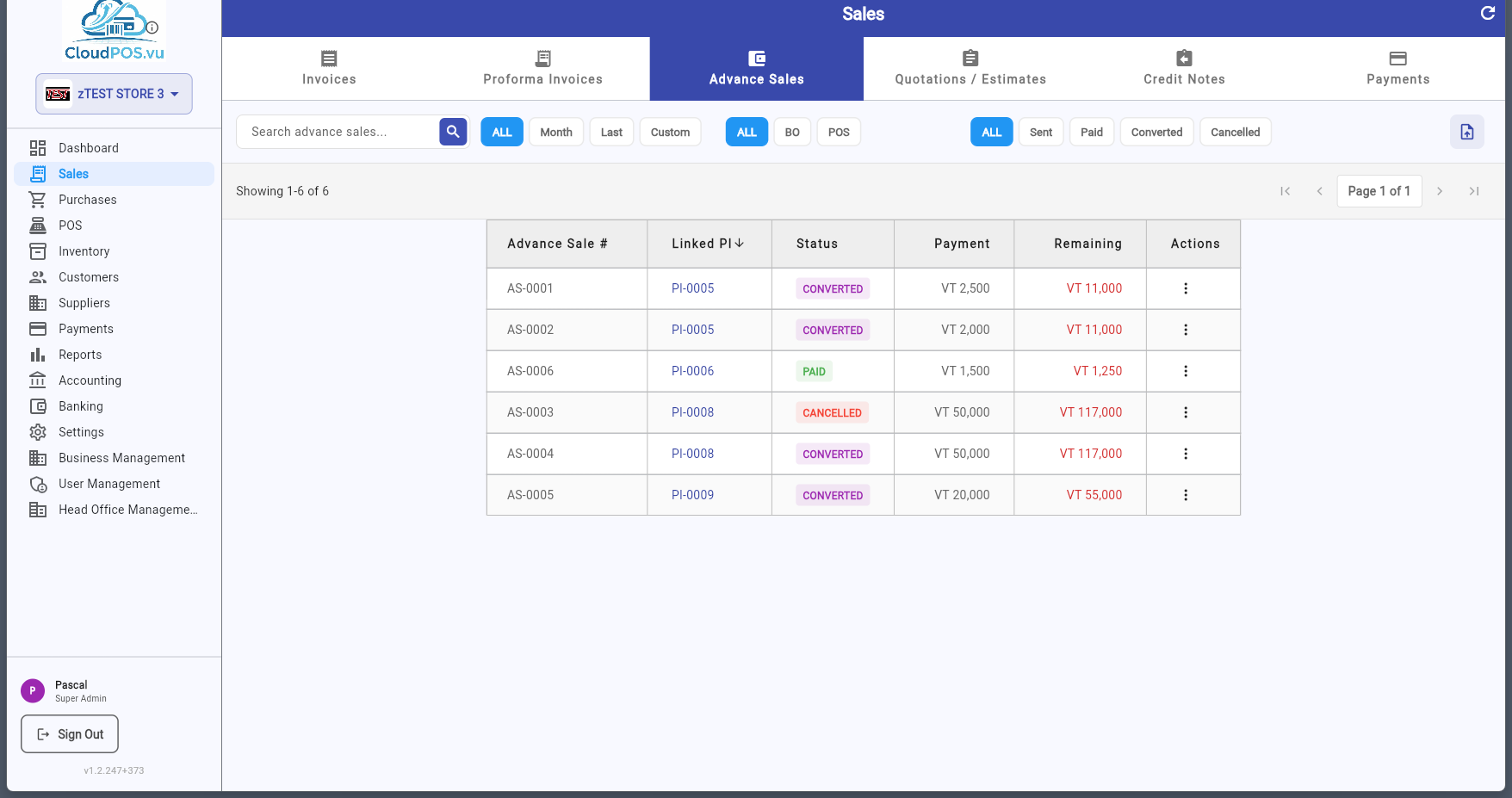
Advance Sales are fiscal invoices used for layaway or installment payments. A customer pays in multiple installments before receiving the goods. Each payment is recorded as a separate Advance Sale (AS) that is signed by the SDC.
Each row displays the advance sale number (AS- prefix), customer name, date, amount, payment method, and status. The โฏ menu provides actions depending on the status.
Advance payment received and signed by SDC โ increases tax liability.
Advance has been refunded via SDC โ an Advance Refund was issued.
Advance was moved to a Tax Invoice as part of the settlement flow.
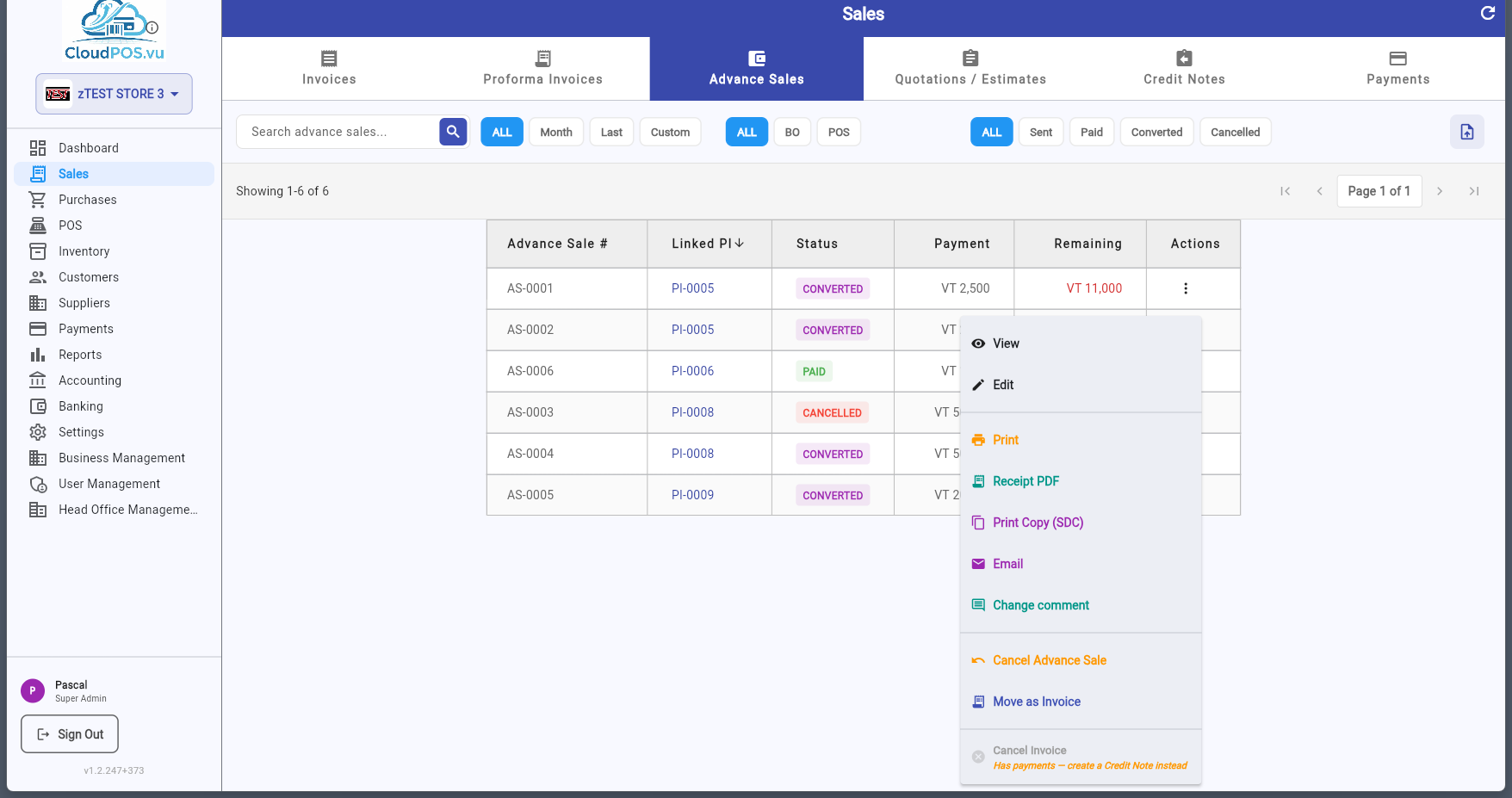
Open the advance sale in read-only mode.
Open the advance sale for editing.
Print the advance sale receipt or generate a PDF.
Print a verified copy with SDC data (QR code, SDC number).
Send the advance sale receipt to the customer by email.
Edit the comment or description on the advance sale.
Issue an Advance Refund via SDC. Reverses the deposit.
Create a Tax Invoice for the remaining balance. The advance is marked Converted.
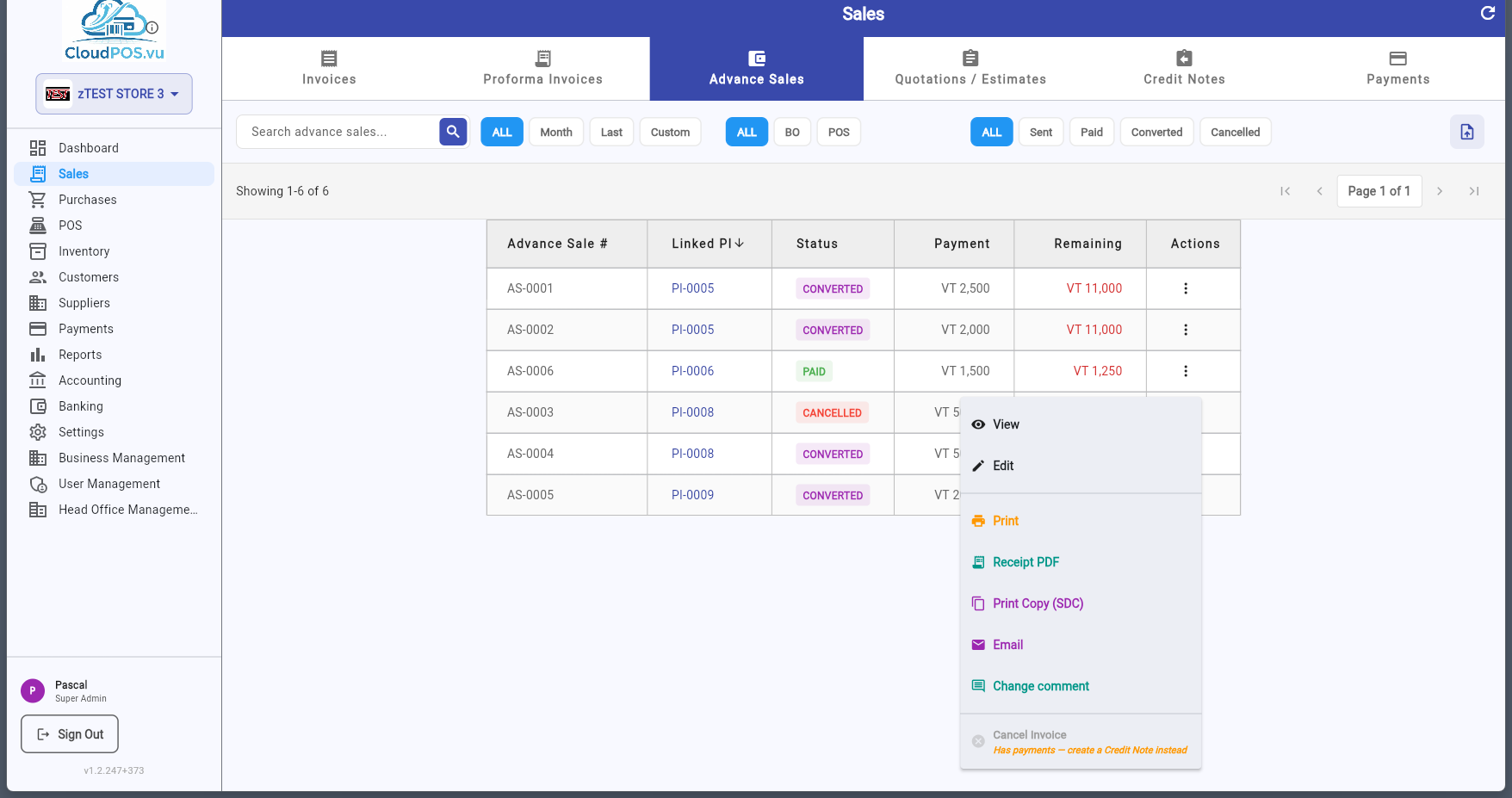
Cancelled advances can only be Viewed, Edited, Printed, Emailed โ no further financial actions are available.
Advance Sales are created from a Proforma Invoice. Open the PI action menu and select Create Advance Sale:
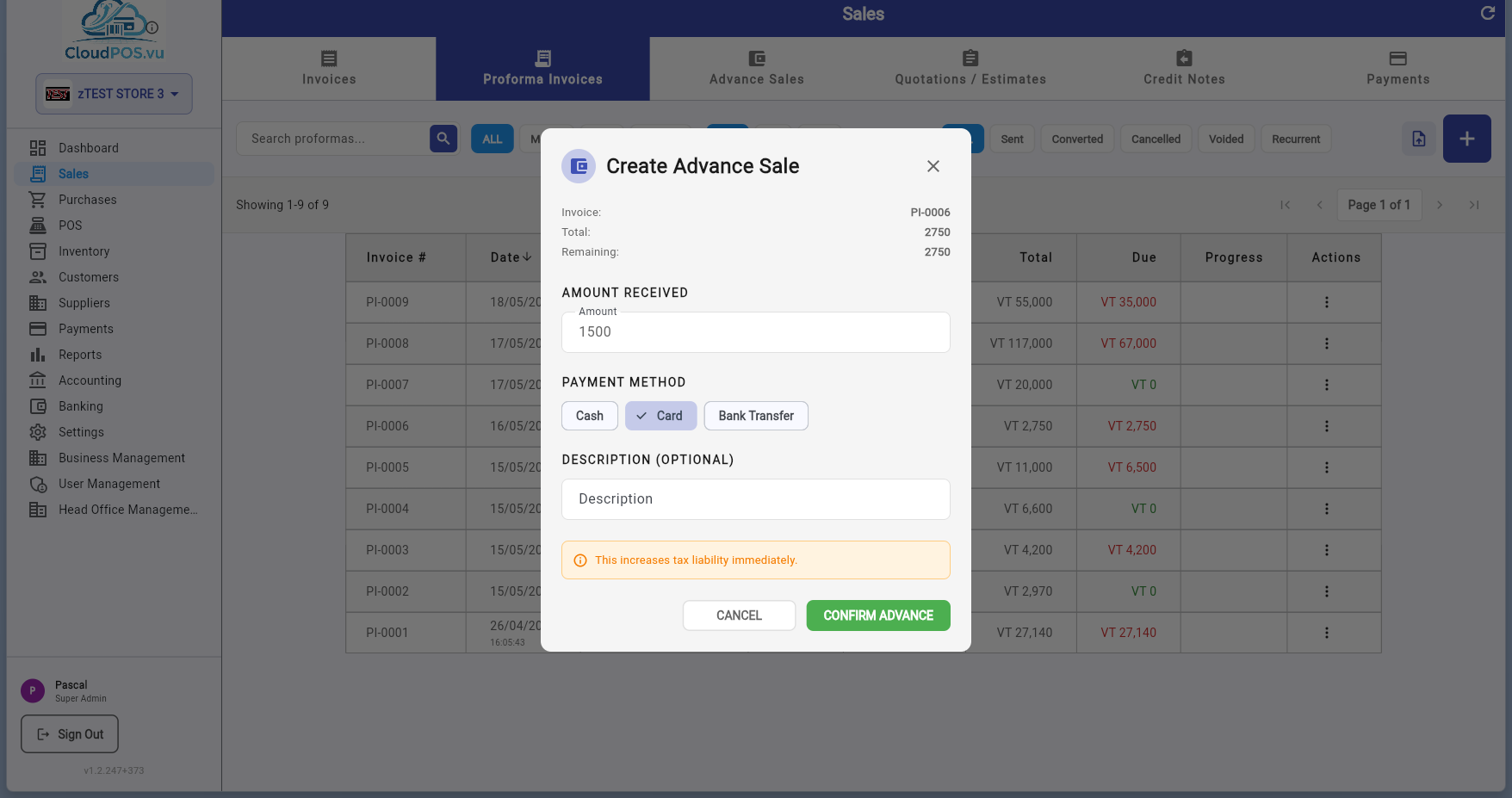
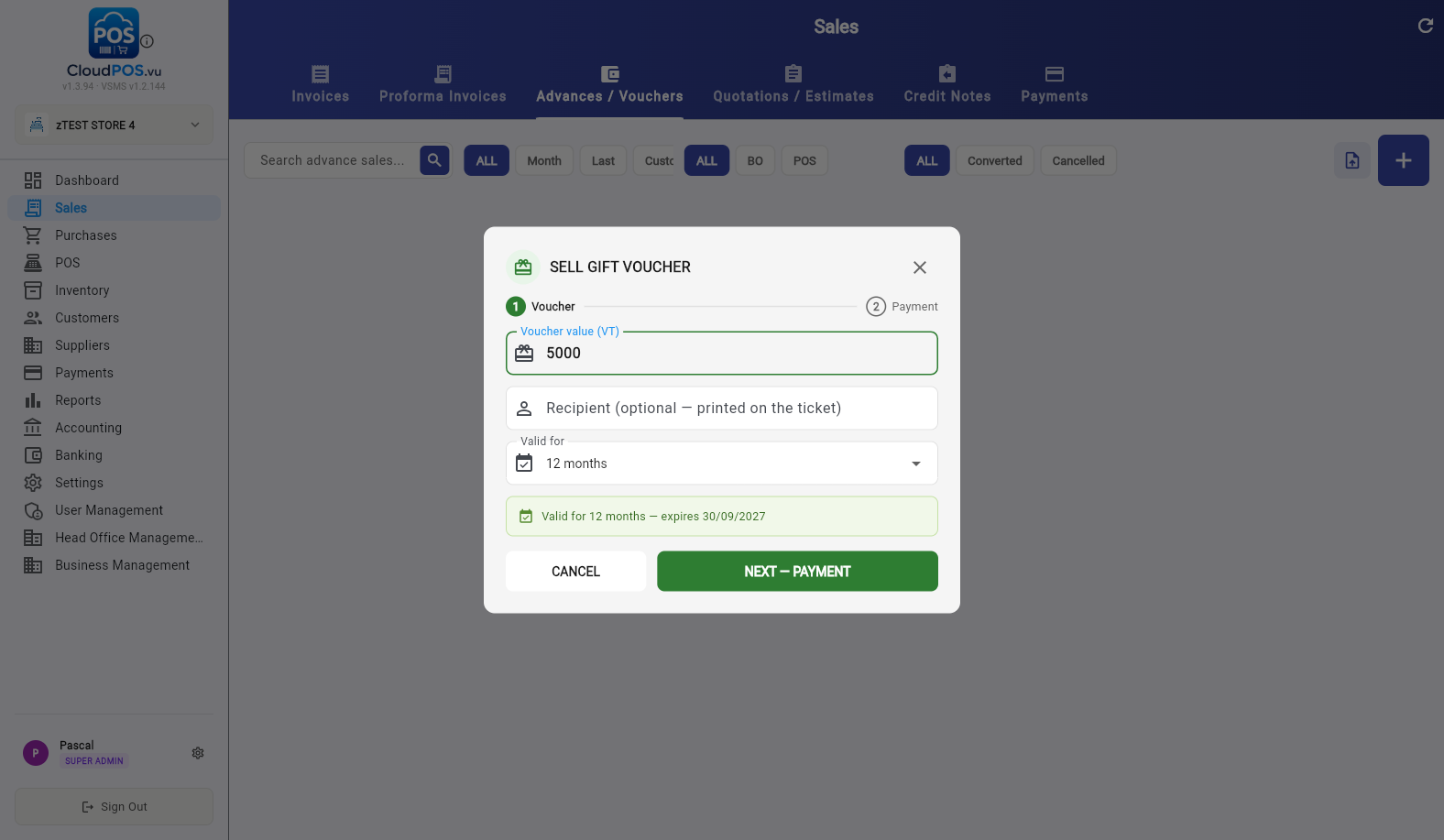
The Create Advance Sale dialog appears:
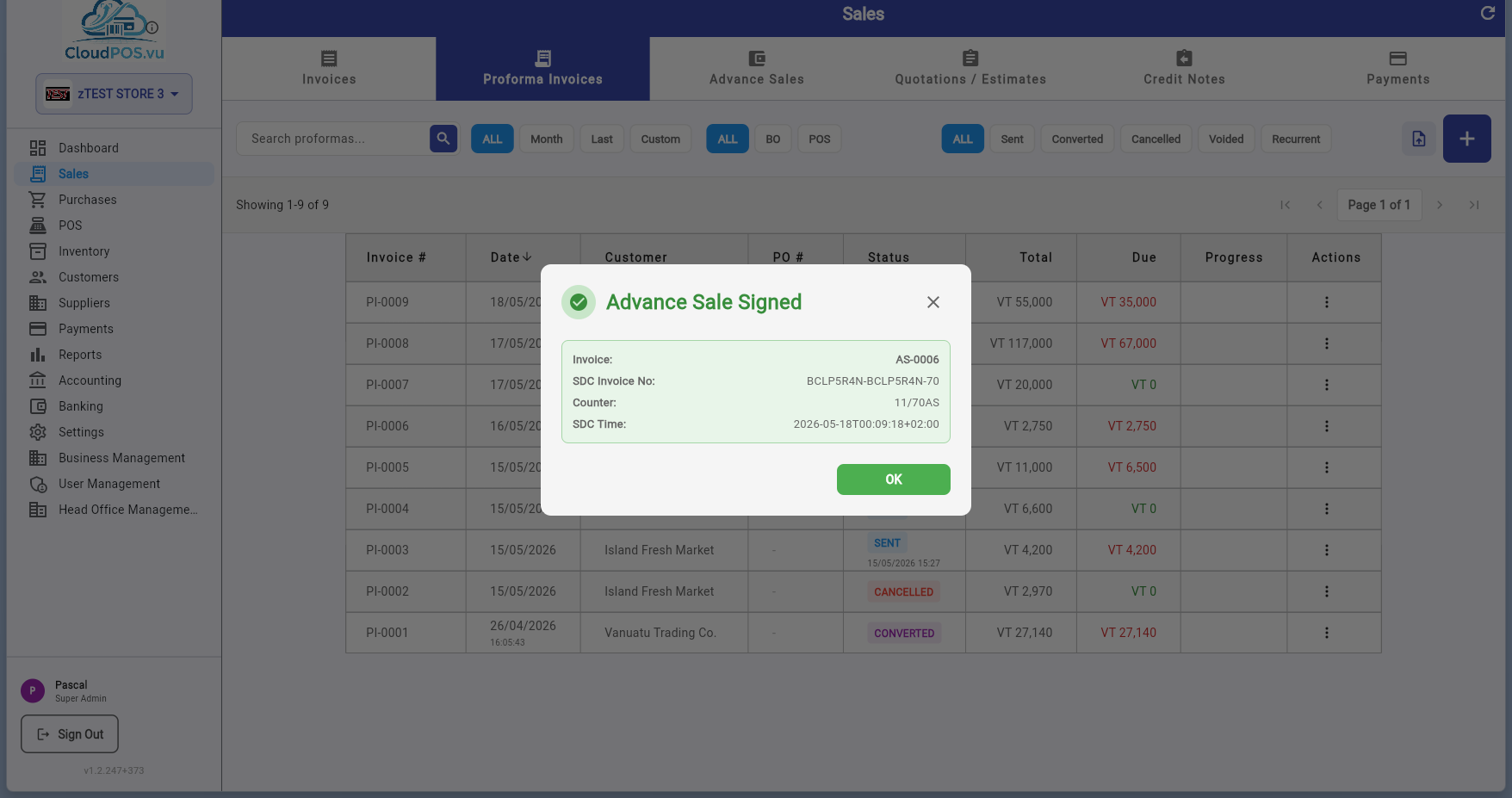
After confirmation, the SDC signs the advance and a "Advance Sale Signed" confirmation appears:
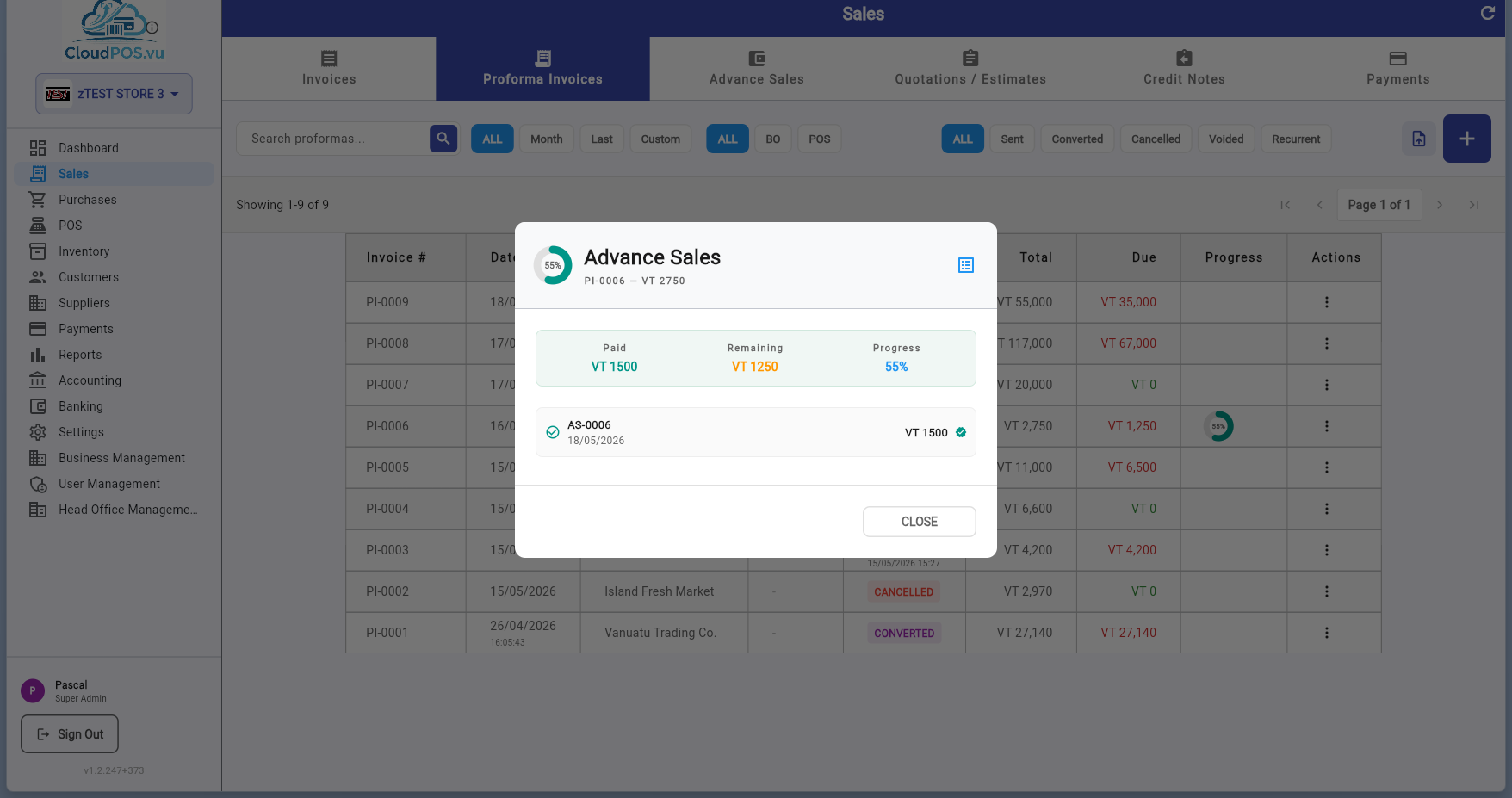
To see all advances for a PI, open the PI action menu and select Show Advance Sales:
The dialog displays:
When the customer has finished paying (or at any point during the advance process), you can convert the advance into a final Tax Invoice. This is called settlement or Move as Invoice.
There are two ways to trigger the settlement:
After the settlement is processed, a Normal Sale Signed confirmation confirms the final invoice was created and signed by SDC.
The advance sale list now shows the advance as Converted:
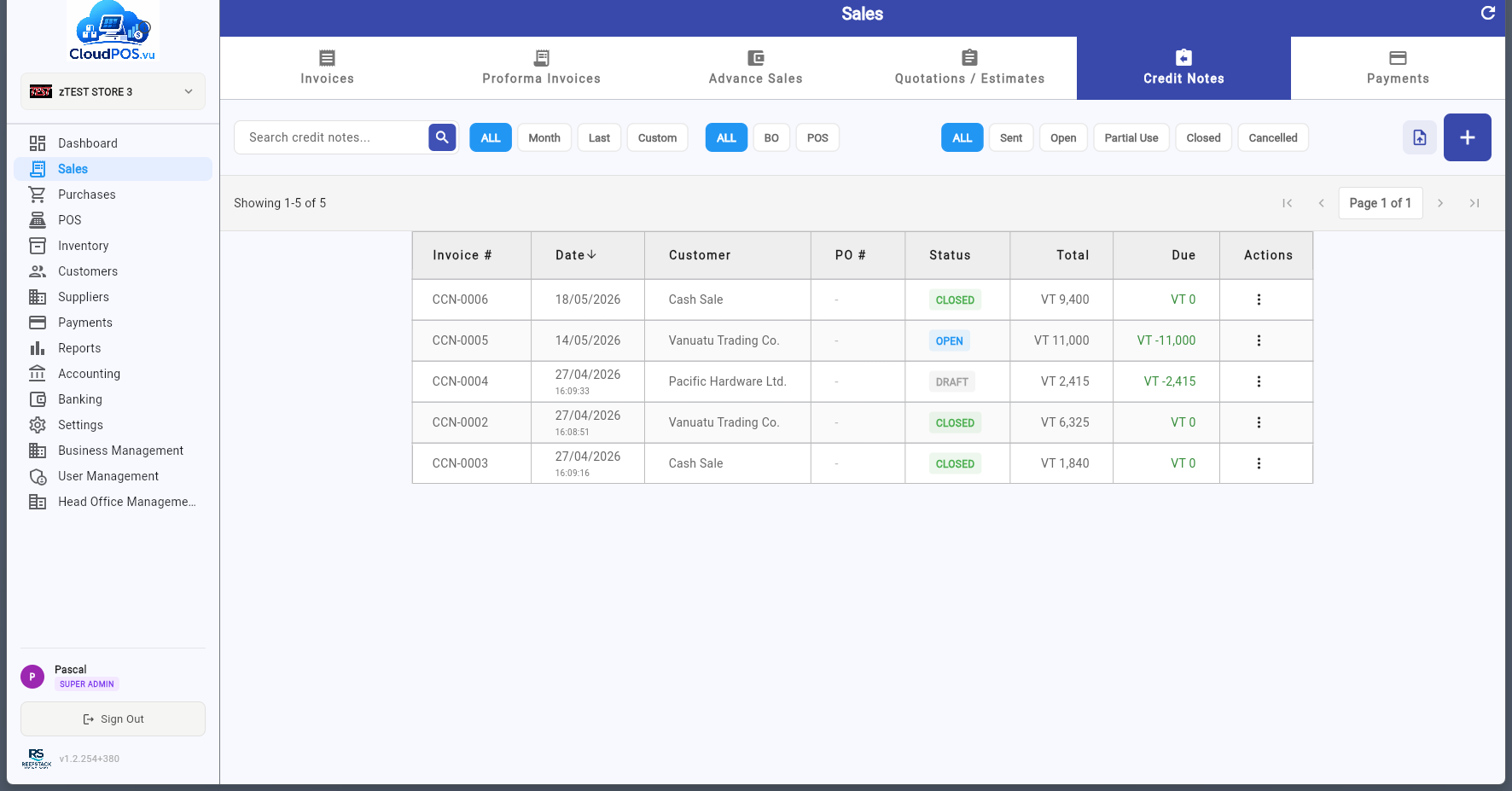
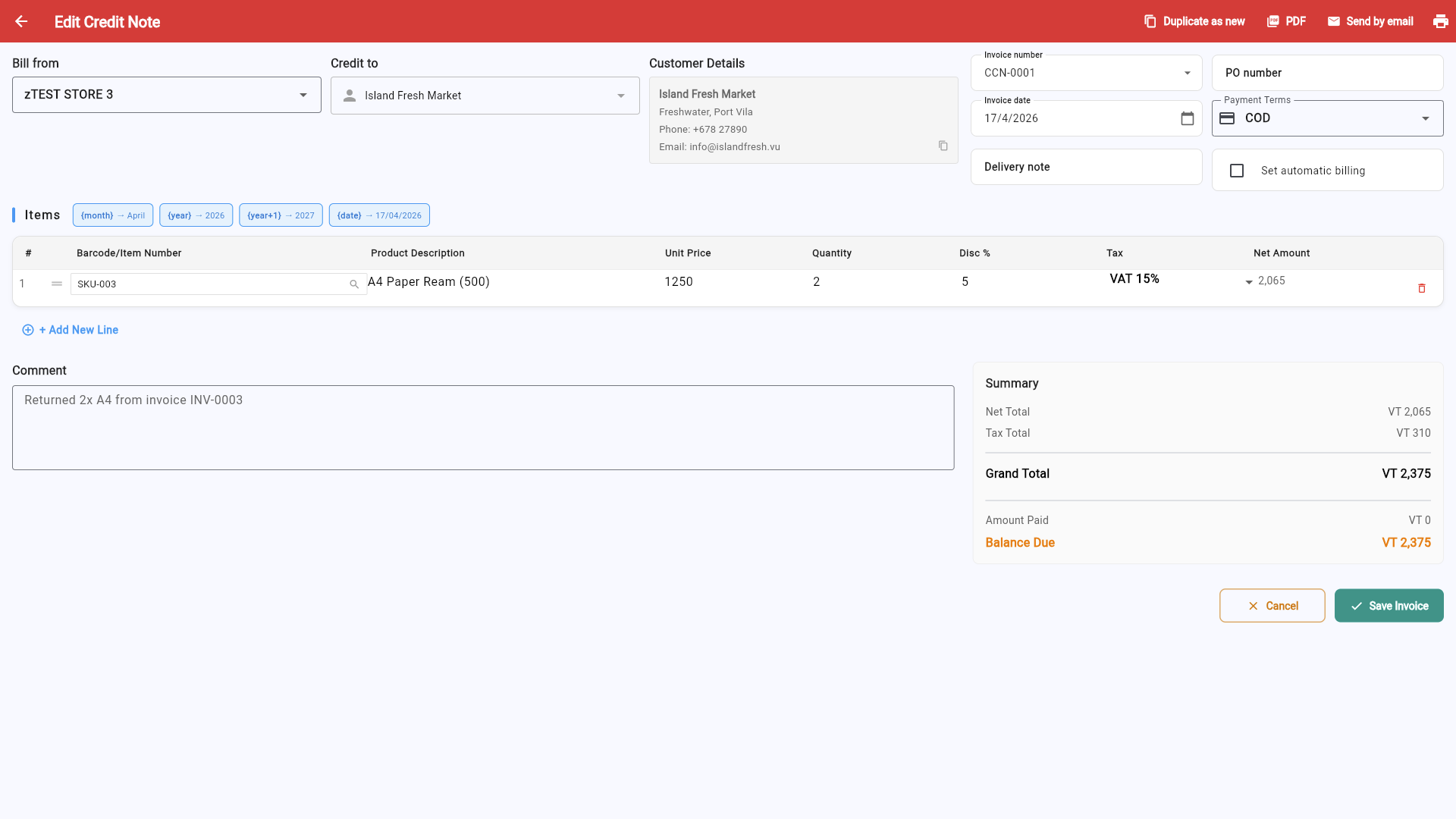
Credit Notes are used to refund or credit a customer โ for returned goods, pricing corrections, or partial refunds. They are required when a paid invoice needs to be reversed (Cancel is not available for paid invoices).
Click + to create a new credit note, or use Make Credit Note from a paid Tax Invoice action menu:
Credit note created but not yet posted. Actions: Edit, Mark as Sent, Print, Email, Cancel.
Posted and fiscalized via SDC โ full credit available. Actions: Apply to Invoice, Refund Customer, Print, Email.
Partially applied to invoices โ some credit remains. Actions: Apply to Invoice, Refund Customer, Print, Email.
Fully applied โ balance is zero, no further action needed.
Cancelled โ only if no refund has been issued. If the credit note has been partially or fully applied, it cannot be cancelled.
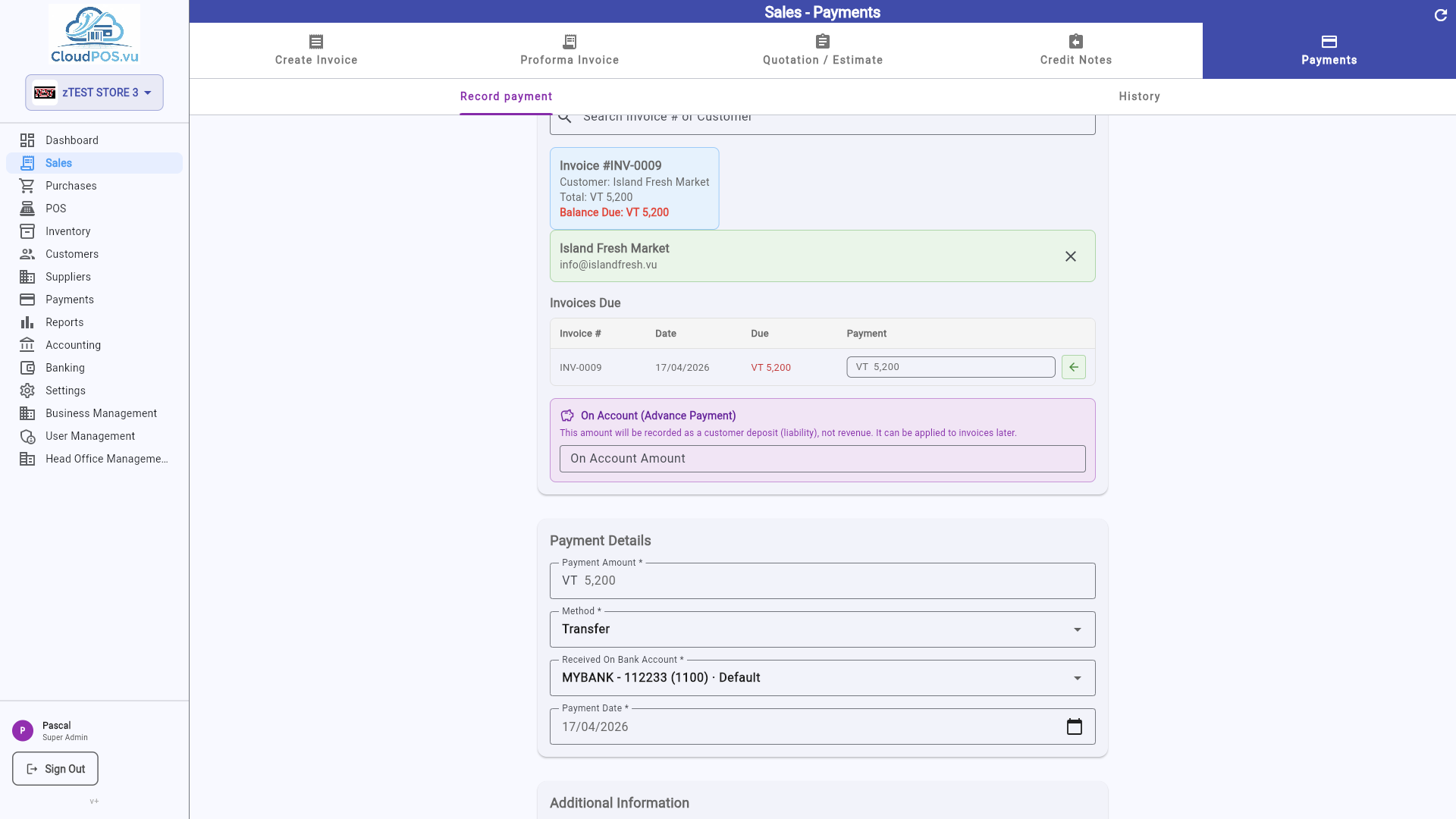
referentDocumentNumber, and the transaction type is automatically set to Refund. If SDC signing fails, the credit note cannot be saved โ it must be signed successfully.To record a customer payment, open the invoice action menu and select Pay Invoice:
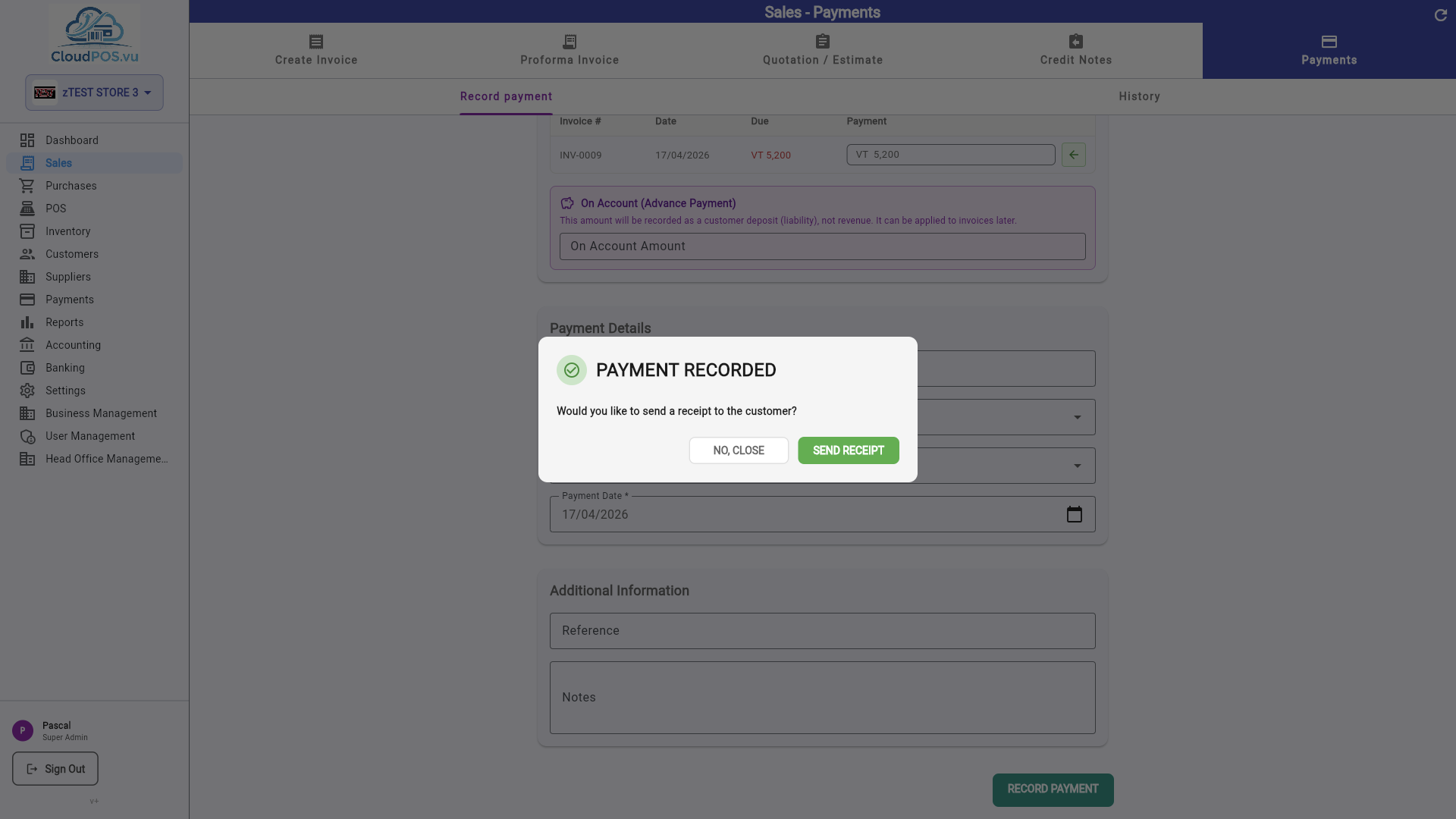
After recording the payment, you can optionally send a receipt to the customer:
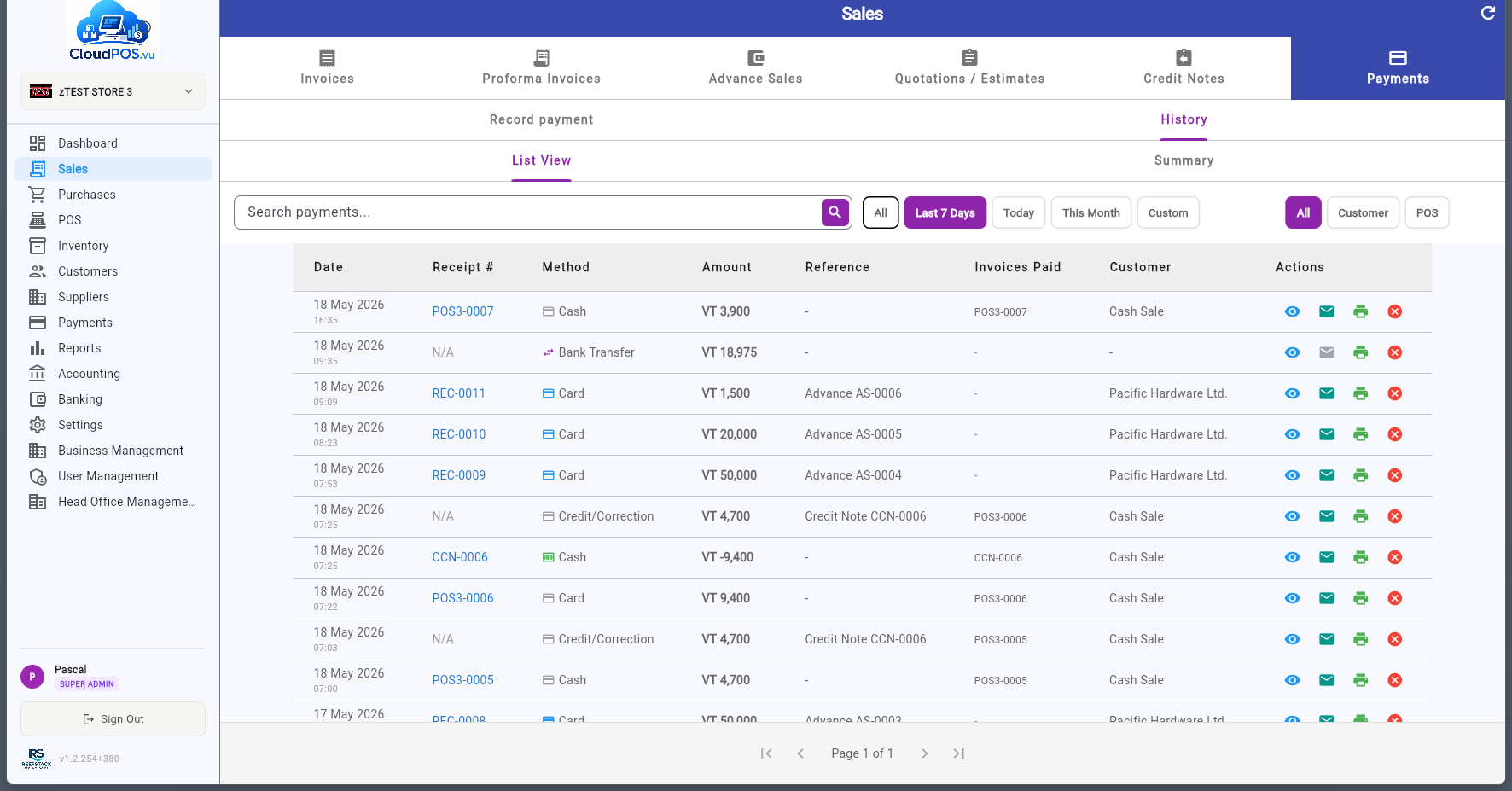
The Payments tab shows all recorded payments across all invoices โ a complete payment history:
Every document type has a โฏ action menu with context-sensitive options. Here's what's available for each type:
Record a payment against this invoice. Opens the payment dialog.
Email the invoice to the customer as a PDF attachment.
Generate a printable PDF of the invoice.
Create a copy of this invoice with new line items and number.
Only available for unpaid invoices โ issues a Normal Refund via SDC. For paid invoices, Cancel is greyed out and you must create a Credit Note (separate CCN document) to refund the customer instead.
Create a Proforma Invoice from this quotation. The quotation is marked Converted.
Create a Tax Invoice directly from this quotation, skipping the PI step.
Open the PI in read-only or edit mode.
Print or export the PI. Print Copy includes SDC verification data.
Send the PI to the customer by email.
Edit the comment or internal notes on the PI.
Change the PI status to Sent, indicating it has been delivered to the customer.
Create a fiscal advance payment linked to this PI. Opens the advance sale dialog.
View all advance sales for this PI with payment progress and settlement button.
Settle all advances and create the final Tax Invoice. Available when advances exist.
Create a Tax Invoice directly. Blocked when the PI has active advance sales.
Cancel the PI. If signed by SDC, a Proforma Refund is issued.
Delete the PI. Only available for unsigned/draft PIs.