Receipt & Order Printing
How printers are configured in CloudPOS — customer receipts, kitchen/bar order chits, per-POS terminal assignments, and the per-POS order-print redirect for multi-POS sites.
September 2026 · applies to v1.3.56+
Two kinds of printing
CloudPOS prints two different kinds of tickets, configured in different places:
| Customer receipt | Order chit (kitchen/bar) | |
|---|---|---|
| What | The fiscal/sales receipt handed to the customer at payment. | A short preparation ticket (items + quantities + notes) for kitchen or bar staff. |
| Printed on | The terminal's Receipt Printer — assigned per POS in POS Management. | The printer assigned to each product ("On-order printer"), constrained by the terminal's Order Printers list. |
| When | At payment (and reprints / fiscal copies). | At payment, and for restaurant held orders (ORDER / ADD-ON chits). |
The printer list — Settings → Printers
All printers of the business live here. Each row shows its name and connection: USB (Vendor/Product ID), Network (IP : port) or CloudPOS Print Proxy.
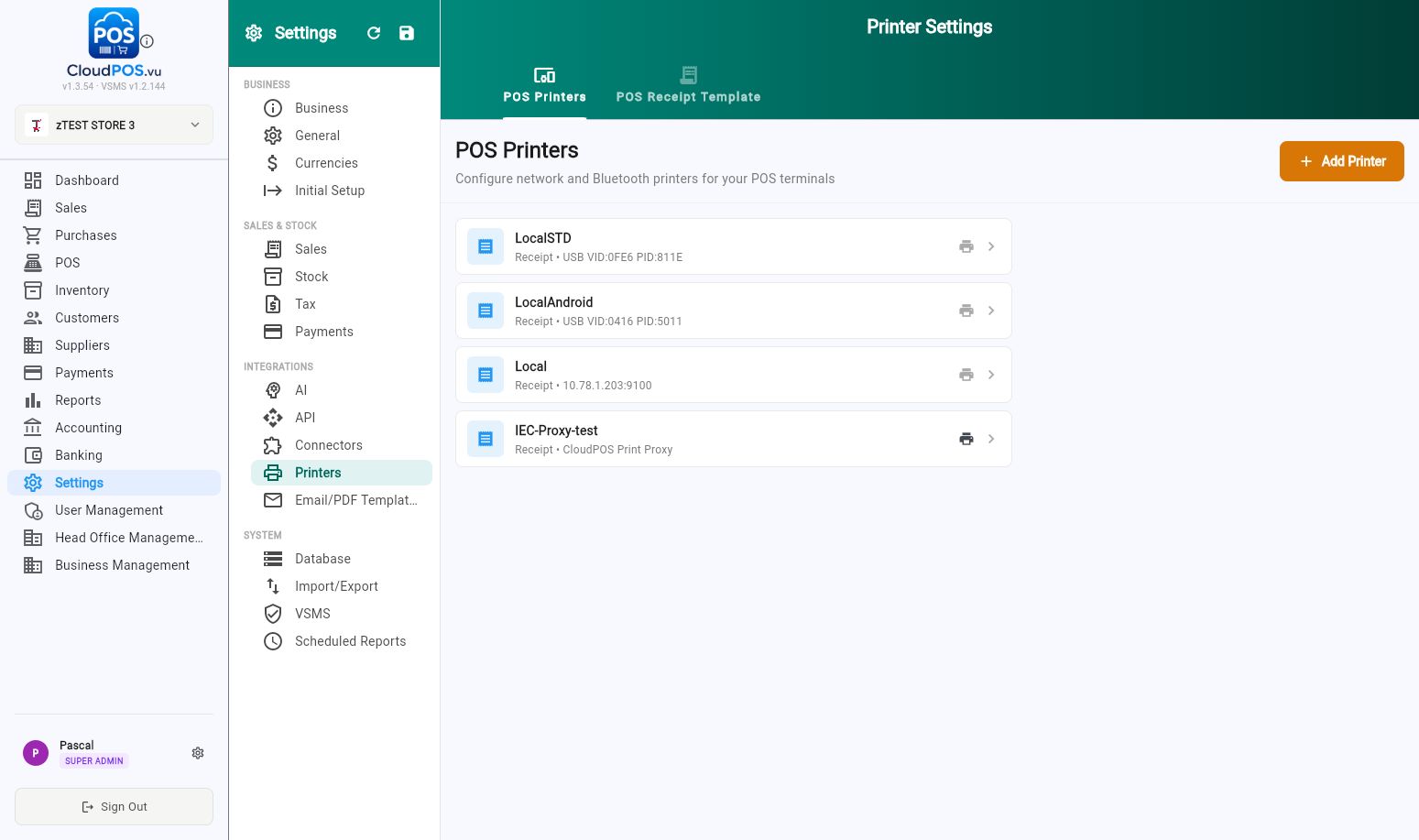
Use + Add Printer to register a new one:
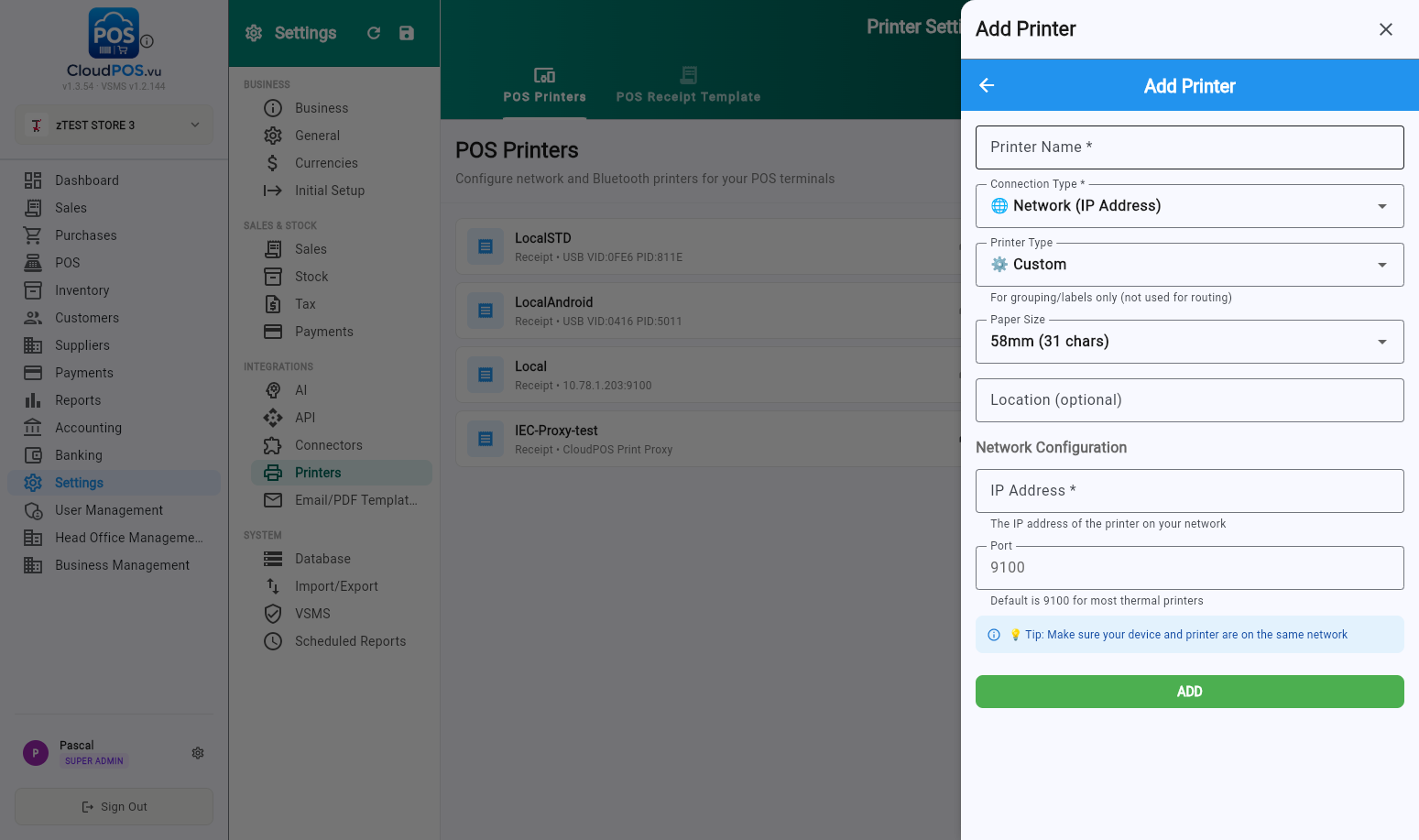
Connection types
| Type | Use it when | Notes |
|---|---|---|
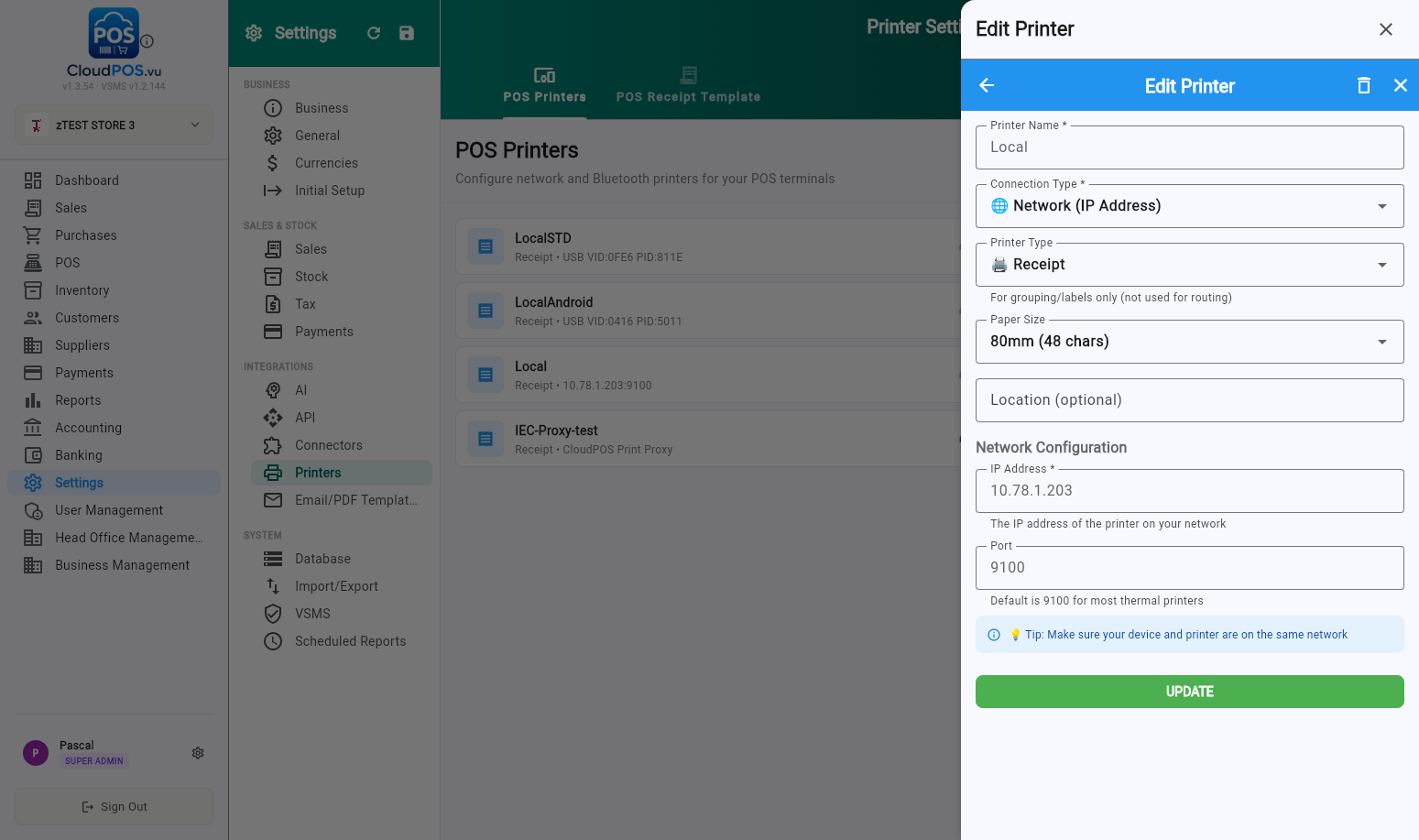
| Network (IP Address) | The printer is a WiFi/Ethernet thermal printer on the same network as the POS device. | Port is almost always 9100. Recommended type for kitchen/bar printers shared between POS. |
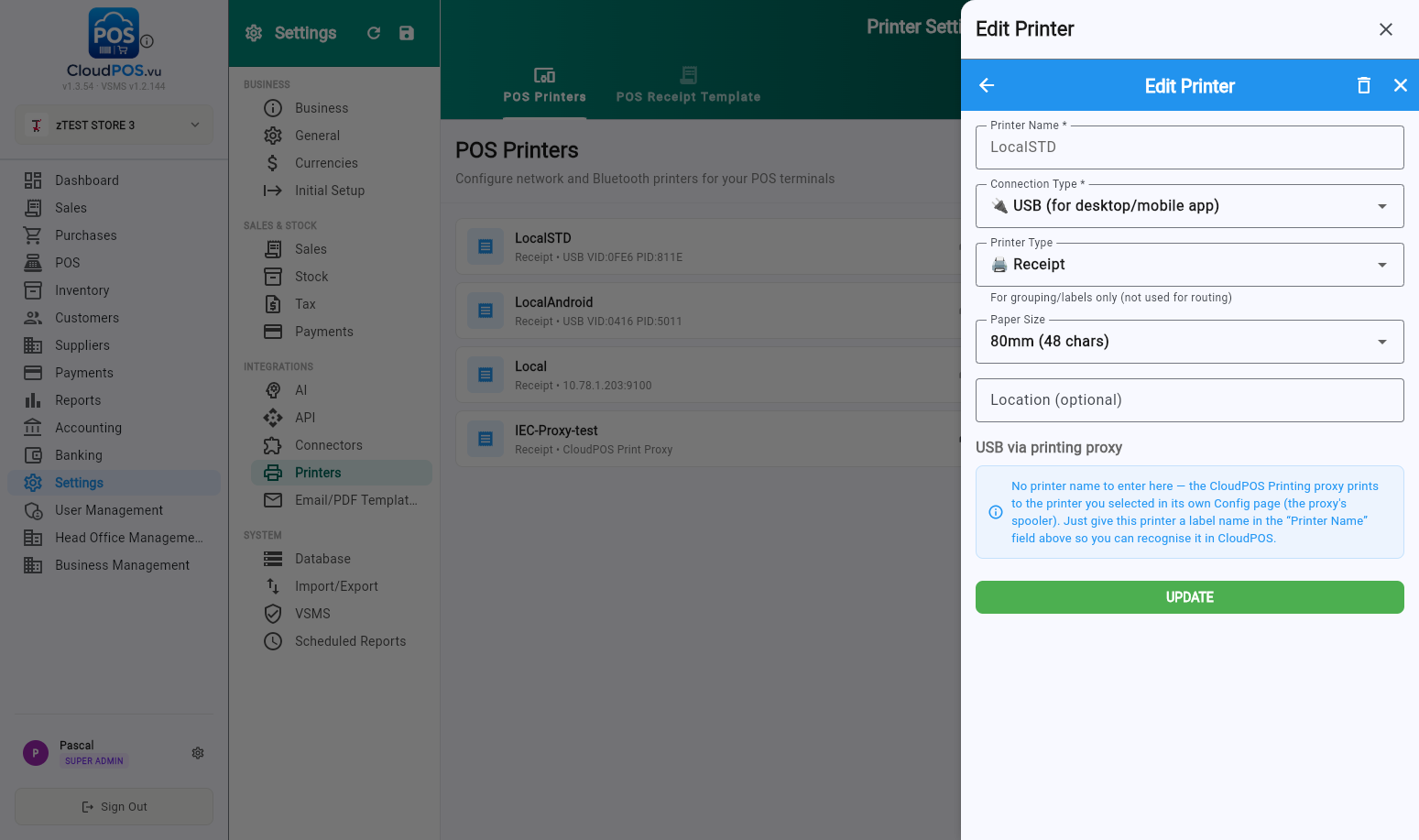
| USB (for desktop/mobile app) | The printer is plugged into the POS device itself. | On the web version no device fields are needed — printing goes through the CloudPOS Print Proxy, which uses the printer selected in its own config page. |
| CloudPOS Print Proxy | Web POS printing to a printer attached to (or reachable from) the PC running the local proxy app. | The proxy token must equal the terminal name. |
Editing a printer
Click a row to edit it. Network printers expose their IP/port; USB printers on the web show the "USB via printing proxy" notice instead of device fields:
Receipt printing — assign a receipt printer to each POS
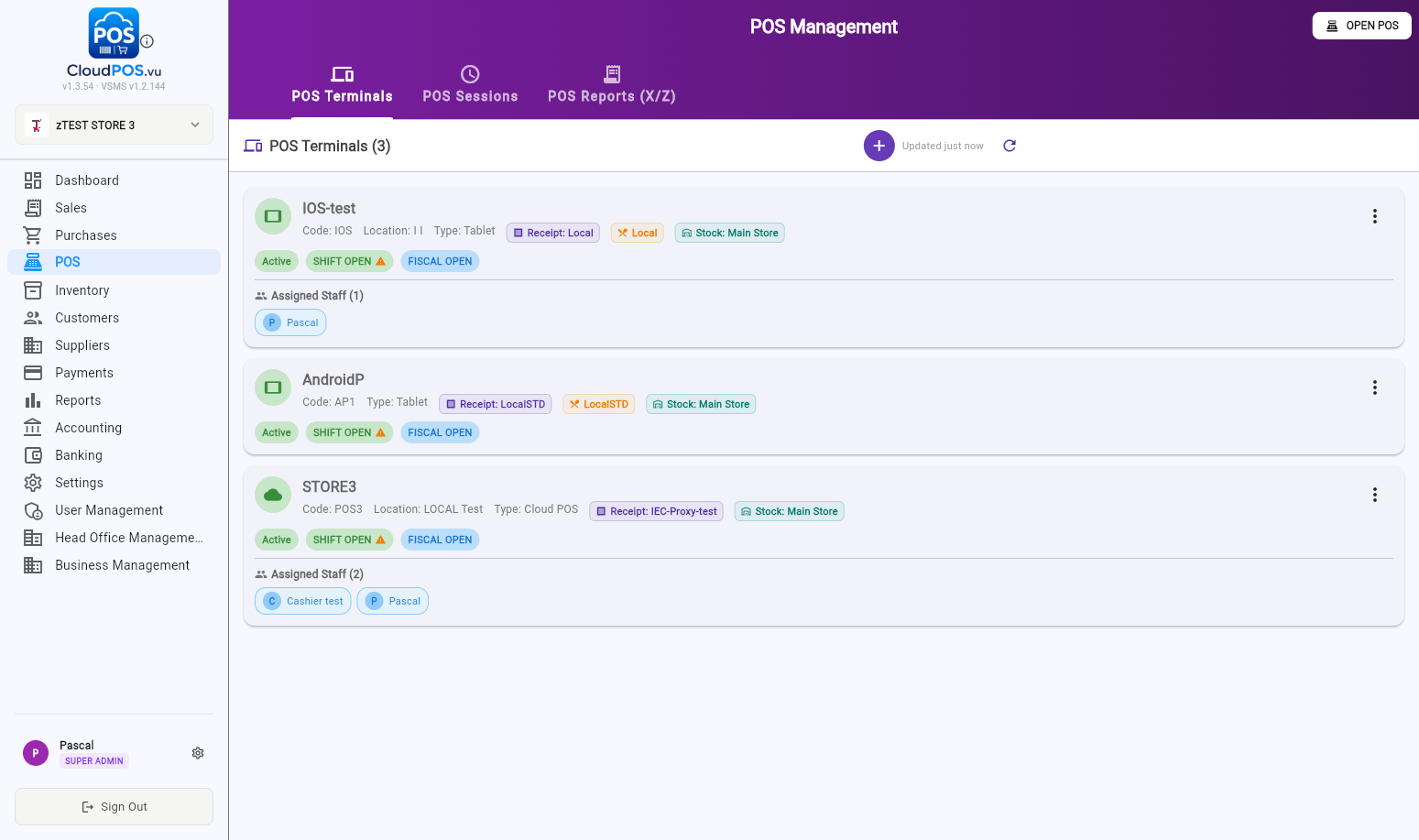
Open POS Management (sidebar → POS). Every terminal card shows which printers are assigned to it — the purple Receipt: badge and the orange order-printer chips:
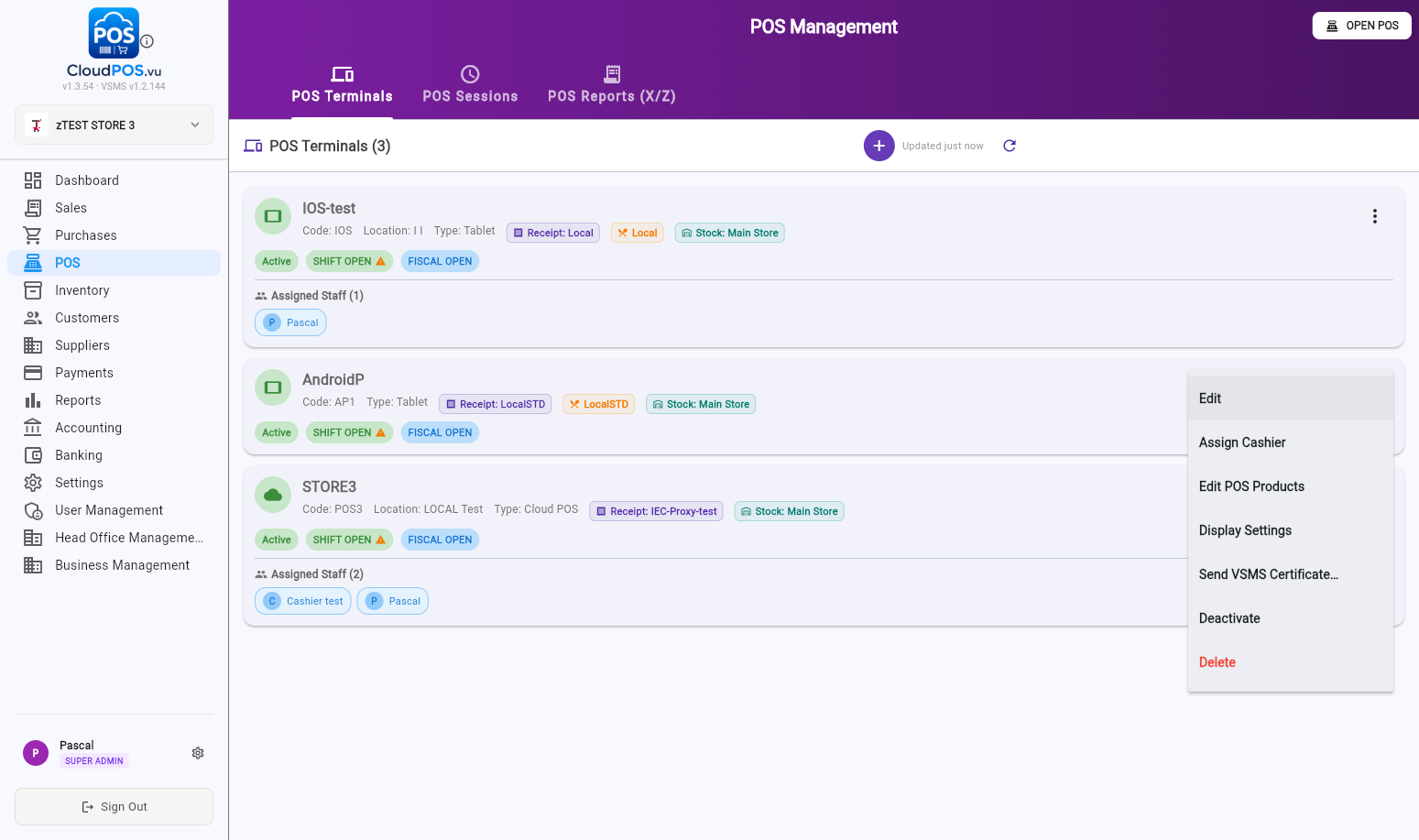
Open the terminal's ⋮ menu → Edit:
The Edit panel contains everything printing-related for this POS:
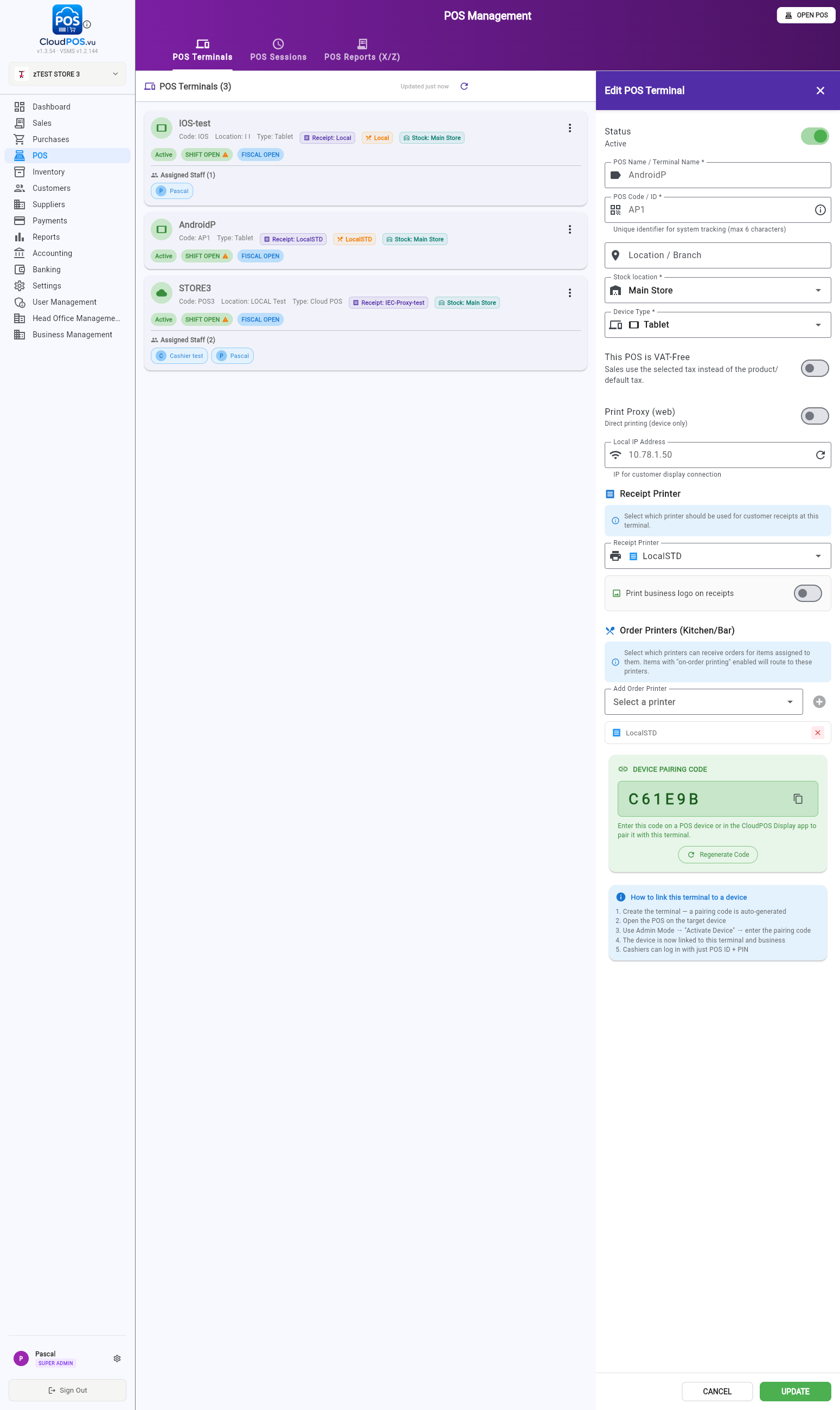
- Receipt Printer — the customer-receipt printer for this POS. The "Print business logo on receipts" toggle sits right under it.
- Print Proxy (web) — for the web version: prints are forwarded to the local CloudPOS Printing app on that machine (the proxy token is the terminal name). Native Android/Windows POS print directly.
- Order Printers (Kitchen/Bar) — see the next section.
Order printing (kitchen / bar)
Order chits are driven by two settings that must agree:
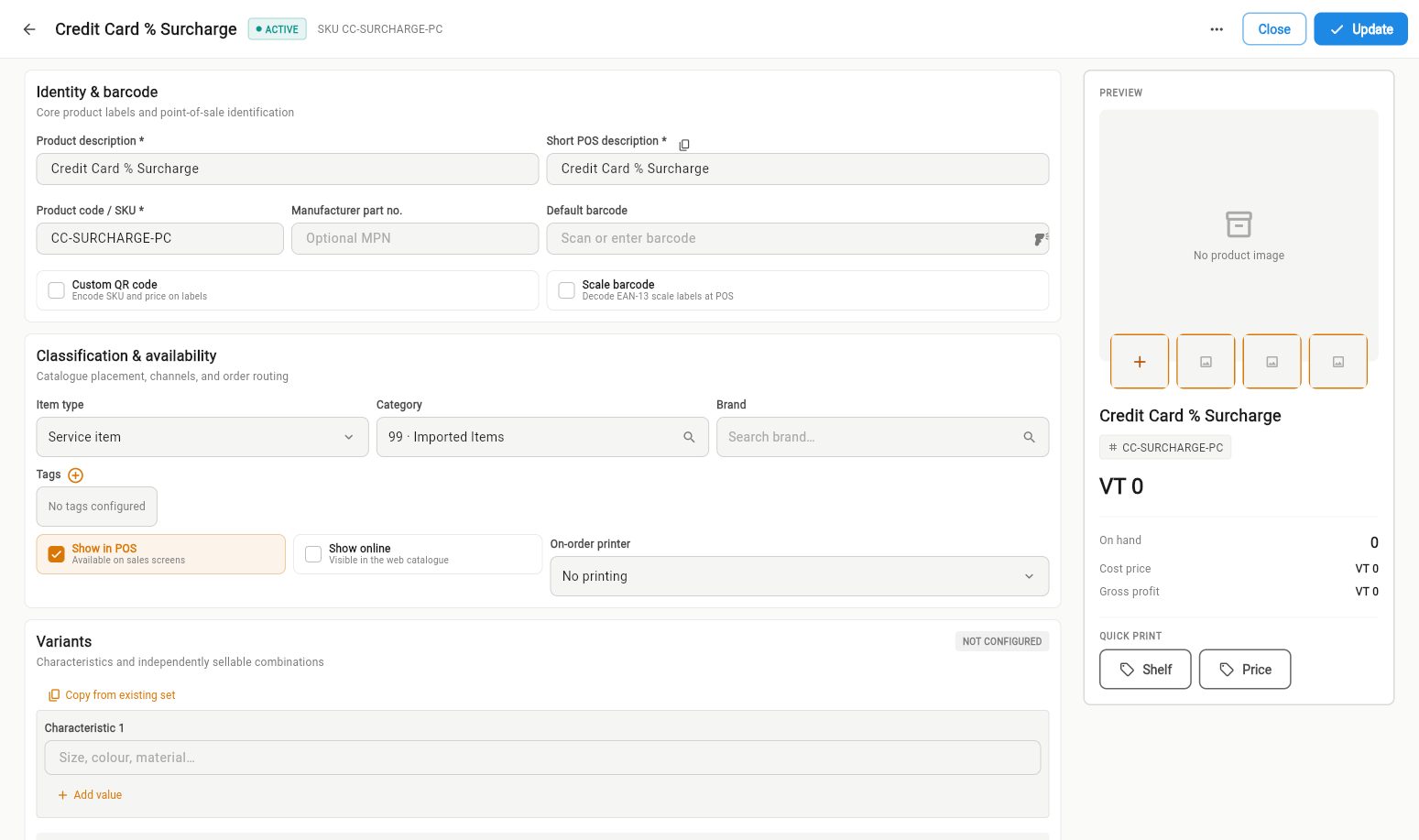
a) The product — open the product in Inventory and set On-order printer (Classification & availability section). Products set to No printing never produce order chits:
b) The selling terminal — the product's printer must also be in the selling POS's Order Printers (Kitchen/Bar) list (screenshot above). This list is the terminal's allow-list: an item whose product printer is not on it is skipped for order printing.
At payment, items are grouped per printer (one chit each, with quantities and item notes). For restaurant held orders the chit is titled ORDER / ADD-ON and shows the table reference instead of the invoice number.
Common setups
Small shop — one printer does everything
Assign the same printer to the terminal as Receipt Printer and add it as an Order Printer. Receipts and order chits both print on it; assign "On-order printer" only on products that actually need a preparation ticket.
Restaurant with a bar
The bar's receipt printer is a normal printer in the list. Assign it as an Order Printer on every POS in the restaurant, and set On-order printer = Bar printer on the drinks products. Drinks chits print at the bar from any POS that sells them; food can route to a kitchen printer the same way.
Two POS, no kitchen printer — "each POS prints its own orders"
Use the per-terminal switch in the terminal form: Redirect any print order to this printer (v1.3.56+). When enabled on a POS, every order chit from that POS — whatever the products say — prints as one ticket on that POS's default receipt printer. Enable it on both POS and each prints its own orders locally. Requires a default receipt printer; otherwise the terminal falls back to normal routing.
Troubleshooting
| Symptom | Check |
|---|---|
| No order chit for an item | Product's On-order printer set? Is that printer in the selling terminal's Order Printers list? (Items with an unassigned printer are skipped.) |
| Receipt doesn't print on web | Terminal's Print Proxy (web) on? Proxy app running, and its token equals the terminal name? |
| Network printer unreachable | Printer and POS on the same network, correct IP, port 9100 not blocked. |
| USB printer prints on one device only | Normal — USB is local to the machine the proxy app runs on. For shared printing use a network printer. |
| Wrong printer after changing an IP | Printer edits invalidate cached assignments within 5 minutes — restart the POS or wait for the cache to refresh. |