Purchase Guide
Manage supplier invoices, import goods, expenses, purchase orders, payments, and fixed assets — the complete purchase workflow.
CloudPOS.vu supports the full purchase lifecycle. The Purchases page contains 8 tabs for managing all aspects of your procurement:
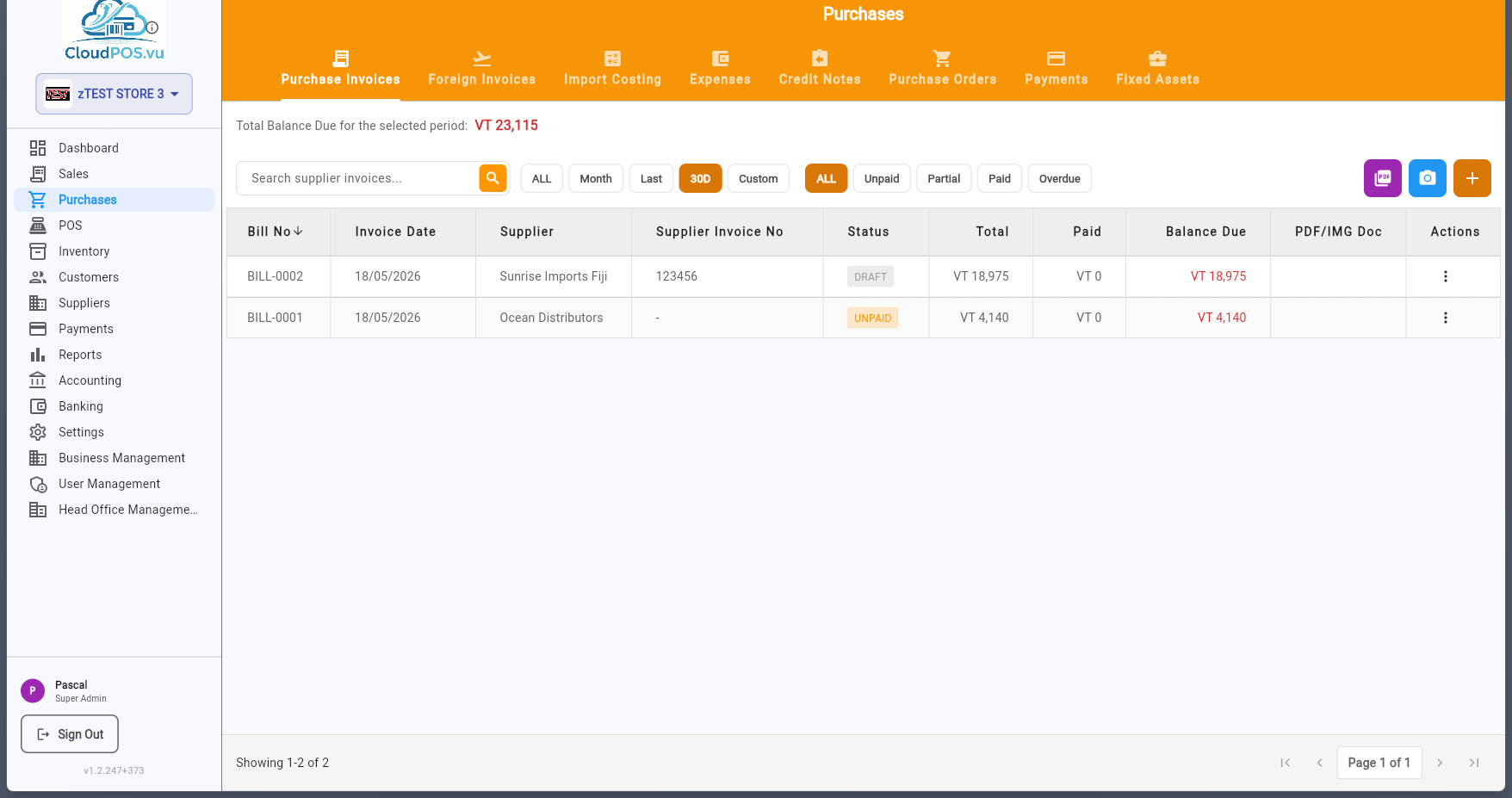
Purchase invoices start as Draft — no accounting impact. Once reviewed, you Post to Accounts to create journal entries and change the status to Unpaid. Then record payments to mark them as Paid.
📑 Sections
The Purchase Invoices tab shows all your local supplier bills with their current status — Draft, Unpaid, Partially Paid, Paid, Overdue, or Cancelled.
Each row displays the bill number, supplier name, supplier invoice number, PO number, dates, total amount, paid amount, balance due, and status. Click any invoice to view its full details.
Newly created invoice — no accounting entries yet. Can be freely edited or deleted.
Posted to accounts — journal entries created. Awaiting payment.
Part of the invoice has been paid — remaining balance is still due.
Invoice fully paid — balance due is zero.
Payment is past the due date — follow up with the supplier.
Invoice has been cancelled — journal entries reversed.
Click the + button on the Purchase Invoices tab to open a new blank invoice form:
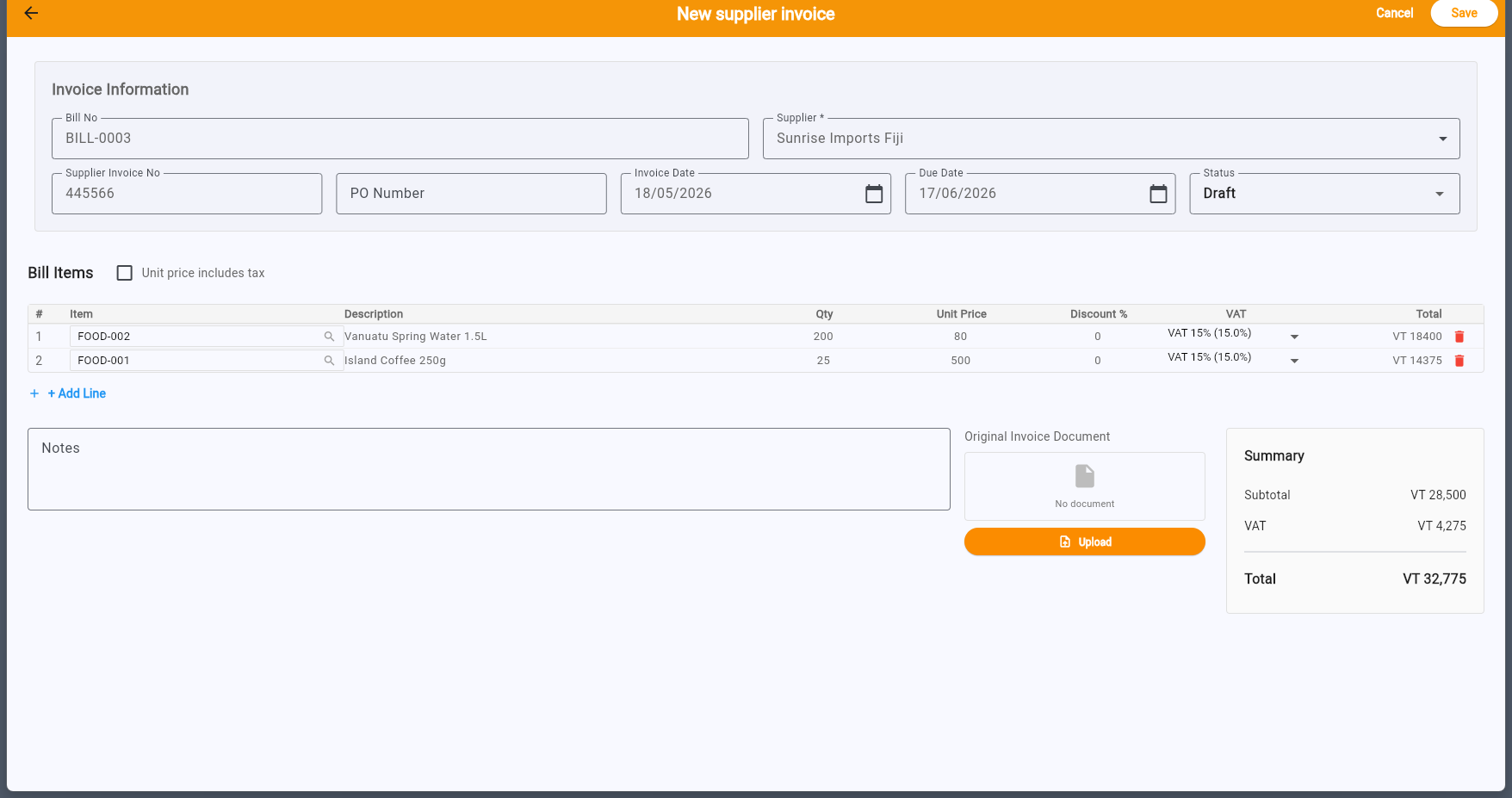
- Bill No — Auto-generated (read-only). Each bill gets a sequential number.
- Supplier — Select from your supplier list. Required field.
- Supplier Invoice No — Enter the supplier's own invoice number for cross-referencing. This is the reference number printed on the supplier's document.
- PO Number — Link to an existing Purchase Order (e.g. PO-0001). Optional — for tracking which PO this invoice relates to.
- Invoice Date — The date on the supplier's invoice. Defaults to today.
- Due Date — When payment is due to the supplier. Used for overdue tracking.
- Status — New invoices default to Draft. You can also set to Unpaid to post immediately.
Add line items by selecting products from your stock catalog or entering manual lines. Subtotal, VAT, and total are computed in real time. Save when ready — the invoice starts as Draft.
New purchase invoices start as Draft. In this state, you can freely edit items, change amounts, or even delete the invoice — nothing has been posted to accounting yet.
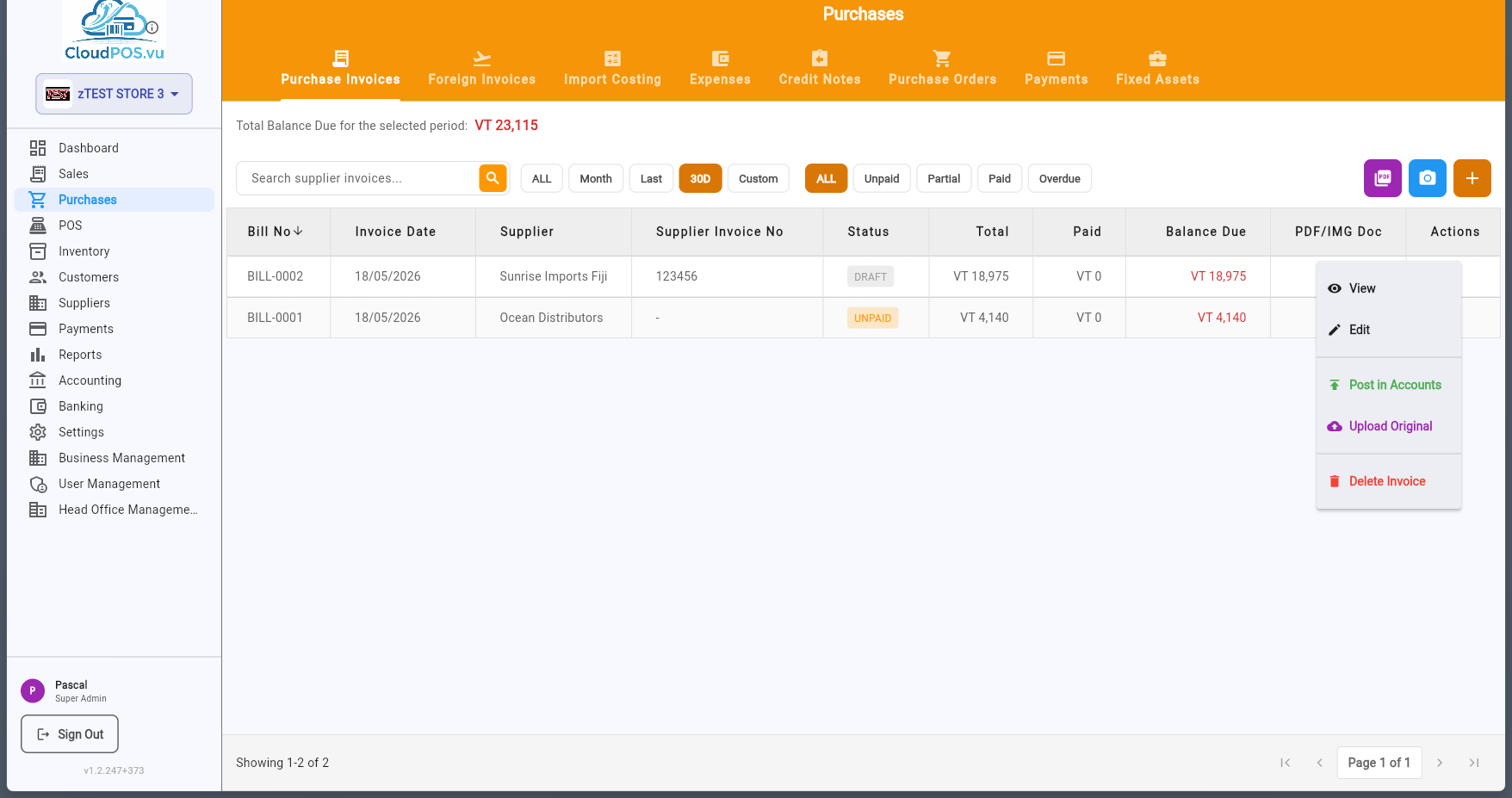
Once you've verified the invoice is correct, click Post in Accounts to create the journal entries:
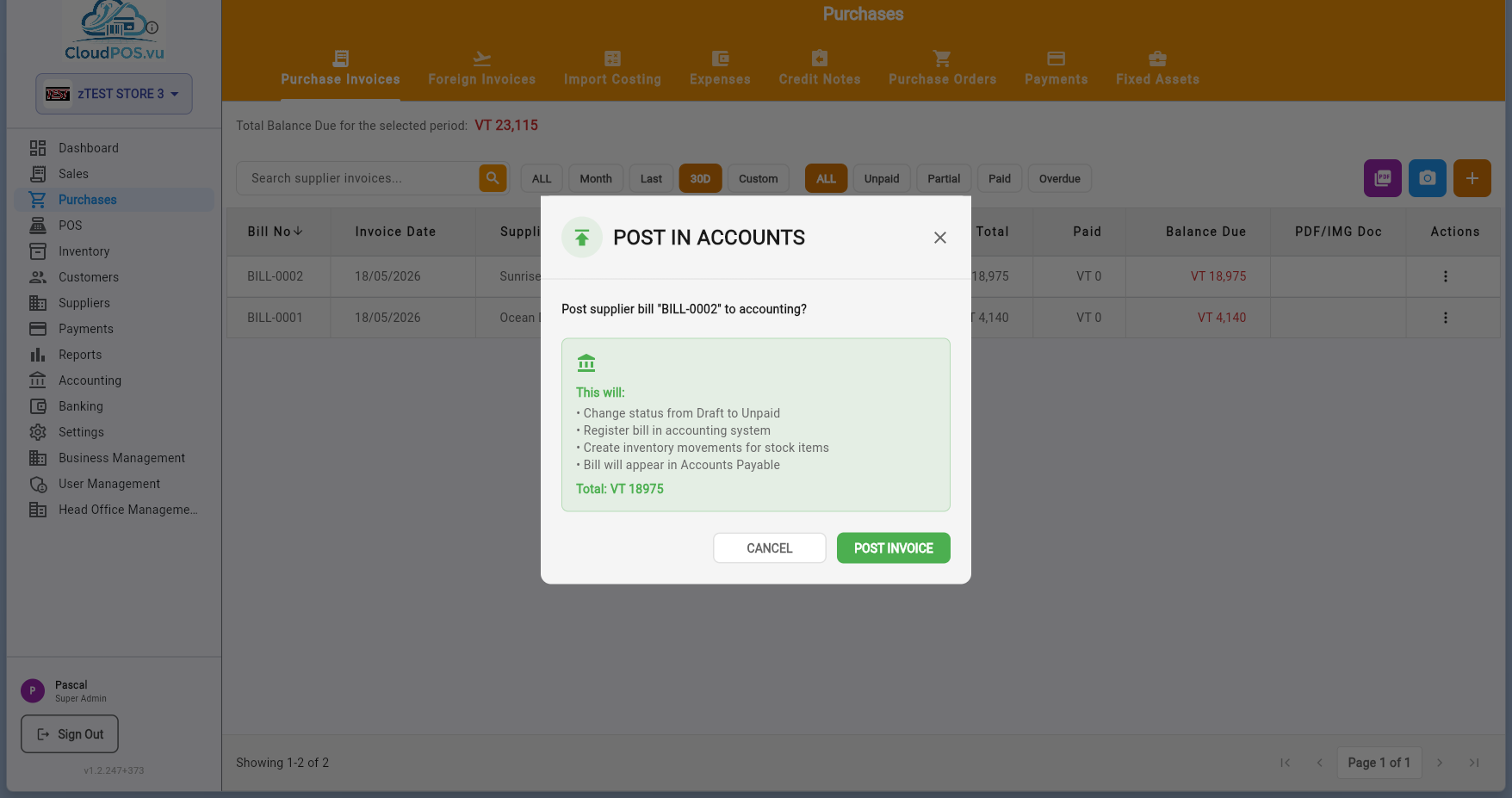
- Validate — The system checks that all items are linked to stock products.
- Confirm — Click "Create Invoice" to post.
- Journal entries created — DR Purchases/Expenses + DR VAT Input → CR Accounts Payable.
- Status changes — From Draft to Unpaid.
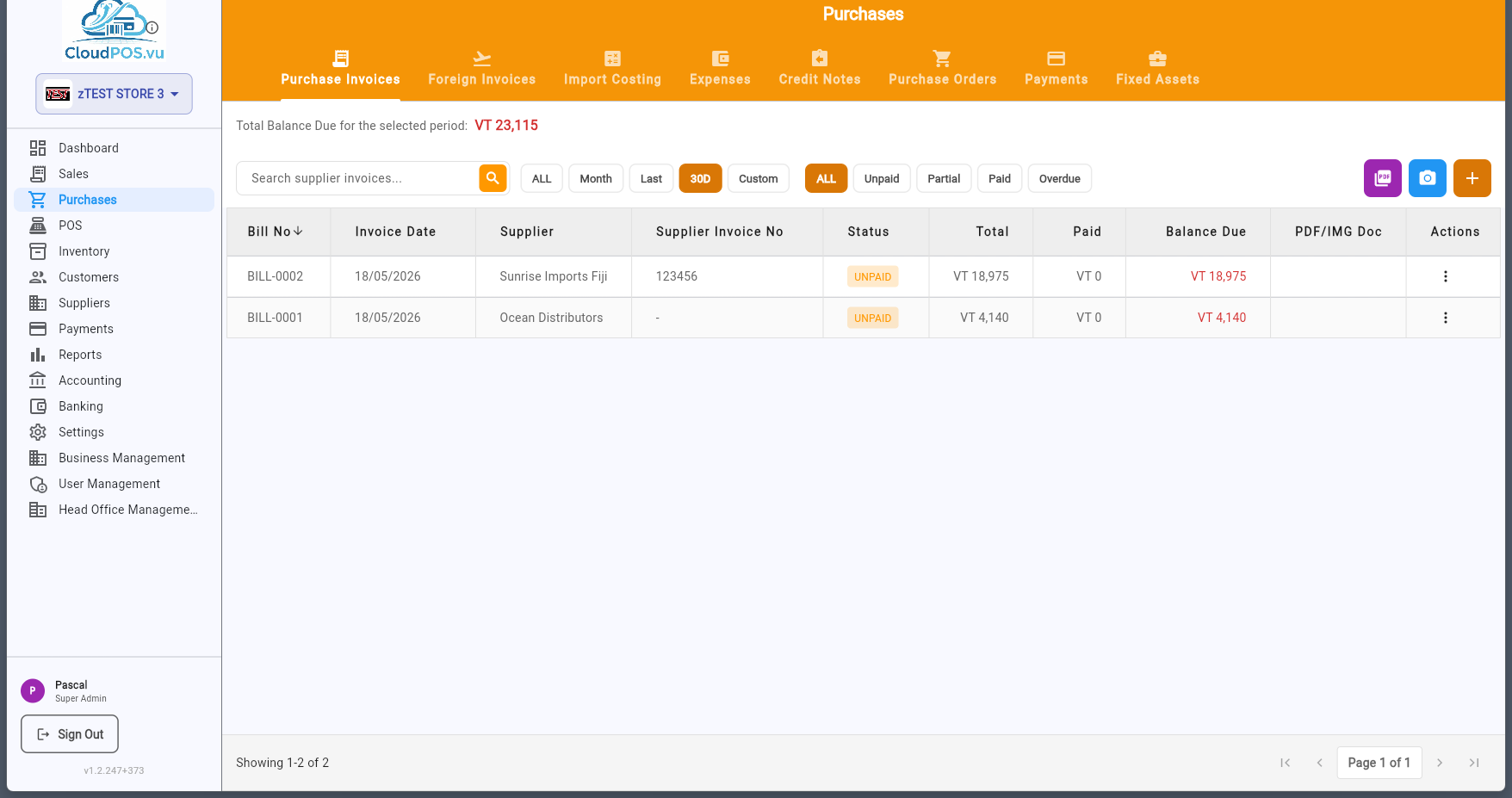
After posting, the invoice appears in the list as Unpaid:
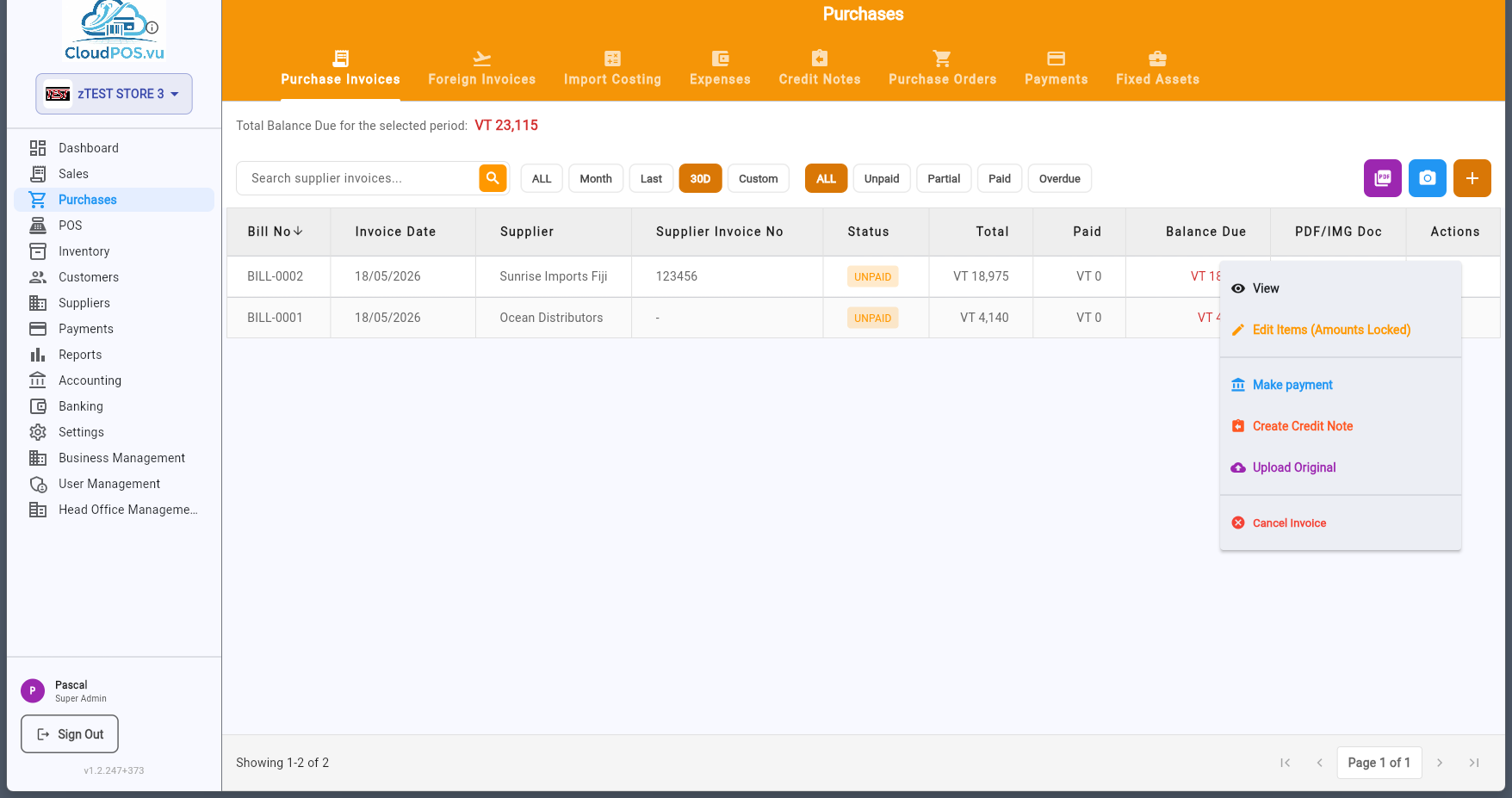
To pay a supplier invoice, open the action menu on an Unpaid invoice and select Make Payment:
The payment dialog appears:
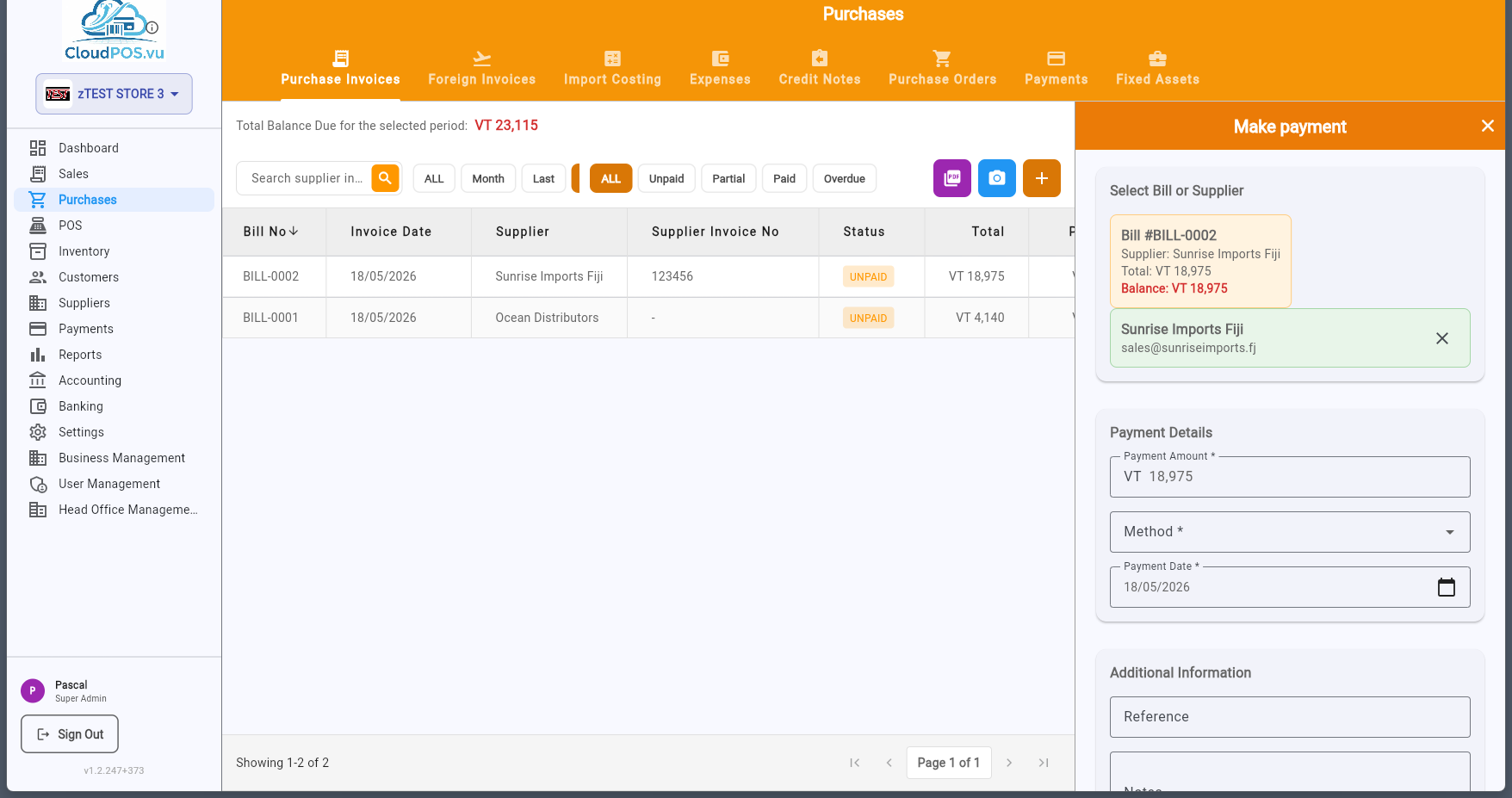
- Amount — Defaults to the full balance due. Partial payments are supported.
- Payment Method — Cash, Card, Bank Transfer, or Cheque.
- Payment Date — When the payment was made.
- Reference — Optional transaction reference or cheque number.
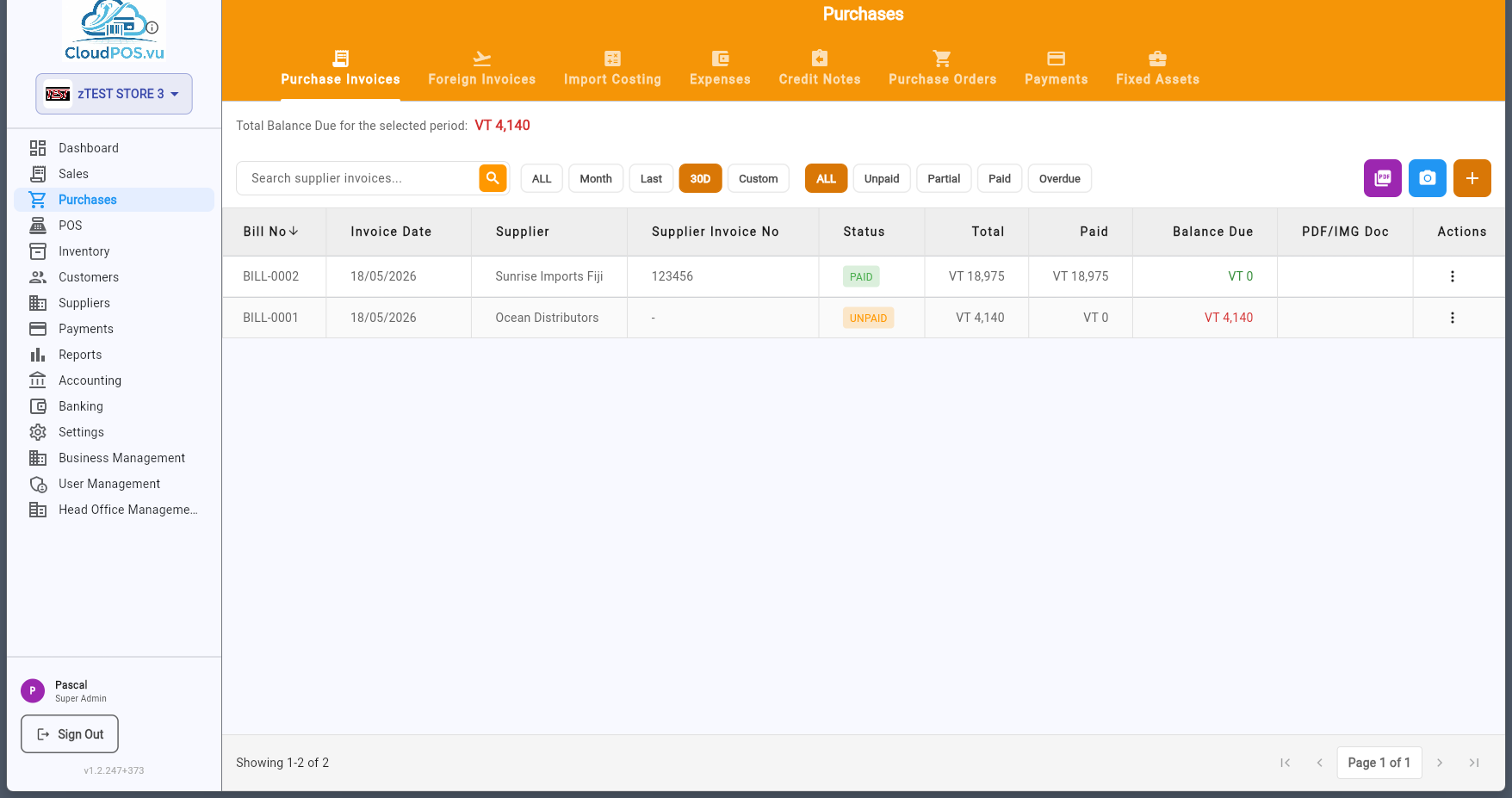
After recording the payment, the invoice status changes to Paid:
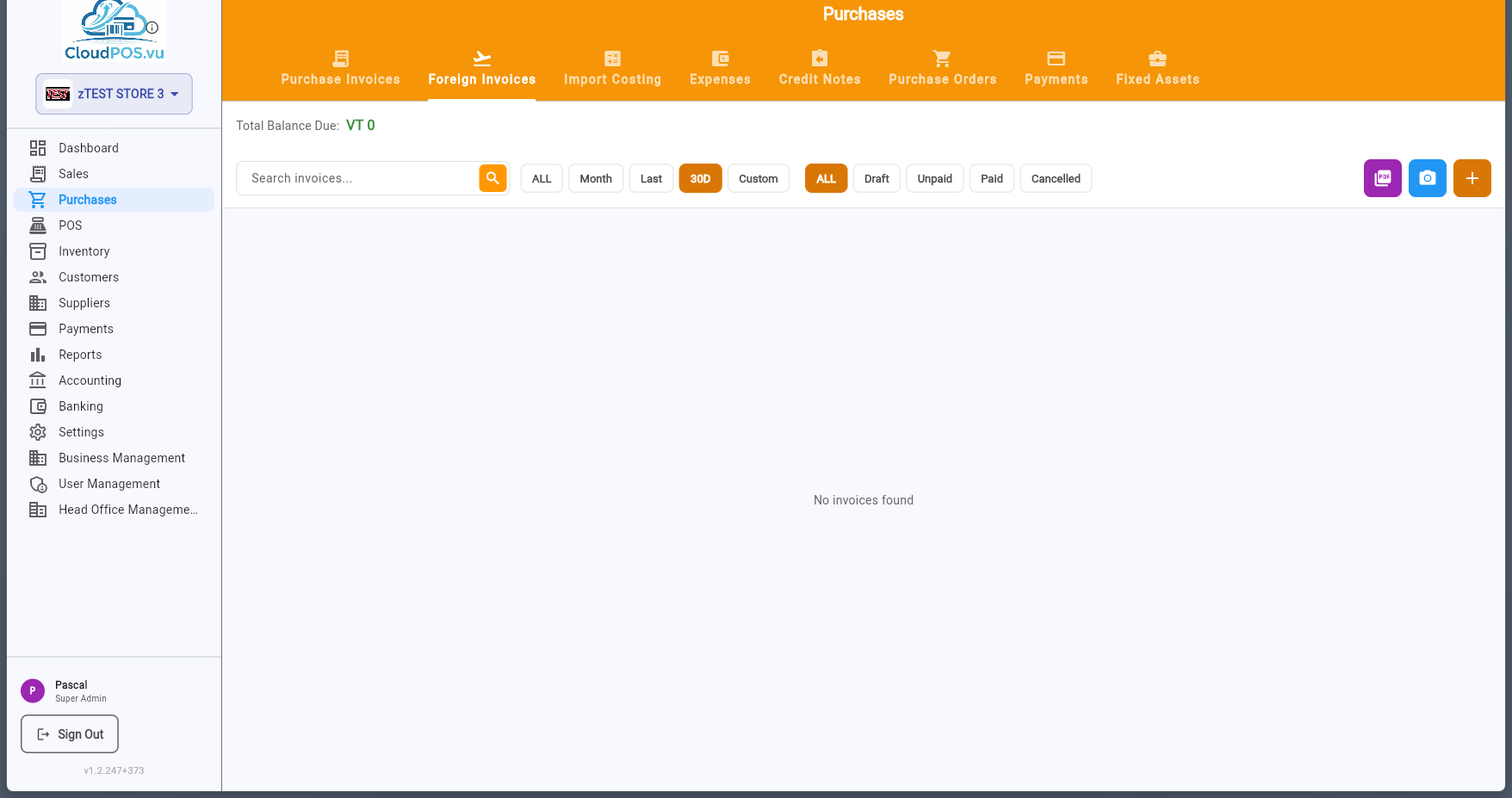
The Foreign Invoices tab manages import purchases from overseas suppliers. These invoices may involve foreign currency, shipping costs, and customs duties.
Import Costing calculates the full landed cost of imported goods, including the purchase price, freight, insurance, customs duties, and other charges.
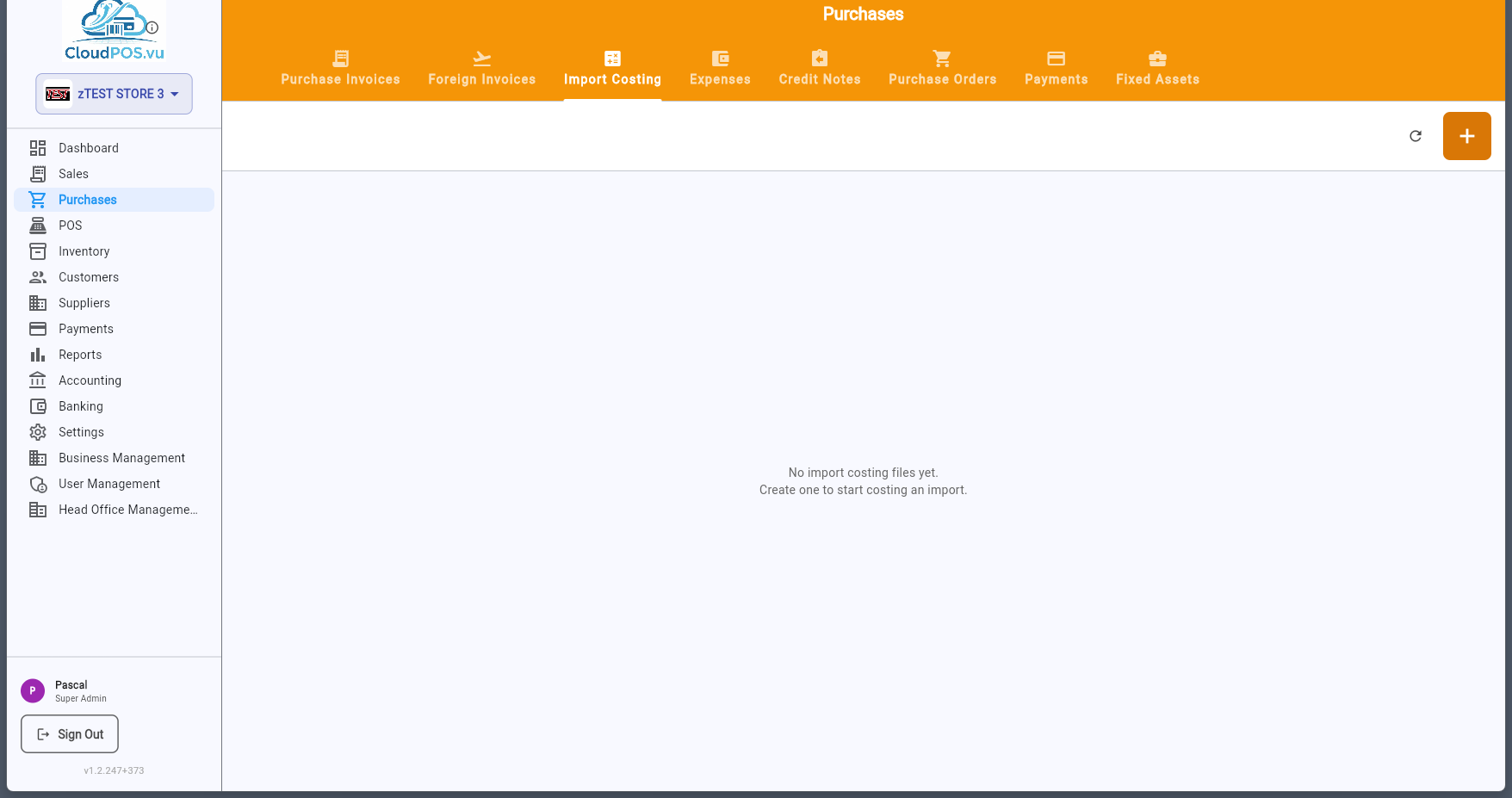
Import costing links to a Foreign Invoice and allocates all additional costs across the imported items, giving you an accurate unit cost for inventory valuation.
The Expenses tab records operational expenses such as rent, utilities, office supplies, and other non-inventory purchases.
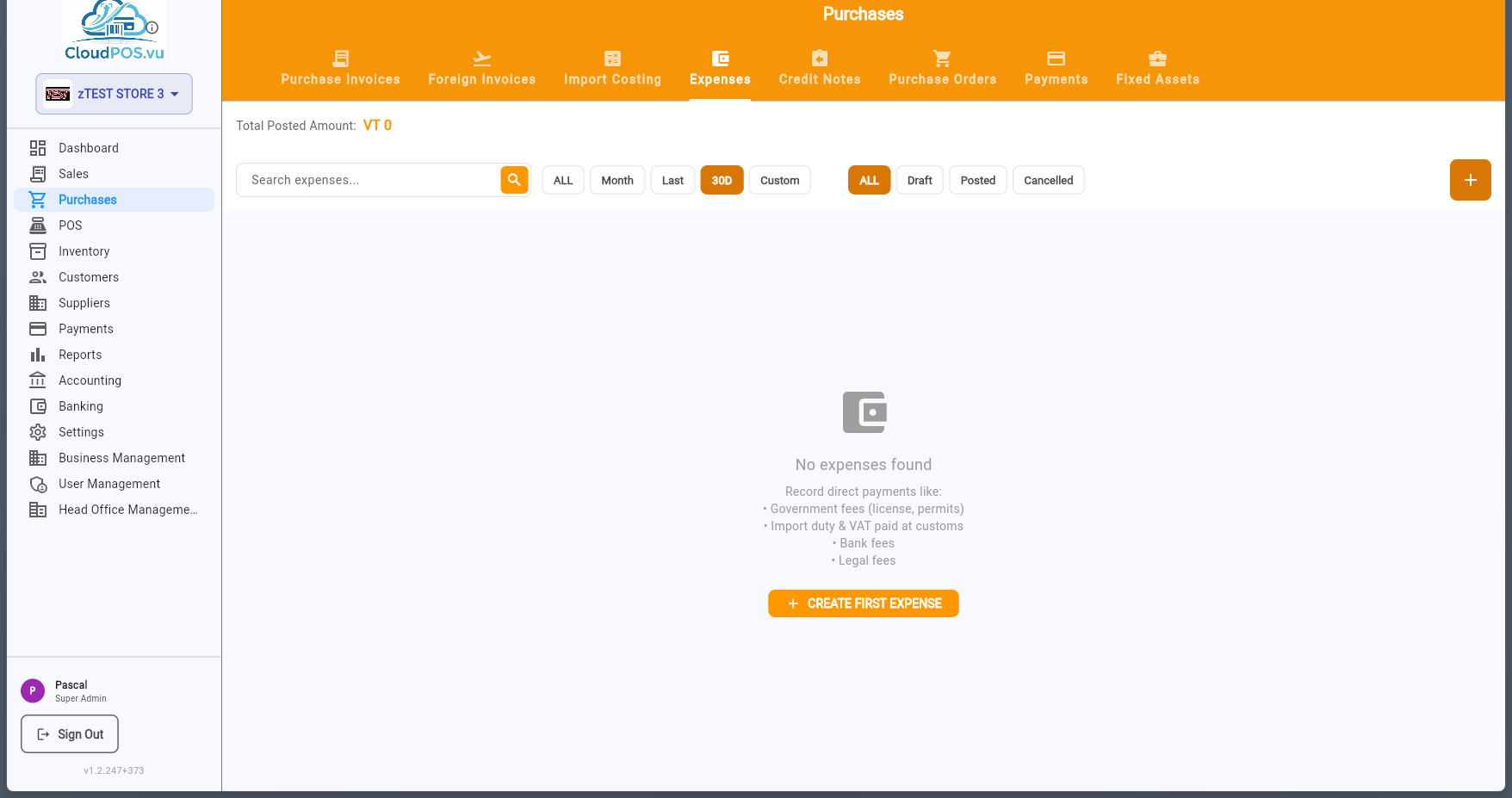
Each expense can be categorized, linked to an expense account, and posted to accounting. Expenses follow the same draft → post → pay workflow as purchase invoices.
Credit Notes are used when a supplier issues a refund or credit — for returned goods, pricing corrections, or overpayments.
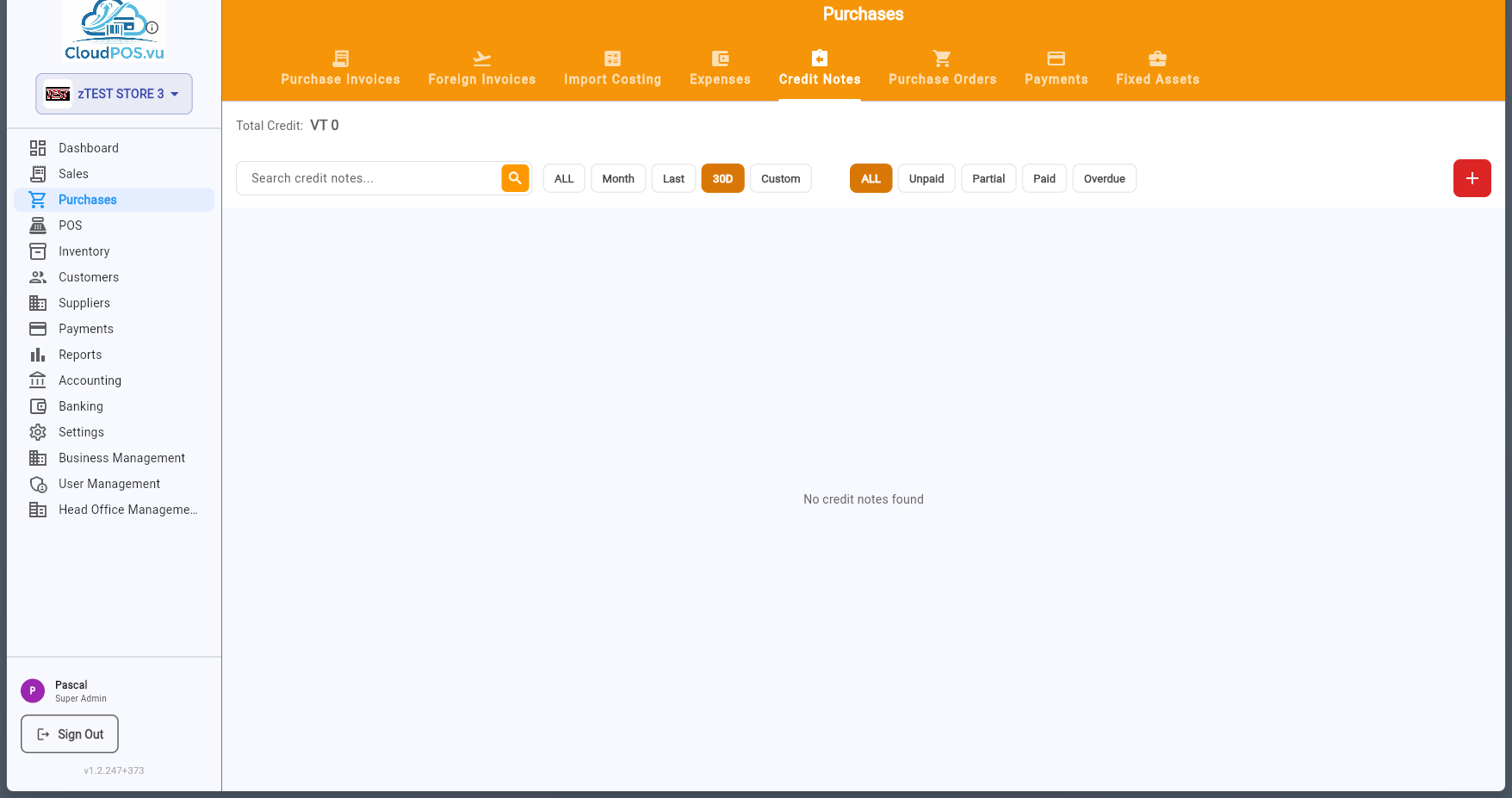
Credit notes can be created from an existing purchase invoice (via the action menu) or independently. They reduce the amount owed to the supplier and create reversing journal entries.
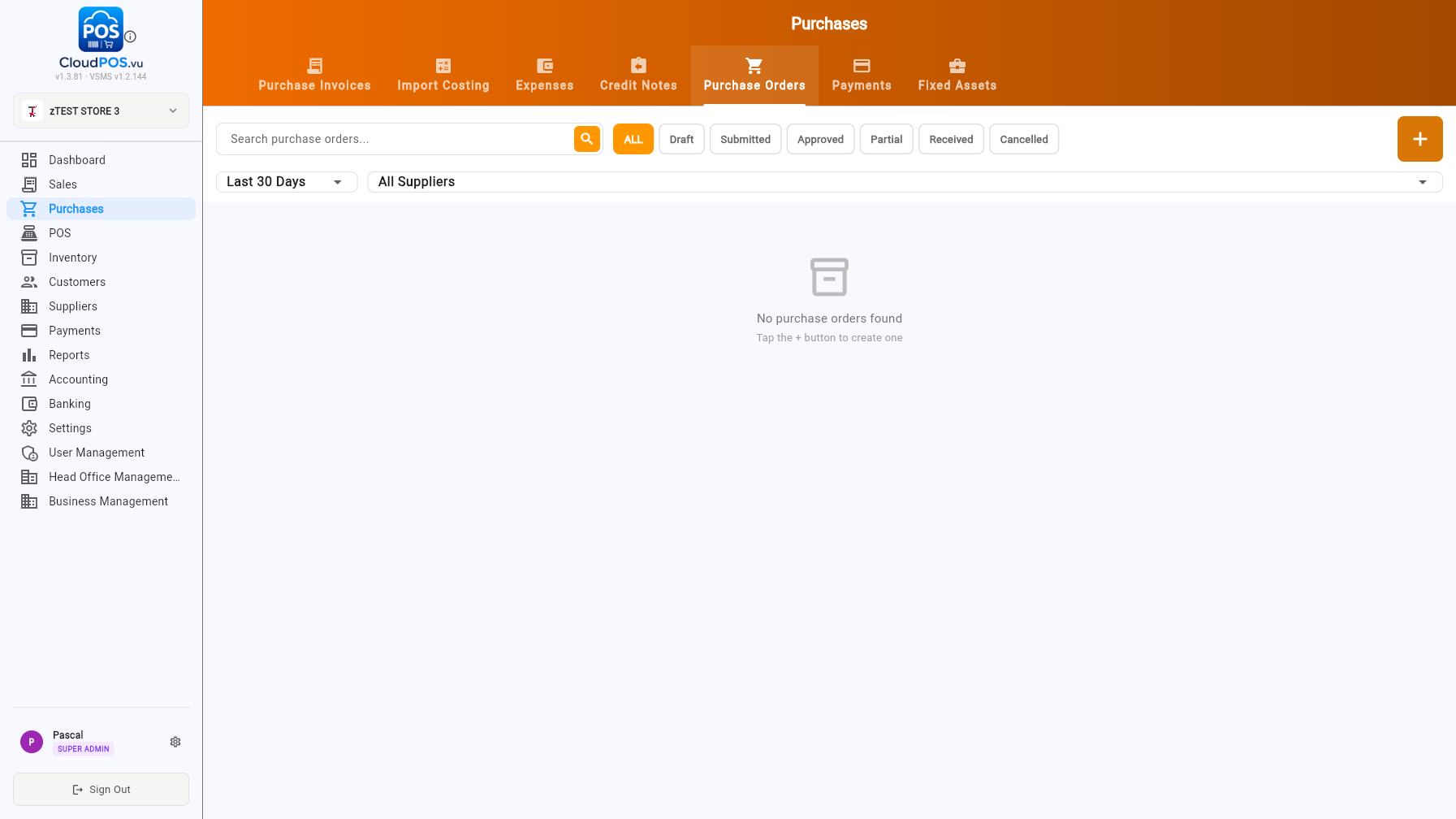
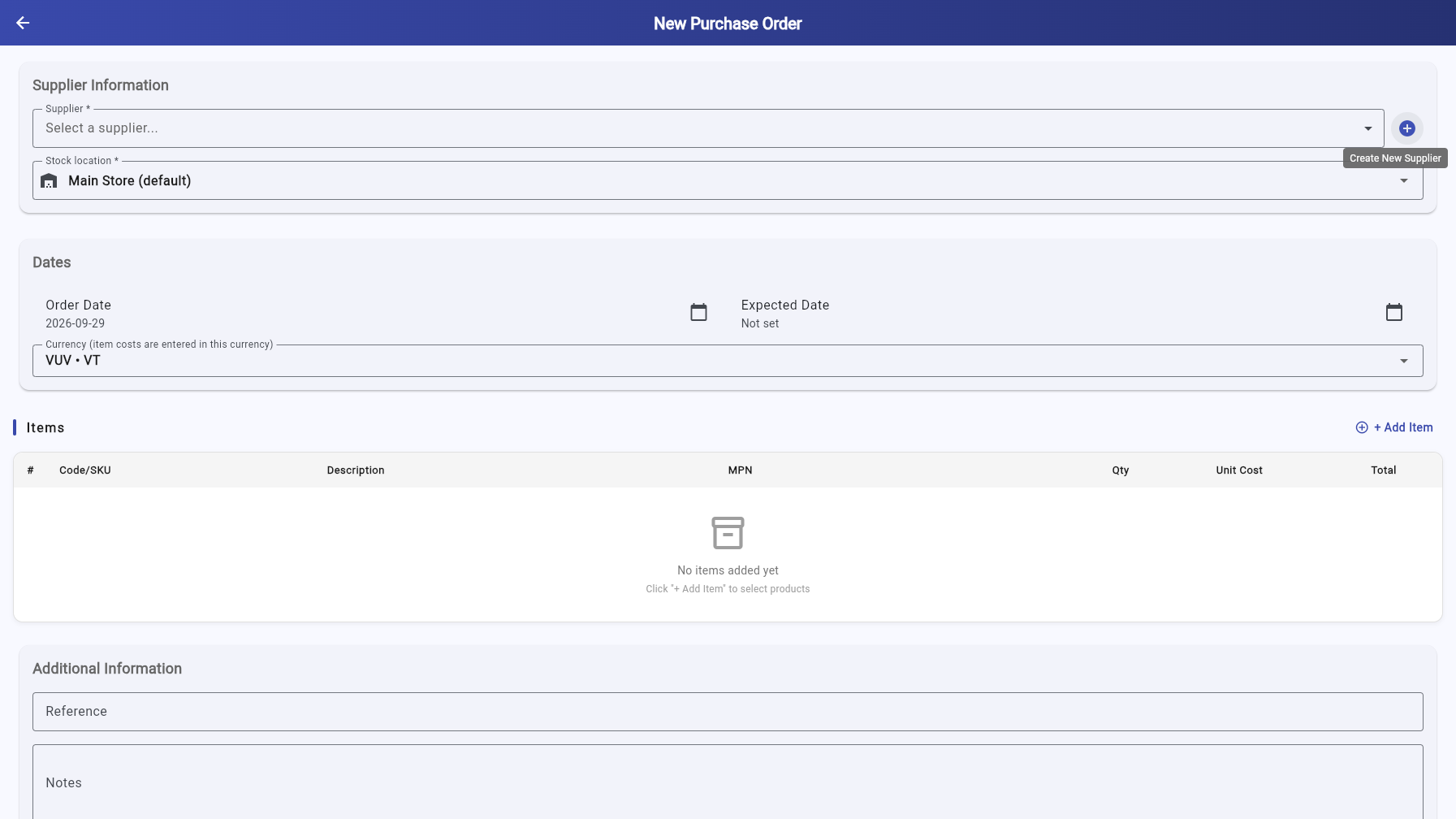
Purchase Orders are documents sent to suppliers to request goods or services. They are non-financial until converted to a purchase invoice.
Create a PO to:
- Request a quote or formalize an order with a supplier
- Track expected deliveries
- Link purchase invoices back to the original order via the PO Number field
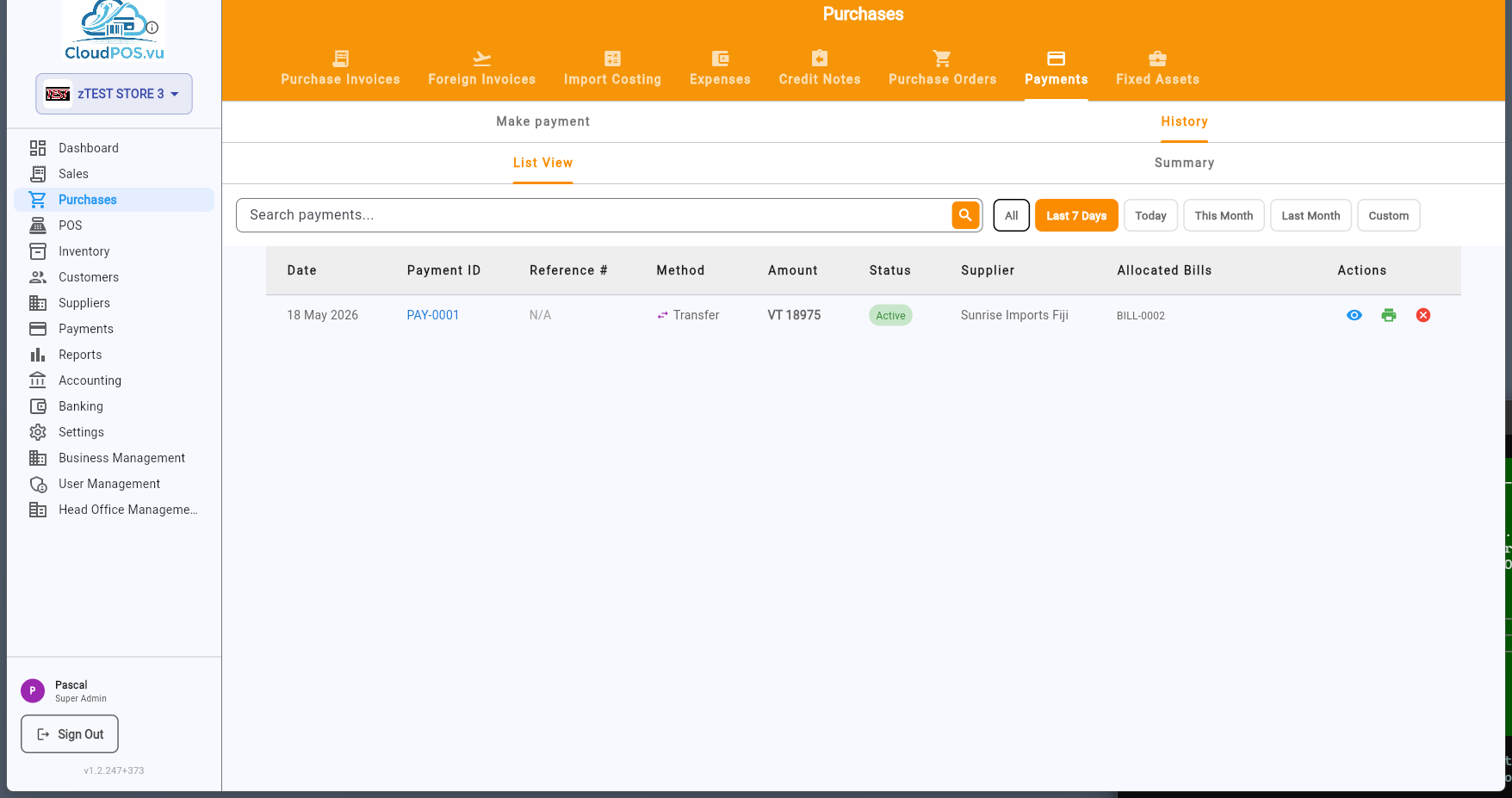
The Payments tab provides two sub-tabs: Make Payment and History.
Record a new payment to a supplier — select the supplier, invoice, amount, and method.
View all past payments with date, supplier, amount, method, and reference.
The Fixed Assets tab manages long-term assets such as equipment, furniture, vehicles, and machinery.
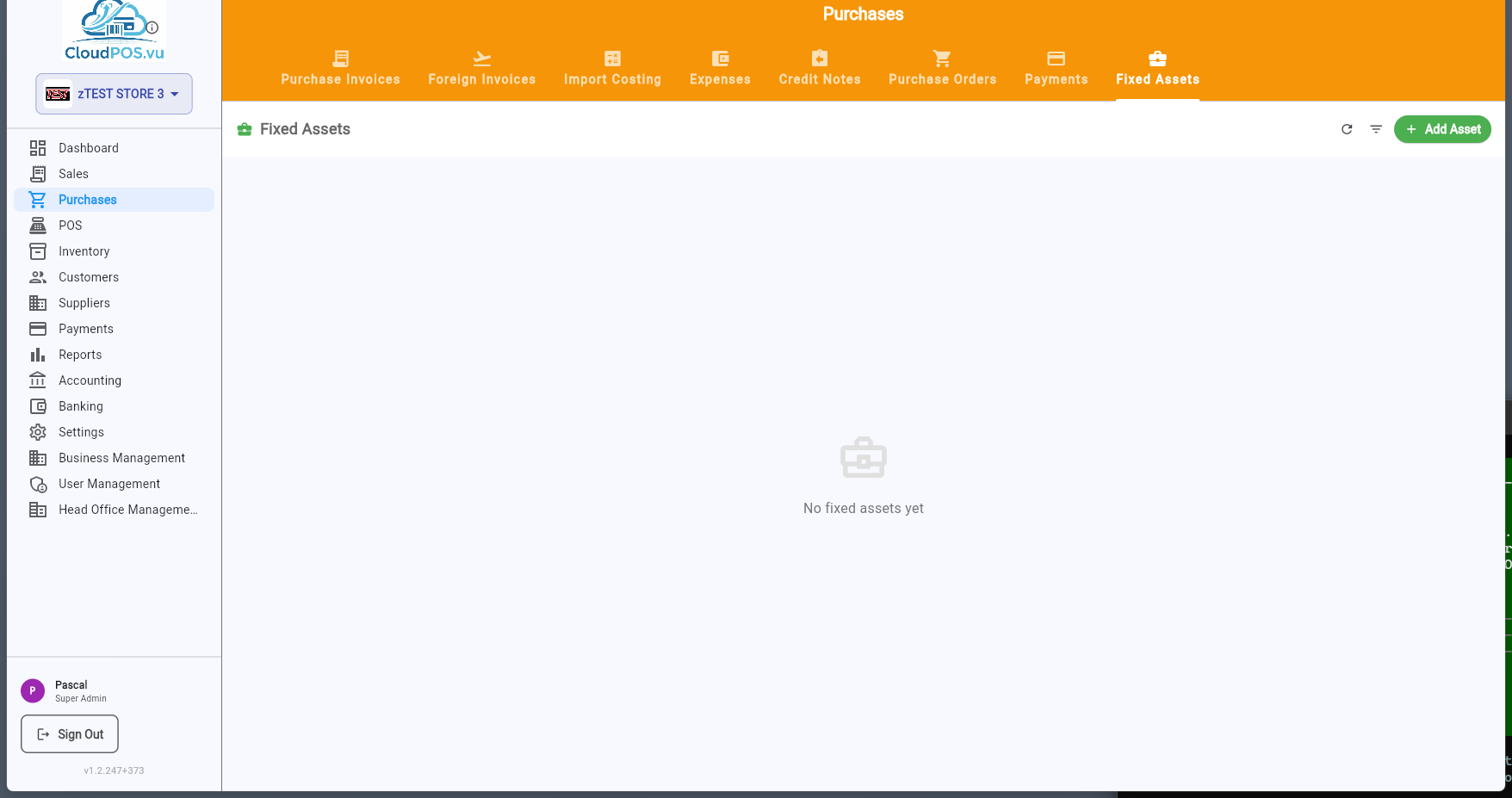
Fixed assets can be created from scratch or converted from a purchase invoice. Each asset tracks its purchase cost, depreciation method, useful life, and current book value.
Every purchase document has a ⋯ action menu with context-sensitive options. Available actions change based on the document's status.
🧾 Draft Invoice Actions
Open the invoice in read-only mode.
Open the invoice for editing. Full editing is available — change items, amounts, supplier.
Create journal entries and change status to Unpaid. All items must be linked to stock products.
Upload a scan or photo of the supplier's original invoice document.
Delete the draft. Only available while status is Draft — posted invoices cannot be deleted.
🟡 Unpaid Invoice Actions
Open the invoice in read-only mode.
Edit product assignments only. Amounts are locked because journal entries have been posted.
Record a payment against this invoice. Opens the payment dialog.
Issue a credit note for this invoice — for returns or corrections.
Upload the supplier's original invoice document.
Cancel the invoice and reverse journal entries. Requires admin privileges for posted invoices.