📋
Overview
CloudPOS.vu uses a product catalog to store all items available for sale. Products can be added manually or imported in bulk via CSV. Each product has a Product Card with multiple tabs for details, pricing, stock, images, and more.
Products are organized into categories (hierarchical), linked to tax rates, and support multiple pricing levels (Retail, Trade, Wholesale, Reseller, Special).
The product catalog is managed from Stock → Products in the sidebar menu.
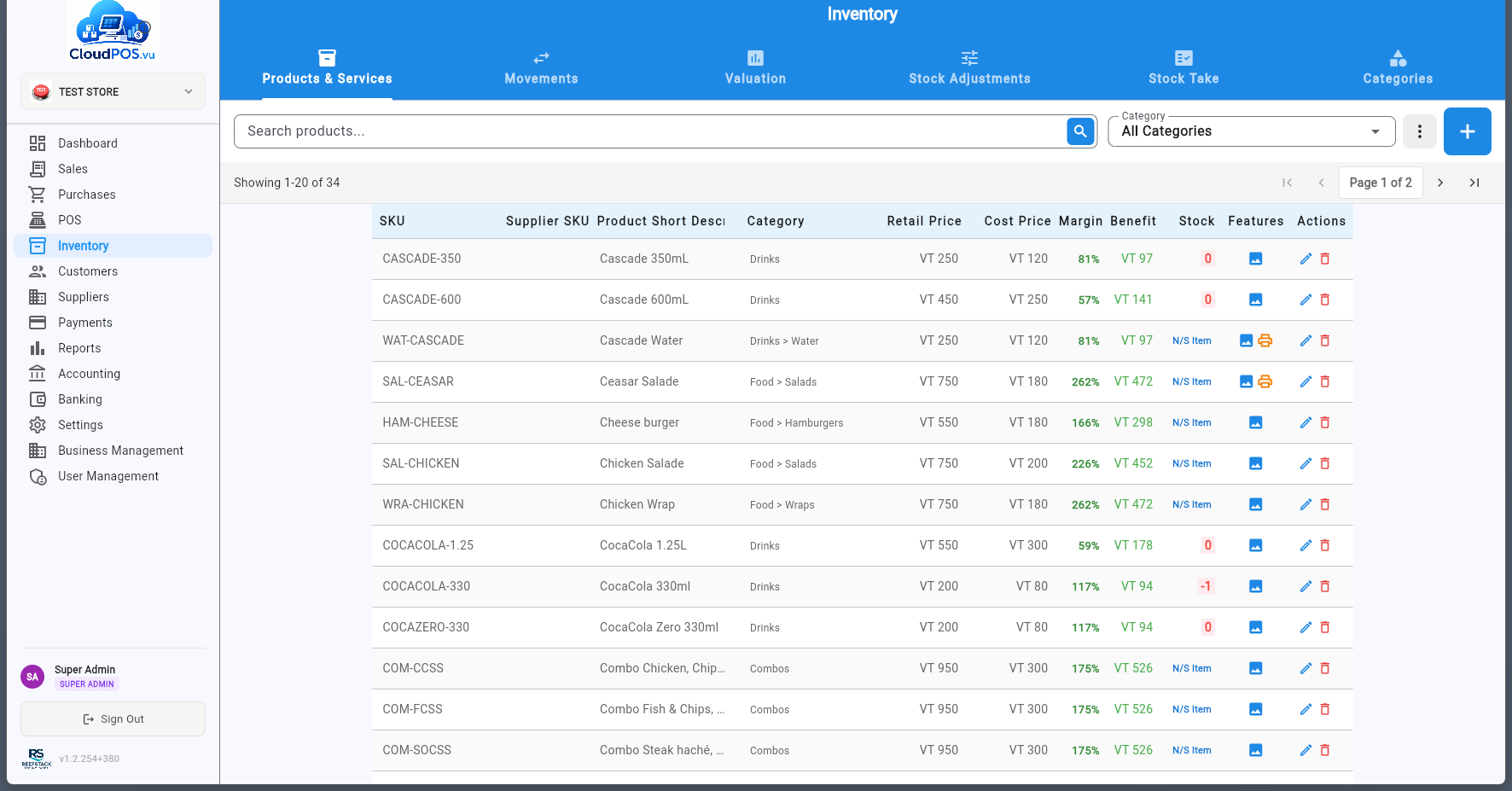
Product list — showing SKU, description, category, prices, margin, stock, and feature icons
Feature Icons
The Features column shows icons indicating special product behaviors:
🖼️ Image (blue)
Product has images attached. Click to view the gallery.
🖨️ Print (orange)
Auto-prints to a kitchen/bar printer when ordered.
❓ Prompt (purple)
Shows a cashier prompt when scanned (e.g. "Check ID").
🔢 Edit Qty (teal)
Cashier can change the quantity at POS.
💲 Edit Price (green)
Cashier can override the selling price at POS.
🗂️
Product Card
Every product is configured through its Product Card — a tabbed form with 4 sections:
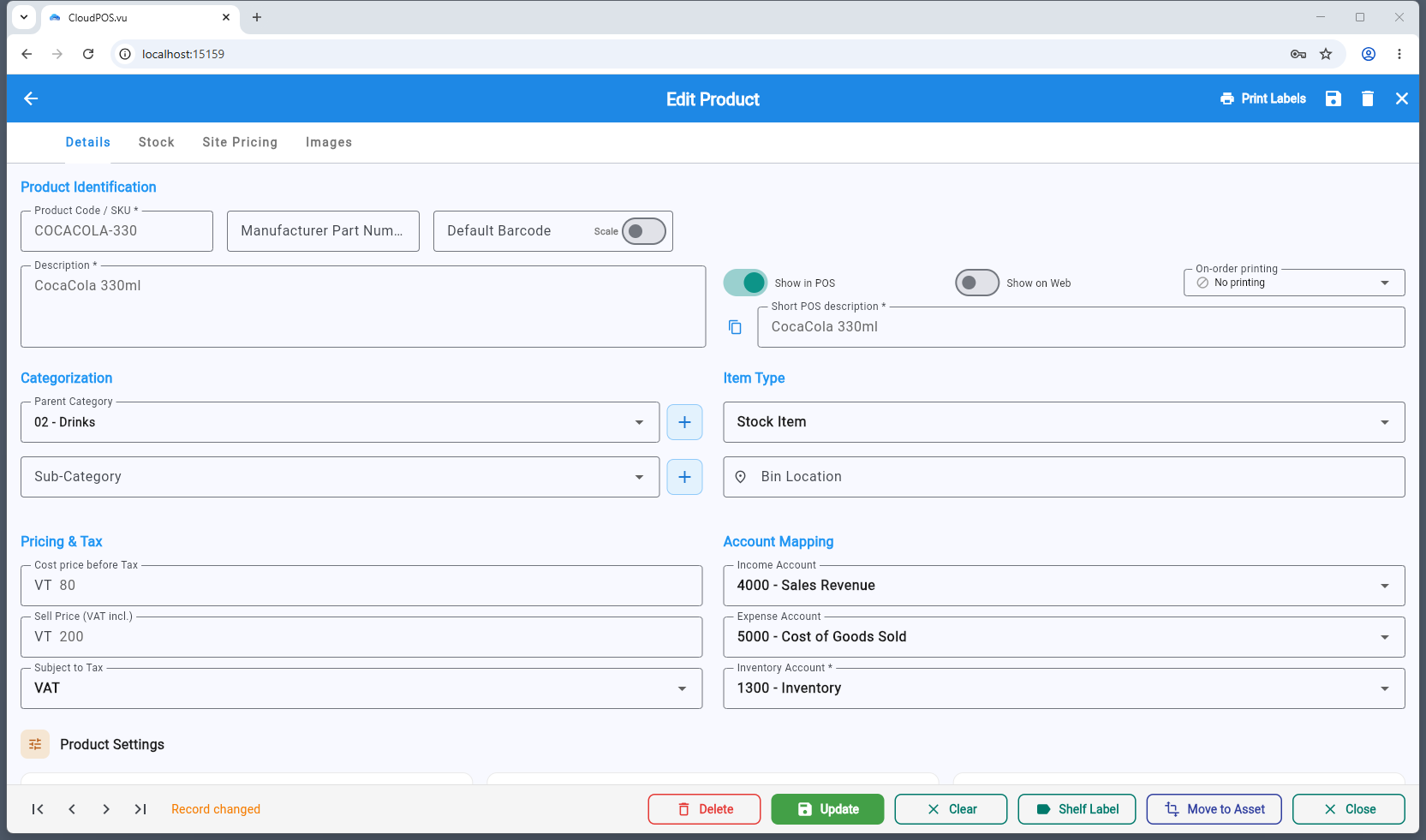
Product Card — top section with Product Code/SKU, MPN, Default Barcode, Description, Short POS Description
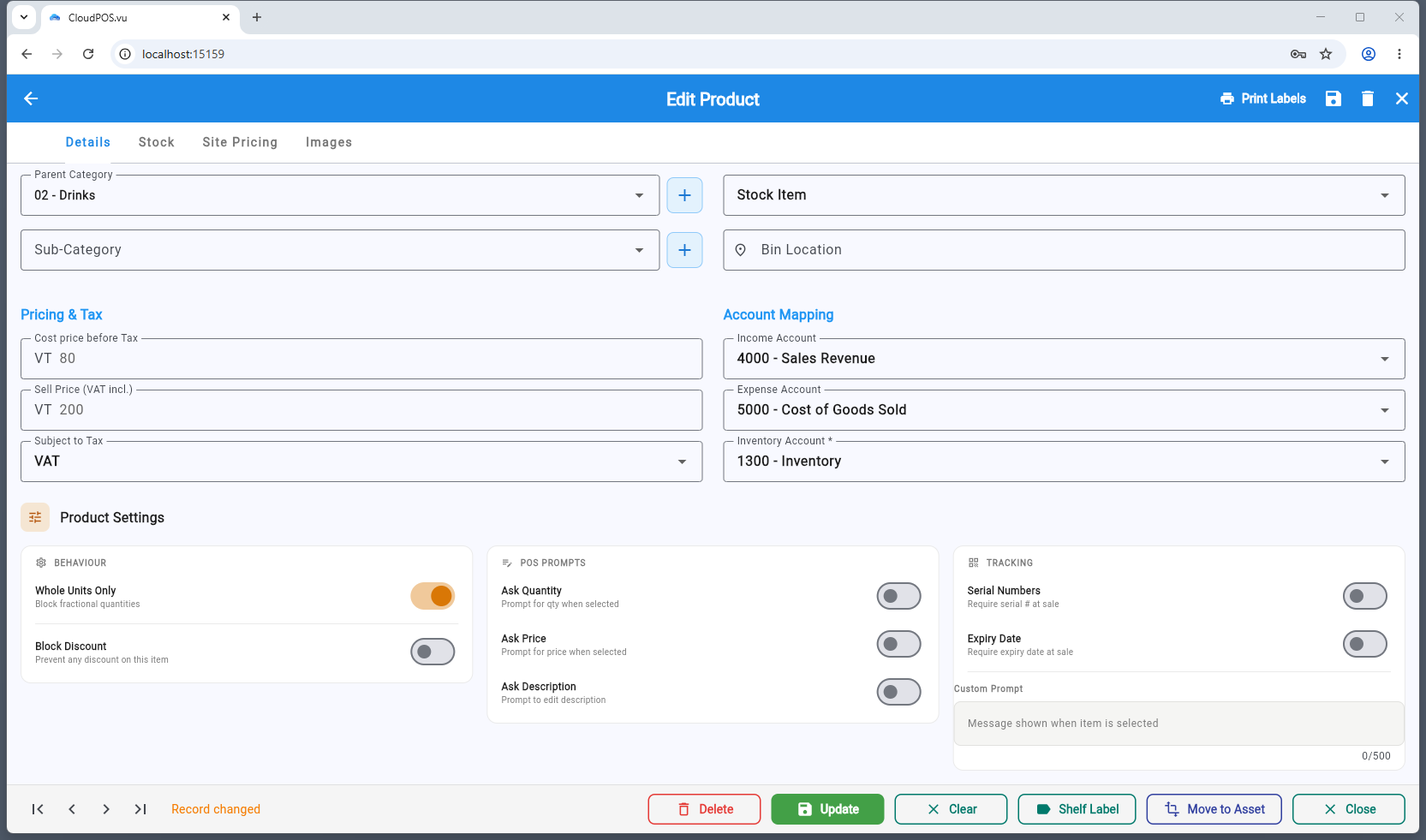
Product Card — bottom section with product flags, details, and action buttons
📝 Details
Name, SKU, barcode, category, tax, pricing, flags.
📦 Stock
Quantity, minimum level, reorder quantity, units, bin location, product history.
💰 Site Pricing
Retail, Trade, Wholesale, Reseller pricing.
🖼️ Images
Up to 5 product images with primary badge.
📝
Details Tab
The Details tab contains the core product information organized in sections:
Product Identification
Product Code / SKU *
Internal product code. Required. Used as the fiscal name sent to the SDC.
Manufacturer Part Number (MPN)
Supplier or manufacturer part reference.
Default Barcode
EAN-13 or other barcode. Scanned at POS to add the product to the cart. Has an inline Scale toggle for weighed items.
Description *
Full product name shown on receipts, invoices, and product lists.
Short POS Description *
Compact name shown on POS buttons (required when Show in POS is enabled). Can be copied from the Description field.
Categorization
Category
Hierarchical category selector. Categories are managed separately in Stock → Categories.
Item Type
Item Type
Select from: Stock Item (tracked inventory), Service Item (no inventory), Non-Stock Item (non-inventory physical item).
Bin Location
Warehouse or shelf location for easy picking.
Pricing & Tax
Cost Price
Purchase cost. Used for COGS (Cost of Goods Sold) and gross profit calculations.
Sell Price
Selling price. Label shows "Sell Price (VAT incl.)" if prices-inclusive-tax is enabled in settings.
Subject to Tax
Tax rate applied when selling this product. Mapped to SDC tax labels for VSMS fiscalization.
Visibility & Printing
Show in POS
When enabled, the product appears on the POS grid. Short POS Description becomes required.
Show on Web
When enabled, the product is visible on the web store.
On-order Printing
Select a kitchen/receipt printer for on-order tickets (e.g. bar kitchen printer for drinks).
Account Mapping
Income Account
Revenue account for sales of this product.
Expense Account
COGS account for cost of goods sold.
Inventory Account *
Asset account for stock on hand.
🧾
VSMS Fiscal Name:
When fiscalizing an invoice, the SDC receives the SKU as the product name (not the full product name). This protects confidential item details while still providing a meaningful identifier to the tax authority.
💰
Pricing Configuration
CloudPOS.vu supports multiple pricing levels per product. Prices can be set on the Site Pricing and Details tabs.
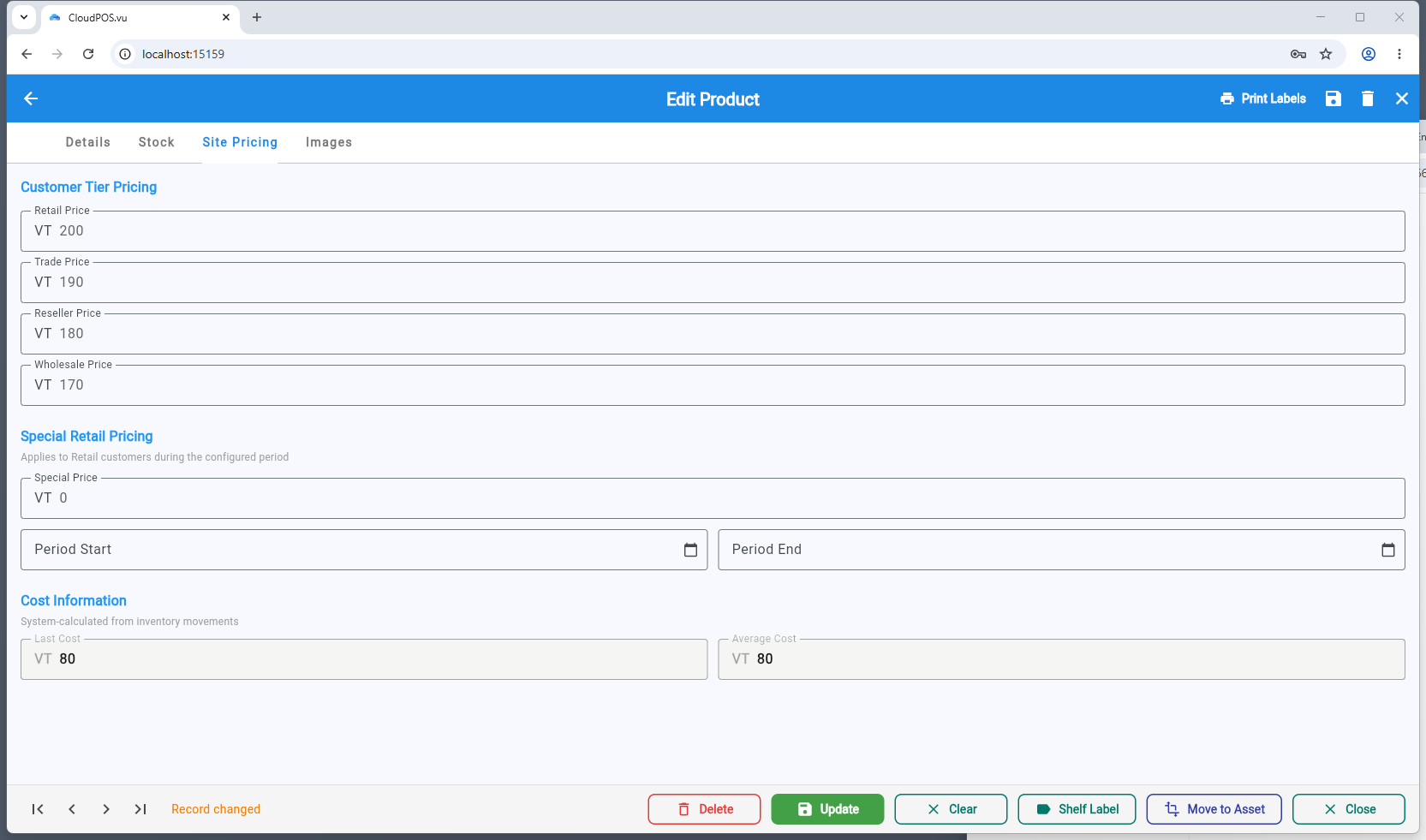
Site Pricing tab — Retail, Trade, Wholesale, Reseller, and Special pricing
Sell Price
The Sell Price is the default selling price used at POS. If Prices Inclusive Tax is enabled in Settings, this field shows "Sell Price (VAT incl.)" and the tax is included in the displayed price.
Pricing Levels
Each pricing level has a Price and a Quantity break:
🏪 Retail
Standard retail price and minimum quantity.
🏢 Trade
Trade price for business customers.
📦 Wholesale
Bulk/wholesale price.
🔄 Reseller
Price for resellers and distributors.
🏷️ Special
Promotional price with optional start and end date period.
Cost Information (Read-Only)
The system automatically calculates cost values from inventory movements:
- Last Cost — most recent purchase price (falls back to cost price if no purchases yet).
- Average Cost — weighted average of all purchases (falls back to cost price if no purchases yet).
💡
All amounts in Vanuatu Vatu (VT). Vanuatu currency has no decimals — all prices and amounts are whole numbers.
📦
Stock Management
The Stock tab manages inventory tracking for the product:
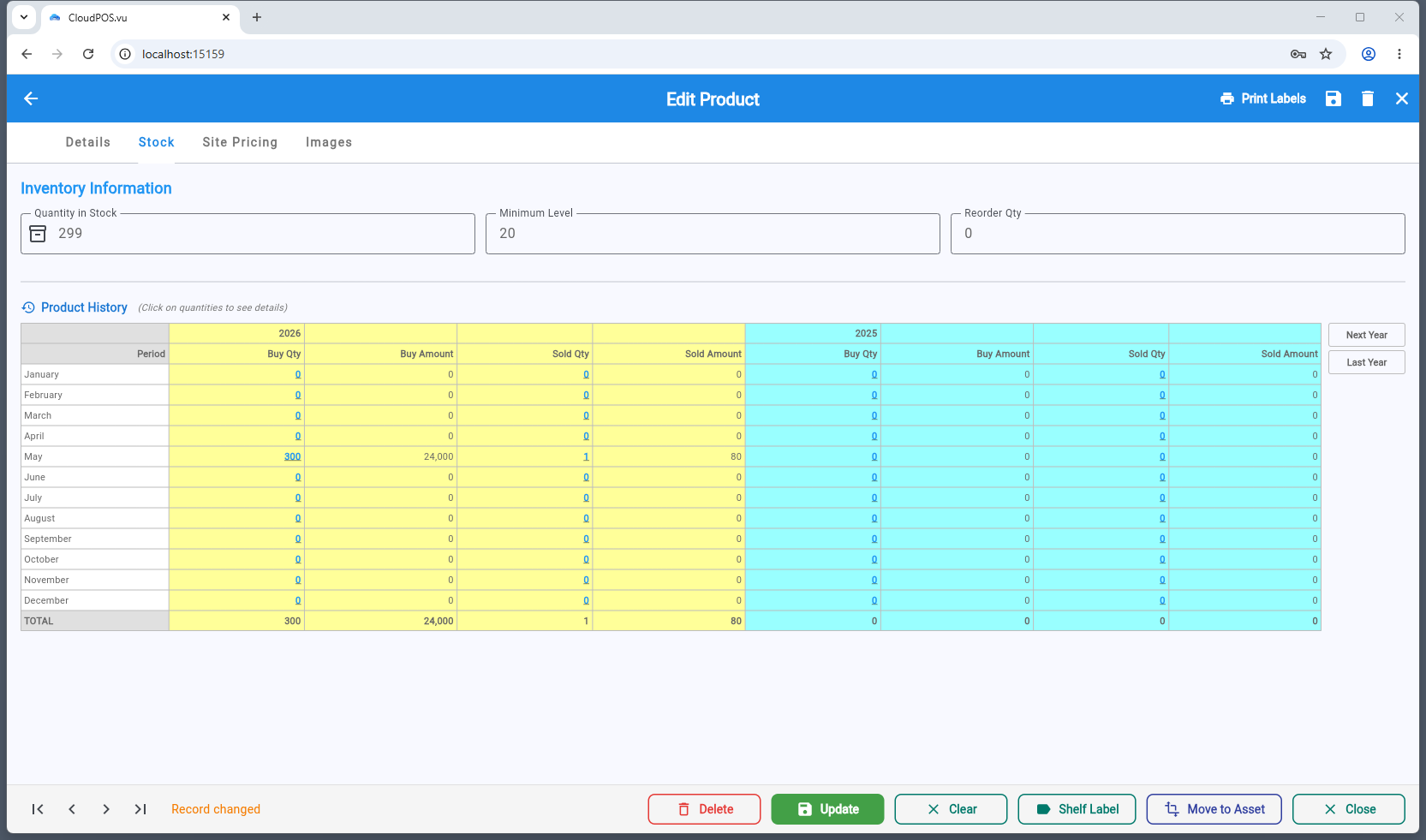
Stock tab — inventory fields and Product History table with current year (yellow) and previous year (cyan)
Inventory Fields
Quantity in Stock
Current stock level. Updated by sales, purchases, adjustments, and stock takes.
Minimum Level
Low stock alert threshold. When quantity falls below this level, the product is flagged in the Low Stock Report and included in Reorder Reports. Set to 0 to disable alerts.
Reorder Quantity
Suggested quantity to order when stock falls below the minimum level. Used in Reorder Reports to generate purchase suggestions for suppliers.
Units
Unit of measure (e.g. pcs, kg, box, case).
Bin Location
Warehouse or shelf location for easy picking.
User Prompt
A message displayed to the cashier when this product is scanned at POS (e.g. "Check ID for age-restricted item").
📋
Reorder Reports: Products where current stock ≤ minimum level appear in the reorder report with the suggested reorder quantity. This helps purchasing managers know what to order and how much.
Product History Table
Below the inventory fields, the Product History table shows a month-by-month breakdown of purchases and sales:
🟡 Current Year (yellow)
Buy Qty, Buy Amount, Sold Qty, Sold Amount per month for the current year.
🔵 Previous Year (cyan)
Same columns for the previous year — compare year-over-year performance.
🖱️ Clickable Quantities
Click any Buy Qty or Sold Qty to open a detail dialog showing the individual transactions (invoice number, customer/supplier, date, quantity, amount).
⬅️➡️ Year Navigation
Use Next Year / Last Year buttons to browse any year's history.
Costing Method
Configured in Settings → Stock, the costing method affects all products:
- Last Cost — uses the most recent purchase price as COGS.
- Average Cost — calculates a weighted average of all purchase costs. More accurate for volatile pricing.
Inventory Movements
Every stock change is tracked in the Inventory Movements screen (Stock → Inventory Movements). Movements are created by:
- Incoming: Purchases, import receipts, inventory adjustments (in), transfers in, opening balances
- Outgoing: Sales, inventory adjustments (out), transfers out, shrinkage
🏷️
Categories
Products are organized into a hierarchical category system managed from Stock → Categories. Categories support multiple levels (e.g. Food → Beverages → Soft Drinks).
Each category has:
Code
Hierarchical code (e.g. 01, 0101, 010101). Level is determined by code length.
Name
Category name (English, with optional French).
Parent Category
The category above this one in the hierarchy.
Description
Optional description for the category.
📥
Import / Export
Products can be bulk-imported or exported from Settings → Import / Export.
Exporting Products
-
Go to Settings → Import / Export → Export tab
Select "Products" as the data type to export.
-
Download the CSV file
The export includes all product fields. Can be used as a backup or as a template for importing.
Importing Products
-
Prepare your CSV file
Use column headers matching the system fields (Product Name, SKU, Barcode, Category, Tax, Cost Price, Sell Price, etc.).
-
Go to Settings → Import / Export → Import tab
Upload the CSV file.
-
Preview and validate
The import wizard shows a preview and validates data before committing.
-
Commit the import
Products are created in bulk. Import history is tracked with the option to undo.
⚠️
Transaction data import: You can also import transaction line items from CSV (article ID, price, quantity). Items are matched to the product catalog automatically.
🖼️
Images
Each product can have up to 5 images. Images are automatically compressed to a maximum of 200KB.
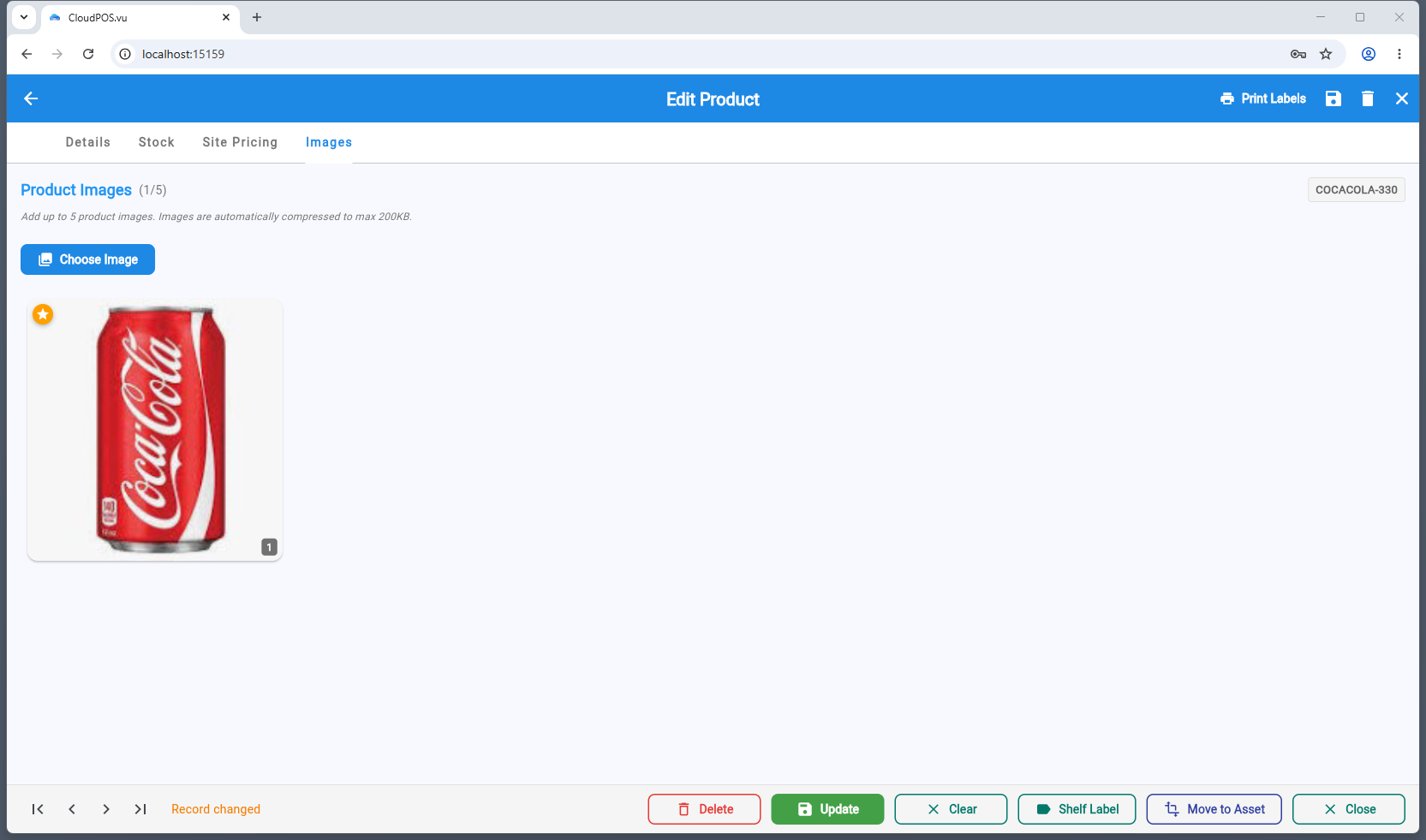
Images tab — product image with star badge indicating the primary image
Primary Image
The first image (index 0) is the primary image, marked with a ⭐ star badge. The primary image is used in:
- POS product buttons — displayed on the POS grid
- Cart items — shown next to the product name in the cart
- Product list — clickable image gallery icon (blue 🖼️)
Image Actions
Click any image to open a menu with:
⭐ Set as Primary
Moves the image to the first position (only available when there are multiple images). The previous primary becomes a regular image.
🔍 View Full Size
Opens the image in a full-size dialog.
🗑️ Delete
Removes the image from the product (only in edit mode).
⚙️
Product Settings & Flags
Each product has configurable settings organized in three groups: Behaviour, POS Prompts, and Tracking:
🏪 Visibility
Show in POS
Product appears in the POS quick-add buttons grid. Disable for products that should only be searchable, not visible as a button.
Show on Web
Product is available on the web store.
Inactive
Product is fully disabled — won't appear in search, POS, or web store. Use for seasonal or discontinued items.
⚙️ Behaviour
Whole Units Only
Blocks fractional quantities (e.g. 0.5). Only whole numbers allowed at POS. Automatically disabled for scale products.
Block Discount
Prevents any discount from being applied to this product at POS — protects margin on specific items.
✏️ POS Prompts
Ask Quantity
Prompts the cashier to enter or confirm the quantity when this product is selected at POS.
Ask Price
Prompts the cashier to enter or override the selling price when selected.
Ask Description
Prompts the cashier to edit the line item description when selected.
Custom Prompt
A custom message displayed to the cashier when the product is scanned (e.g. "Check ID for age-restricted item" or "Confirm weight with customer").
🔍 Tracking
Serial Numbers
Requires a serial number when selling. Used for high-value or warrantied items like electronics.
Expiry Date
Track expiry dates on inventory. Alerts when items are near or past expiration.
🖨️ Printing
On-order Printing
Routes this product to a specific printer when a sale is completed. After payment, the POS automatically sends a kitchen/order ticket to the assigned printer. Common uses:
- Kitchen printer — food orders are printed immediately so kitchen staff start preparing.
- Bar printer — drinks are routed to the bar printer.
If set to "No printing", no special order ticket is printed for this product (it still appears on the customer receipt as normal).
⚖️
Scale & Barcode Configuration
For products sold by weight (e.g. deli items, produce), CloudPOS.vu supports scale barcodes in EAN-13 format. Enable the Scale toggle on the Default Barcode field in the Details tab to configure.
Scale Barcode Format
EAN-13 scale barcode: [PP][IIIII][WWWWW][C]
- PP — 2-digit prefix (e.g. "20")
- IIIII — 5-digit item identifier (must match the product's SKU exactly)
- WWWWW — 5-digit value, meaning depends on barcode type:
- Price mode: the price in VT (e.g.
01500 = 1,500 VT). Maximum is 99,999 VT. If the total price exceeds this, use weight mode instead.
- Weight mode: the weight in grams (e.g.
00150 = 150 g = 0.15 kg). The POS converts grams → kg for the quantity. Maximum is 99,999 g (≈ 100 kg).
- C — Check digit
Scale Settings
When scale is enabled on the barcode field, a configuration section appears with:
Prefix
2-digit scale barcode prefix (e.g. "20"). Identifies this as a scale barcode to the POS.
Encodes (Barcode Type)
Price — the 5 digits represent the total price in VT (e.g. 01500 = 1,500 VT). The POS calculates quantity as: scanned price ÷ unit price. Max 99,999 VT.
Weight (g) — the 5 digits represent grams (e.g. 00150 = 150 g = 0.15 kg). The POS converts grams → kg for the quantity. Max 99,999 g (≈ 100 kg).
Unit Price per Kg
The price per kilogram used for weight-based calculations.
💡
How it works at POS: The cashier places the item on the scale, the scale prints a barcode, and the cashier scans it. CloudPOS.vu parses the embedded weight/price and calculates the line total automatically.